Personnel Groups: Showcase Permanent Staff and Team
Overview
Organisation personnel groups let you showcase the people behind your organisation on your public organisation page. At its simplest, personnel groups answer one question: Who are the permanent team members that customers should know about?
Who uses this: Organisation administrators with editing permissions.
Key capabilities:
- Create named groups for different teams (management, technical crew, volunteers)
- Add personnel with photos, names, and roles
- Reorder personnel within groups using drag and drop
- Display groups on your public organisation page
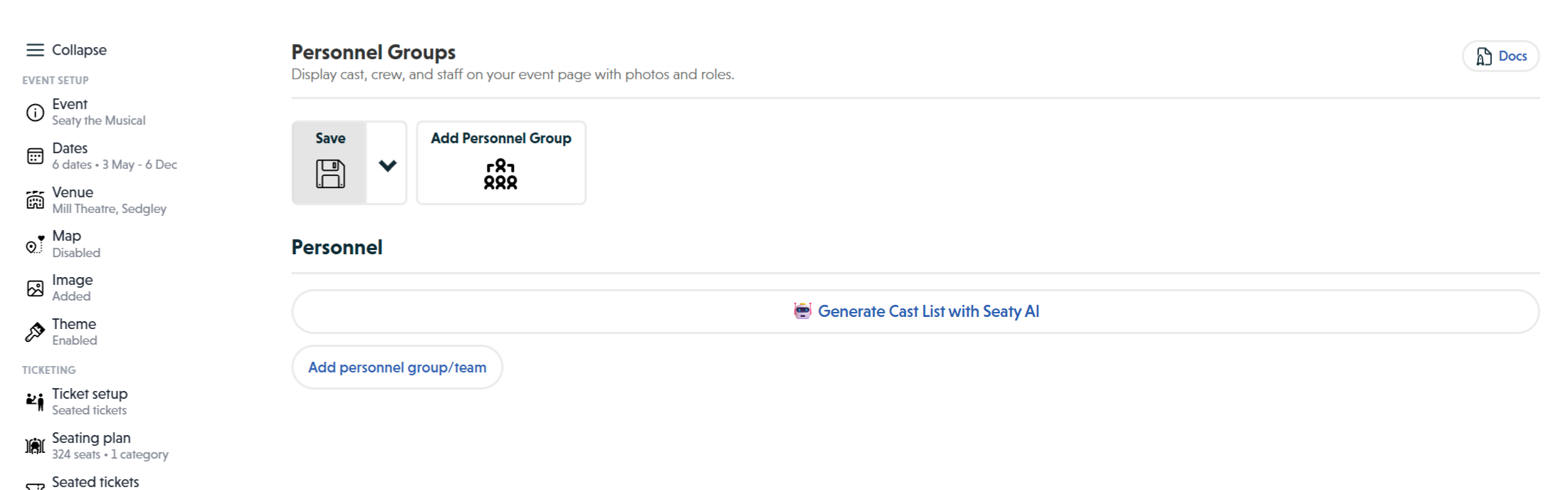 Personnel Groups section showing the Add Personnel Group toolbar and group management interface
Note: Organisation personnel appears on your organisation's landing page only. For event-specific cast and crew, use event personnel groups instead.
How It Works
At a glance: Create groups, add team members with photos, and your organisation page automatically displays them.
1. Create a personnel group
From the organisation editor, select Personnel in the left menu. Click Add personnel group/team to create a new group. Give it a name that reflects its purpose, such as "Venue Management" or "Technical Crew".
2. Add team members
Click Add Personnel within your group. Upload a photo (Seaty applies a circular crop automatically), then enter their name and role. Repeat for each team member.
3. Arrange the display order
Drag and drop personnel cards to change their order within the group. The order you set here is exactly how they appear on your public page.
4. Save and publish
Click Save in the top-right corner. Your personnel groups immediately appear on your organisation page.
Think of it this way:
- Organisation personnel = Your permanent team shown on your organisation page
- Event personnel = Cast and crew specific to one show, shown on that event's page
- Both are separate = Organisation personnel does not automatically appear on event pages
Organisation vs Event Personnel
Understanding when to use each type prevents duplication and keeps your pages focused.
Organisation-Level Personnel
Best for people who represent your organisation across multiple events:
- Venue management and leadership
- Permanent technical staff
- Box office and front of house teams
- Regular volunteer coordinators
- Artistic directors and founders
Event-Level Personnel
Best for people specific to a single production:
- Cast members in a theatrical show
- Guest speakers at a conference
- Band members for a concert
- Production designers for one event
Note: If someone works on both your organisation and specific events, add them at the organisation level for general visibility, and separately at the event level when they have a show-specific role.
Creating Personnel Groups
Adding a New Group
- Open your organisation in the editor
- Select Personnel from the left menu
- Click Add personnel group/team
- Enter a group name (e.g., "Core Team", "Technical Crew")
- Click Add Personnel to add team members
- For each person: upload photo, enter name, enter role
- Click Save
Suggested Group Structures
Theatre venue:
- Venue Management
- Front of House
- Technical Crew
- Volunteer Coordinators
Festival organisation:
- Festival Directors
- Production Team
- Site Management
- Volunteer Leadership
Community group:
- Trustees and Directors
- Programme Coordinators
- Volunteer Teams
How Personnel Appears on Your Page
Organisation personnel groups display on your public organisation page after:
- Organisation logo and description
- Box office contact details
- Personnel groups (in the order you created them)
- Upcoming events
Each group shows:
- Group name as a heading
- Personnel in a grid layout with circular photos
- Names and roles beneath each photo
Best Practices
Photo Guidelines
Consistency makes your organisation look professional:
- Use the same photo style across all personnel
- Aim for similar backgrounds and lighting
- High resolution photos work best (minimum 400x400 pixels)
- Seaty applies a circular crop, so centre faces in the frame
- Update photos when team members change significantly
Privacy and Consent
Before adding anyone to your personnel groups:
- Obtain their permission to display their photo and name publicly
- Keep consent records for GDPR compliance
- Remove personnel promptly when they leave or request removal
- Display job titles and roles only - avoid personal contact details
Keeping Personnel Current
Update your personnel groups when:
- New team members join
- Someone leaves the organisation
- Roles change
- Better photos become available
- Annual updates to keep images current
Why keep it updated? Outdated personnel information can confuse customers and undermine trust.
Common Questions
Display and Visibility
Where does organisation personnel appear? Organisation personnel groups display on your public organisation page only. They do not automatically appear on individual event pages.
How do I show team members on event pages? Create event-level personnel groups for each event where you want to display cast or crew. This gives you control over what appears on each event page.
Can I control the order personnel groups appear? Groups display in the order you created them. To change the order, you would need to delete and recreate groups in your preferred sequence.
Managing Personnel
How do I remove someone from a group? Open the personnel group, find the person, and click Delete on their card. Then click Save. The removal takes effect immediately.
Can I move someone between groups? There is no drag-and-drop between groups. Delete them from one group and add them to another.
What happens if I delete a personnel group? The group and all personnel within it are removed from your organisation page immediately. This cannot be undone - you would need to recreate it manually.
Organisation vs Event Personnel
When should I use organisation personnel? For permanent staff who represent your organisation across multiple events: venue managers, regular technical crew, volunteer coordinators, artistic directors.
When should I use event personnel? For people specific to one production: cast members, guest speakers, show-specific designers, one-off contractors.
Can I use both together? Yes, but they appear in different places. Organisation personnel shows on your organisation page. Event personnel shows on individual event pages. They are separate systems.
Practical Limits
How many groups should I create? Create as many as make sense for your structure. Small organisations typically use 1-3 groups. Larger organisations might use 5-8 groups organised by department.
Is there a limit to personnel per group? There is no strict limit, but consider what displays well on your page. Groups with 10-15 people display clearly. Very large groups may become unwieldy.
Next Steps
After setting up your organisation personnel:
- Review your organisation page - View it as a customer would to check photos, names, and roles display correctly
- Create event personnel for upcoming shows - Event Personnel Groups
- Complete your organisation profile - Organisation Details
Related Documentation
- Event Personnel Groups - Adding cast and crew to individual events
- Organisation Details - Organisation name, description, and contact details
- Organisation Image - Uploading your organisation logo
- Theme - Customising your organisation's branding
Need Help?
If you are having trouble with organisation personnel groups:
- Email: support@seaty.co.uk
- FAQ: Check our Organiser FAQ