Access Your Tickets: Confirmation Email and Apple Wallet
After purchasing tickets on Seaty, there are several convenient ways to access and view them.
At its simplest, this guide answers one question: How do I get to my tickets when I need them?
Who uses this: Anyone who has purchased tickets for an event.
Key capabilities:
- Access tickets instantly via your confirmation email
- View all your tickets in one place when signed in
- Add tickets to your phone's wallet for quick entry
- Print tickets as a backup
- Share tickets with others in your party
How It Works
At a glance: You receive a confirmation email with a link to your tickets, and can access them anytime through multiple methods.
1. Purchase confirmation
When you complete a ticket purchase, a confirmation email is sent immediately to the email address you provided. This email contains everything you need to access your tickets.
2. Choose your access method
You can view your tickets by clicking the link in your email, signing in to "My Tickets", using the mobile app, or adding tickets to your phone's wallet.
3. Arrive at the event
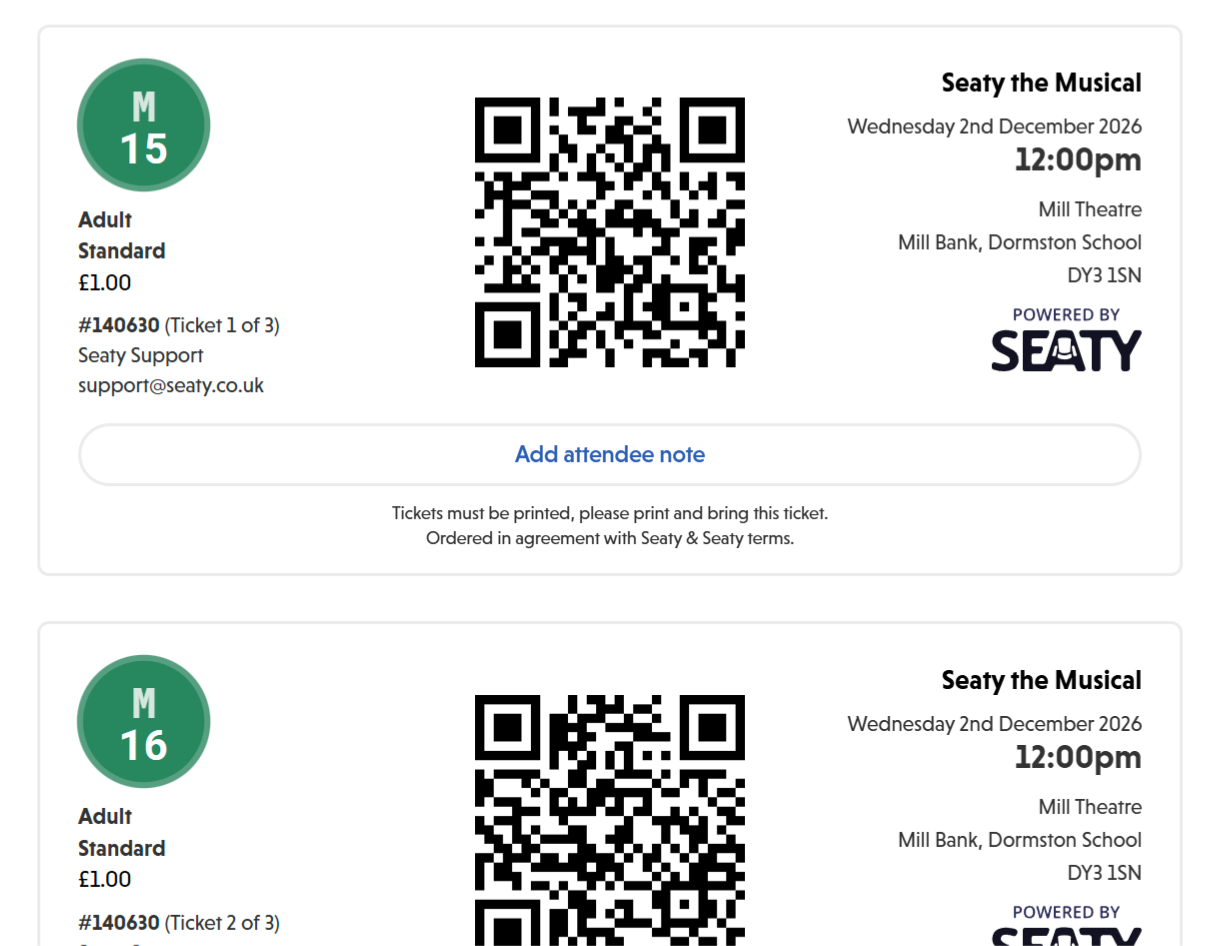 Individual tickets showing seat numbers, QR codes, event details, and venue information for each ticket in the order
Show your ticket on your phone screen or as a printed copy. The QR code on your ticket is scanned for entry.
Think of it this way:
- Email confirmation is your receipt and primary access point
- "My Tickets" is your personal dashboard for all your bookings
- Mobile wallet is your fastest option for entry at the venue
From Your Email Confirmation
This is the most common method - When you complete a purchase, you'll receive a confirmation email immediately.
What's in the confirmation email?
Subject line: Order confirmation with event details
Email contains:
- Order summary with ticket details
- Event date, time, and venue information
- Direct link to view your tickets - just click to access them instantly
- Order number for reference
- Payment confirmation
Using the email link
- Check your inbox - Confirmation arrives within minutes of purchase
- Look for "View tickets" or similar button in the email
- Click the link - Opens directly to your tickets
- No sign-in required (for direct ticket links)
Can't find the email?
- Check your spam or junk folder
- Search your inbox for "Seaty" or the event name
- Check the email address you used during checkout
- Contact the event organiser if you still can't locate it
Direct Ticket Links
Every ticket order has a unique, secure link that provides instant access.
How ticket links work
Key features:
- Unique to your order - Cannot be guessed or accessed by others
- Secure - The link is private and cannot be predicted
- Bookmarkable - Save the link in your browser for quick access
- Shareable - Send to others in your party if needed
- No expiry - Link remains valid permanently
Using direct links
From email: The confirmation email contains your ticket link
Accessing anytime: Simply click the link or paste it into any web browser to see your tickets
Mobile access: Works on phones, tablets, and computers
Note: Keep your ticket link private - anyone with the link can view your tickets
"My Tickets" When Signed In
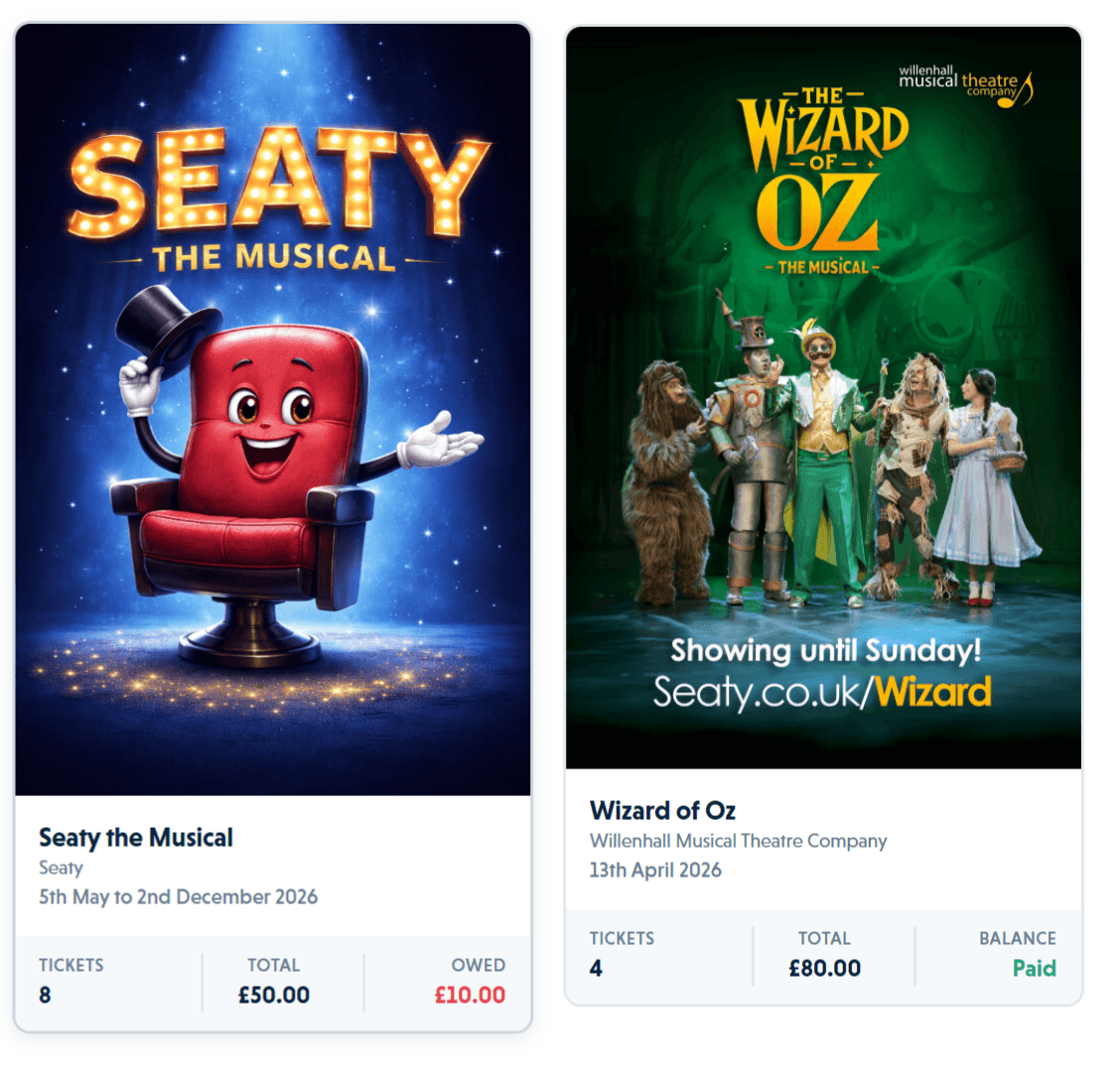 My Tickets page showing event cards with ticket counts, totals, and balance information for multiple events
If you create a Seaty account using the same email address you purchased tickets with, you can access all your tickets in one convenient location.
Setting up access to "My Tickets"
Option 1: Create account before purchasing
- Sign up at Seaty
- Purchase tickets while signed in
- Tickets automatically appear in your account
Option 2: Create account after purchasing
- Sign up using the same email address you used for ticket purchases
- Seaty automatically links your past purchases
- All tickets now accessible in "My Tickets"
Accessing "My Tickets"
From the website:
- Sign in to your Seaty account
- Click the user icon in the top-right corner
- Select "My Tickets" from the menu
- View all your tickets organised by event
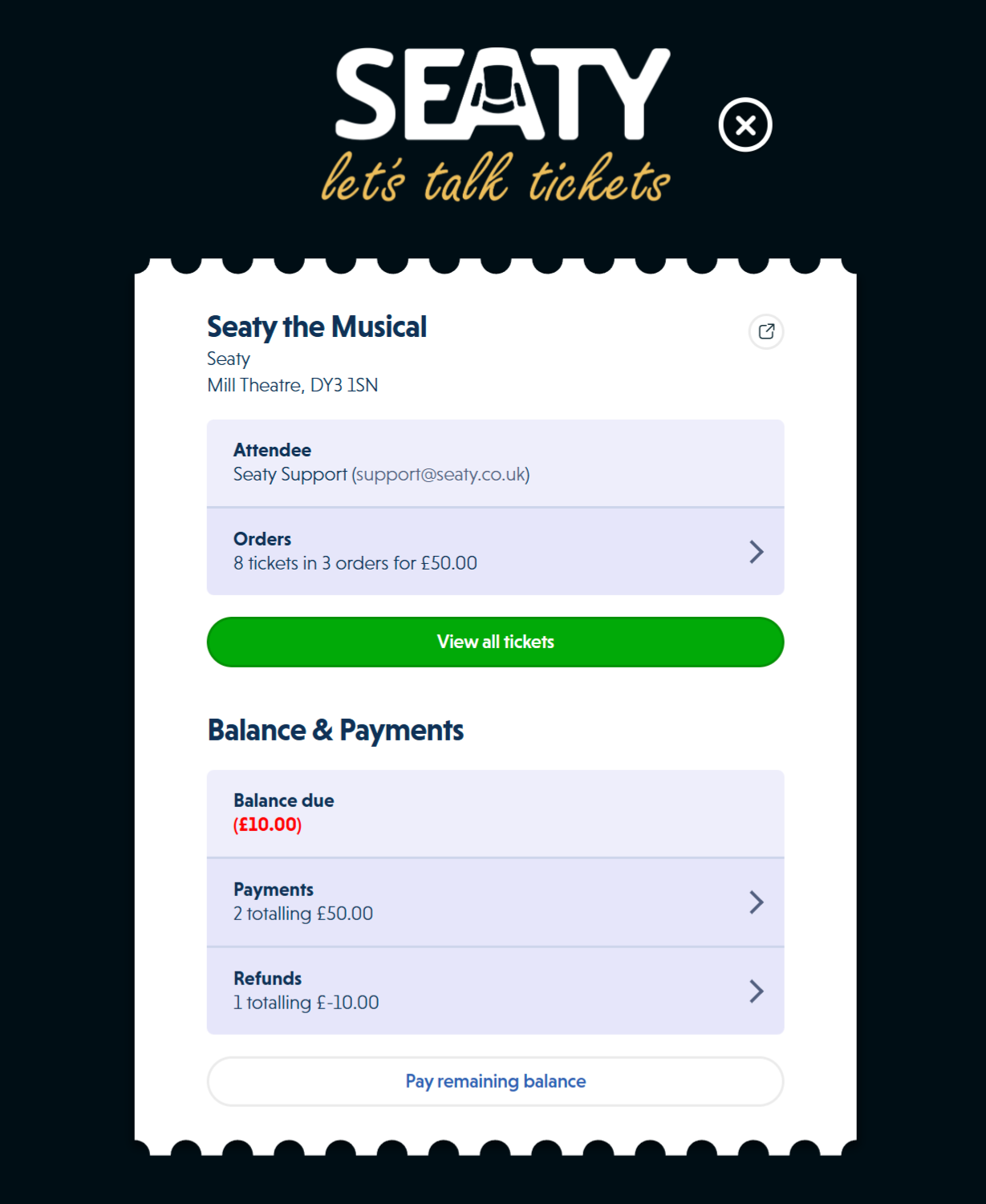 Event ticket summary showing attendee details, order count, ticket totals, balance and payment information
What you'll see:
- All current and upcoming event tickets
- Tickets organised by event and date
- Order details and seat assignments
- Quick access to QR codes for venue entry
- Past event history (if enabled)
Benefits:
- See all your tickets across multiple events
- No need to search through emails
- Easy management of multiple bookings
- Access from any device when signed in
- Add personal notes to your tickets
Print Page Access (For Event Staff)
Event organisers and authorised personnel can access bulk ticket printing for all attendees.
Requirements:
- Must be signed in as a Seaty user
- Must have appropriate permissions for the event
Use cases:
- Door lists for event staff
- Printing tickets for distribution
- Venue check-in preparation
- Event management and coordination
Note: This is not typically used by regular attendees - it's for event administrators and box office staff.
Mobile App Access
The Seaty mobile app (iOS and Android) provides convenient ticket access on your phone.
Using the mobile app
Requirements:
- Download Seaty app from App Store or Google Play
- Create an account or sign in
- Use the same email address as your ticket purchase
Accessing tickets in app:
- Open Seaty app
- Sign in to your account
- Navigate to "My Tickets"
- View tickets organised by event and date
- Tap to see QR codes for scanning at venue
Mobile advantages:
- Quick access at event doors
- QR codes optimised for phone screens
- Works offline once tickets are loaded
- Add tickets to Apple Wallet or Google Wallet (in mobile app)
- Notifications for upcoming events
See the mobile app customer features documentation for detailed mobile access information.
Apple Wallet Integration
For the fastest venue entry on Apple devices, add your tickets directly to your Apple Wallet.
Adding to Apple Wallet (iPhone/iPad)
From ticket page:
- Open your tickets via any method above
- Look for "Add to Apple Wallet" button (Apple devices only)
- Tap to generate wallet pass
- Passes automatically download
- Tickets appear in Apple Wallet app
Benefits:
- Tickets appear on lock screen when you arrive at venue
- No need to open Seaty app or browser
- Works even with low battery
- Faster than unlocking phone and finding tickets
Wallet limitations
Large orders: If you have more than 10 tickets in one order, a modal will appear asking you to select which tickets to add in batches
Apple devices only: The wallet button only appears on iPhone, iPad, and Mac devices. Android devices do not currently have wallet integration support.
Note: While the mobile app documentation mentions Google Wallet integration, the web ticket viewer only supports Apple Wallet at this time.
Printing Your Tickets
You can print physical copies of your tickets for traditional venue entry or as a backup.
How to print
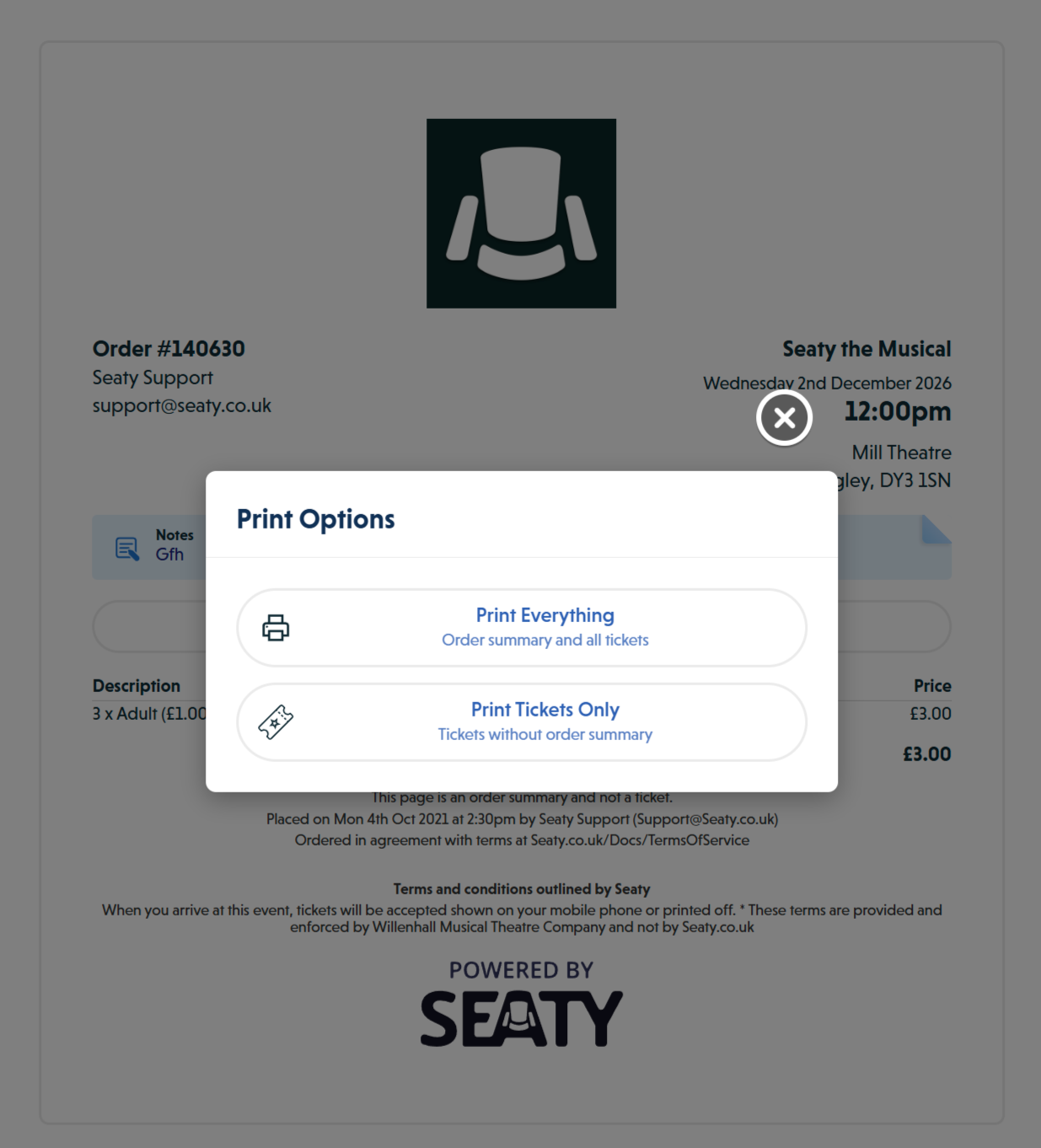 Print options modal showing two choices: Print Everything for order summary and all tickets, or Print Tickets Only without order summary
From ticket page:
- Access your tickets via any method above
- Look for "Print" button in the toolbar
- Choose printing options:
- Print Everything: Order summary and all tickets
- Print Tickets Only: Just the tickets without summary
What prints:
- Each ticket on separate page (optional)
- QR code for each ticket
- Seat assignments and details
- Event information
- Order reference number
Printing tips:
- Use colour printer for better QR code scanning
- Ensure QR codes print clearly (not faded)
- Print before event day to avoid last-minute issues
- Bring printed tickets as backup to digital access
Sharing Tickets With Others
If you've purchased tickets for friends or family, you may want to share access with them.
Sharing methods
Via email link: Forward the confirmation email with ticket link to recipients
Via direct URL: Copy the ticket URL and send to others via message, email, or text
Print and distribute: Print tickets and give physical copies to attendees
Mobile wallet: Each person can add their ticket to their own phone wallet from the shared link
Security considerations
Important: Anyone with access to the ticket link can view and potentially use the tickets. Only share with trusted individuals in your party.
Lost or stolen: If your ticket link is compromised, contact the event organiser immediately for assistance.
Transfers: Some events support official ticket transfers - check with the organiser for this option.
Offline Access
Once you've loaded your tickets, you can access them even without an internet connection.
Web browser offline access
Limited support: Most browsers cache recently viewed pages, allowing you to revisit ticket pages briefly without internet
Recommendation: Don't rely on browser caching - use mobile wallet for reliable offline access
Mobile app offline access
If using Seaty mobile app:
- Tickets are cached after initial load
- QR codes accessible offline
- Event details remain available
- Refresh when online to ensure latest information
Mobile wallet offline access
Best offline option:
- Apple Wallet and Google Wallet passes work completely offline
- QR codes stored directly on device
- No internet required at venue
- Most reliable method for events in areas with poor signal
Recommendation: Add tickets to mobile wallet before arriving at the venue to ensure offline access.
Authentication Requirements
Different access methods have different sign-in requirements:
No authentication required
Direct ticket URLs: Access tickets immediately via email link or bookmarked URL
Email confirmation links: Click and view - no sign-in needed
Authentication required
"My Tickets" section: Must sign in to your Seaty account
Print page access: Sign-in required for event staff and administrators
Mobile app: Account required to use app features
Query-based access (access by email/event): Must sign in or create account
Creating an account
If you see a message saying "You must be signed in as a Seaty user":
Options:
- Sign in if you already have an account using that email
- Create account using the same email address you used to purchase tickets
- Use direct ticket URL from confirmation email instead (no account needed)
See the for detailed sign-up instructions.
Multiple Access Methods
You're not limited to one method - use whichever is most convenient for your situation.
Recommended approach
Before event day:
- Save confirmation email with ticket link
- Bookmark ticket URL in browser
- Add tickets to mobile wallet (if available)
- Sign in to "My Tickets" to see all bookings
On event day:
- Use mobile wallet for fastest entry (lock screen access)
- Or use mobile app if wallet not available
- Or use saved ticket URL as backup
- Or show printed tickets if preferred by venue
Benefits of multiple methods:
- Redundancy if one method fails
- Choose fastest option for your device
- Backup access if phone battery dies
- Flexibility for different venues' preferences
Troubleshooting Access Issues
"Cannot find your tickets"
Possible causes:
- Using wrong email address
- Tickets not yet processed (wait a few minutes after purchase)
- Order cancelled or refunded
- Looking at wrong event or date
Solutions:
- Check confirmation email for correct ticket link
- Verify you're using the email address from purchase
- Contact event organiser with order number
- Check spam folder for confirmation email
"You must be signed in"
Why this happens: Some access methods (print pages, query-based lookups) require authentication for security
Solutions:
- Sign in with the email used for purchase
- Create an account if you don't have one
- Use the direct ticket URL from confirmation email instead (no sign-in needed)
Confirmation email never arrived
Solutions:
- Check spam/junk folder - most common issue
- Wait 10-15 minutes - email delivery can be delayed
- Search email for "Seaty" or event organiser name
- Check payment confirmation - if payment succeeded, email should arrive
- Contact organiser with:
- Order number (from payment confirmation)
- Email address used
- Payment details
- Event name and date
Ticket link not working
Possible causes:
- Incomplete URL (ensure entire link copied)
- Browser issues or cache problems
- Temporary server problems
Solutions:
- Copy the complete URL from email (entire link)
- Try different browser
- Clear browser cache and cookies
- Try mobile device instead of computer (or vice versa)
- Wait a few minutes and try again
QR code won't display
Solutions:
- Ensure internet connection active (for initial load)
- Refresh the page
- Try accessing tickets via different method
- Use mobile wallet pass as alternative
- Contact event organiser for manual check-in assistance
Security & Privacy
Keeping your tickets secure
Ticket URLs are private: Treat them like passwords - anyone with the link can access your tickets
Don't post publicly: Never share ticket links on social media or public forums
Share carefully: Only send ticket links to people in your party who need access
Report issues: If you suspect unauthorised access, contact the event organiser immediately
Data protection
Your ticket information is protected by:
- Private links that cannot be guessed
- Secure connections for all access
- Account sign-in for personal dashboards
- UK data protection law compliance
See our privacy policy for full details.
Common Questions
Email and Confirmation
What if I never received a confirmation email? Check your spam or junk folder first - this is the most common issue. If it's not there, wait 10-15 minutes as email delivery can sometimes be delayed. You can also search your inbox for "Seaty" or the event name. If you still can't find it, contact the event organiser with your payment confirmation details.
Can I use a different email address to access my tickets? The direct ticket link works regardless of email address - you just need the link itself. However, to see tickets in "My Tickets", you must sign in with the same email address used during purchase.
Accounts and Sign-in
Do I need an account to view my tickets? No. You can access your tickets directly via the link in your confirmation email without signing in. An account is only needed if you want to use the "My Tickets" dashboard.
What if I created an account with a different email? You can still use the direct ticket link from your confirmation email. Alternatively, create a new account with the email you used for purchase, and your tickets will appear automatically.
Sharing and Security
Is it safe to share my ticket link? Only share with people you trust who are attending the event with you. Anyone with the link can view the tickets. Never post ticket links publicly on social media.
What if someone else uses my ticket? QR codes are typically scanned once for entry. If you suspect misuse, contact the event organiser immediately - they can help verify entry and may be able to issue replacement tickets.
At the Event
What's the fastest way to get in? Add your tickets to Apple Wallet before arriving. This lets you show your QR code directly from your lock screen without unlocking your phone or opening an app.
What if my phone battery dies? Bring a printed copy as backup, or ensure someone else in your party has access to the tickets. You can also ask the venue staff - they may be able to look up your booking.
Do I need internet at the venue? Not if you've added tickets to your mobile wallet or loaded them in the app beforehand. Both work offline. Browser access requires an internet connection.
Related Documentation
For Attendees
- FAQ - Frequently asked questions
- - How to sign up
For Mobile App Users
- My Tickets (Mobile App) - Viewing tickets in mobile app
- Ticket Details (Mobile App) - QR codes and entry
- Digital Wallet Integration - Apple Wallet and Google Wallet setup (mobile app only)
Need Help?
If you're having trouble accessing your tickets:
Contact the event organiser: They can look up your order and help with access issues
Contact Seaty support: support@seaty.co.uk
Have ready:
- Your order number (from confirmation email or payment)
- Email address used for purchase
- Event name and date
- Description of the issue