Buying Event Tickets: Step-by-Step Booking Guide
Overview
This guide walks you through the complete ticket purchasing journey on Seaty, from finding an event to receiving your confirmation. Whether you're booking seats for a theatre show, general admission for a concert, or merchandise for an event, this guide covers everything you need to know.
At its simplest, buying a ticket answers one question: How do I secure my place at an event?
Who uses this: Attendees purchasing tickets for events on Seaty.
Key capabilities:
- Browse and select events by date
- Choose specific seats or general admission tickets
- Apply discount codes
- Complete secure payment
- Receive instant confirmation with QR codes for entry
How It Works
At a glance: Find your event, select your tickets, complete checkout, and receive your confirmation email with entry QR codes.
1. Access the event
Follow the booking link from the organiser to reach the event page. Private events require a password.
2. Choose your date and tickets
Select your preferred date (if multiple available), then pick your seats or ticket quantities.
3. Review and checkout
Check your selection, add any optional add-ons if offered, apply any discount codes, and enter your details.
4. Complete payment
Pay securely by card and receive instant confirmation.
5. Receive your tickets
Get a confirmation email with QR codes for entry, or access tickets through your Seaty account.
Think of it this way:
- The event page shows you what's available and when
- The booking toolbar tracks your selections and holds them temporarily
- Checkout collects your details and payment
- Confirmation gives you everything you need for entry
Before You Start
What You'll Need
Essential:
- The event's booking link (provided by the organiser)
- A valid email address
- Payment method (debit/credit card)
Optional:
- Discount code (if you have one)
- Account login details (if you already have a Seaty account)
- Private event password (if attending a private event)
Browser Requirements
Seaty works best on modern web browsers:
- Chrome, Firefox, Safari, or Edge
- Browser settings allowing interactive content
- Cookies enabled for your session
Note: While you can purchase on mobile browsers, the seating plan selection works best on tablets or desktop computers for precise seat picking.
Step 1: Accessing the Event
Finding the Booking Page
Event organisers typically provide booking links in:
- Email invitations
- Social media posts
- Their website
- Printed promotional materials
- SMS messages
The booking link will look like: seaty.co.uk/[event-tag] or seaty.co.uk/[event-tag]/Book/[date]/[time]
Private Events
Some events are private and require a password:
- When you visit the event page, you'll see a password entry form
- Enter the password provided by the organiser
- Click "Confirm" to access the event
- The password is stored in your browser for future visits
Note: Private events are typically for closed groups like school events, member-only performances, or corporate functions.
Understanding the Event Page
The event page uses a tabbed layout to organise information. The main tabs include:
- About - Event name, organiser, venue details, description, images, and branding
- Book - Date selection and ticket booking
- Venue - Venue information and location
- Schedule - Event schedule and timetable
- My Tickets - Your purchased tickets and order history (when signed in)
- Files - Downloadable resources from the organiser
- FAQ - Frequently asked questions about the event
- Help - Contact and support information
Not all tabs appear on every event - organisers configure which tabs are available.
Pricing Information:
- "Prices" button shows all available ticket categories and their costs
- Prices may vary by seat location for seated events
- Some events show automatic discounts (member prices, early bird offers)
Step 2: Choosing Your Date
Single Date Events
If the event has only one date:
- The date is pre-selected
- You'll see the date and time at the top of the page
- Skip directly to ticket selection
Multi-Date Events
For events with multiple performances:
- Navigate to the Book tab on the event page
- Available dates are shown in a list, grouped by month with daily rows and time slot buttons
- Select your preferred date and time
- The page updates to show availability for that date
- Previously selected tickets are cleared when changing dates
Date indicators:
- Green: Tickets available (up to 75% sold)
- Yellow: Selling well (75-90% sold)
- Red: Almost sold out (over 90% sold)
- Grey: Sold out, past event, or suspended
Tour Events
Tours span multiple venues/cities. Use the What's on tab on the tour page to browse all available dates:
- Each tour date shows separately with venue information
- You can book tickets for multiple tour dates in separate orders
- Each date may have different ticket types and pricing
Step 3: Selecting Your Tickets
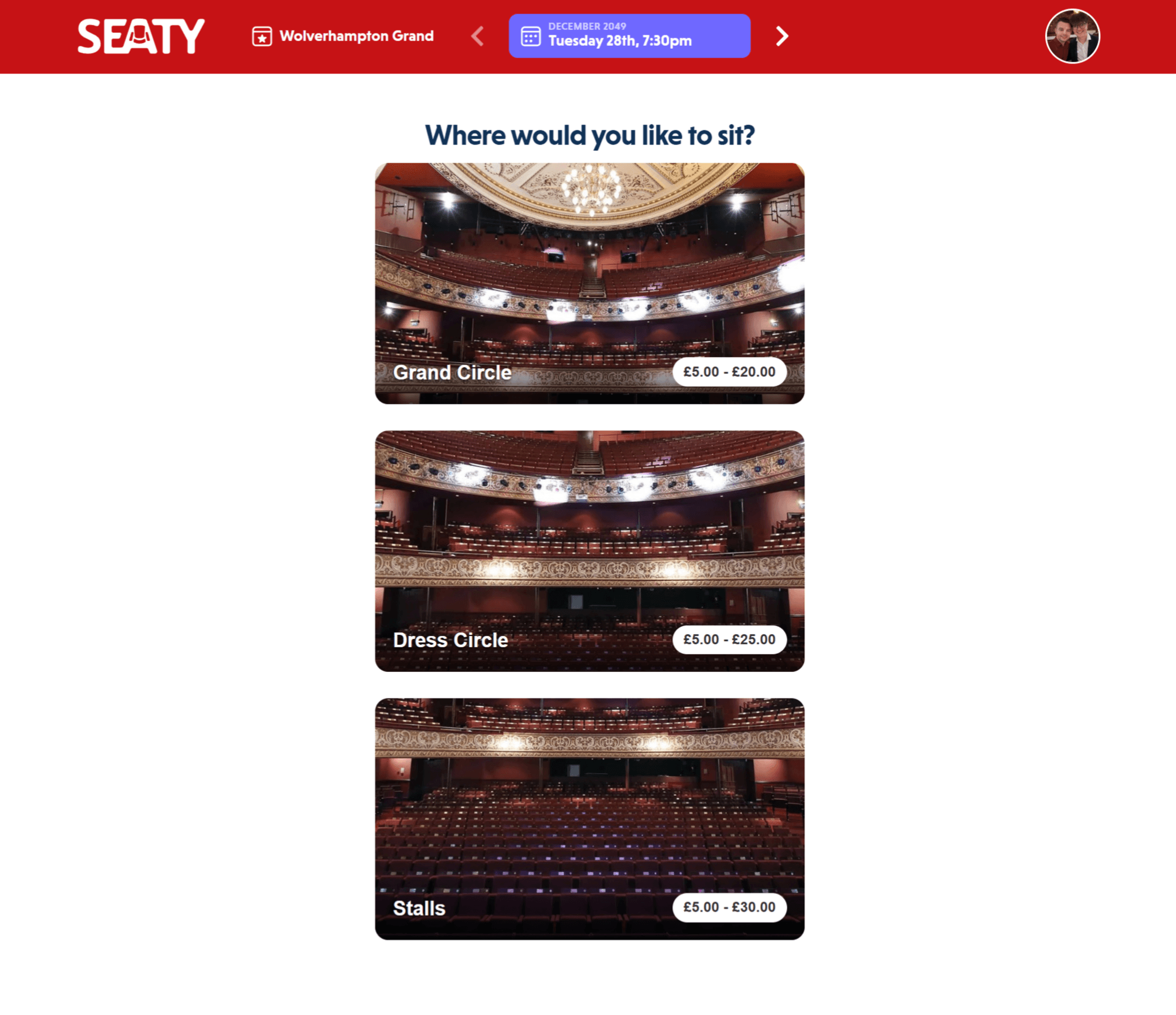 Ticket type selection showing Seated Tickets with price range and General Admission Tickets options
The ticket selection process varies by event type:
Seated Events (With Seating Plan)
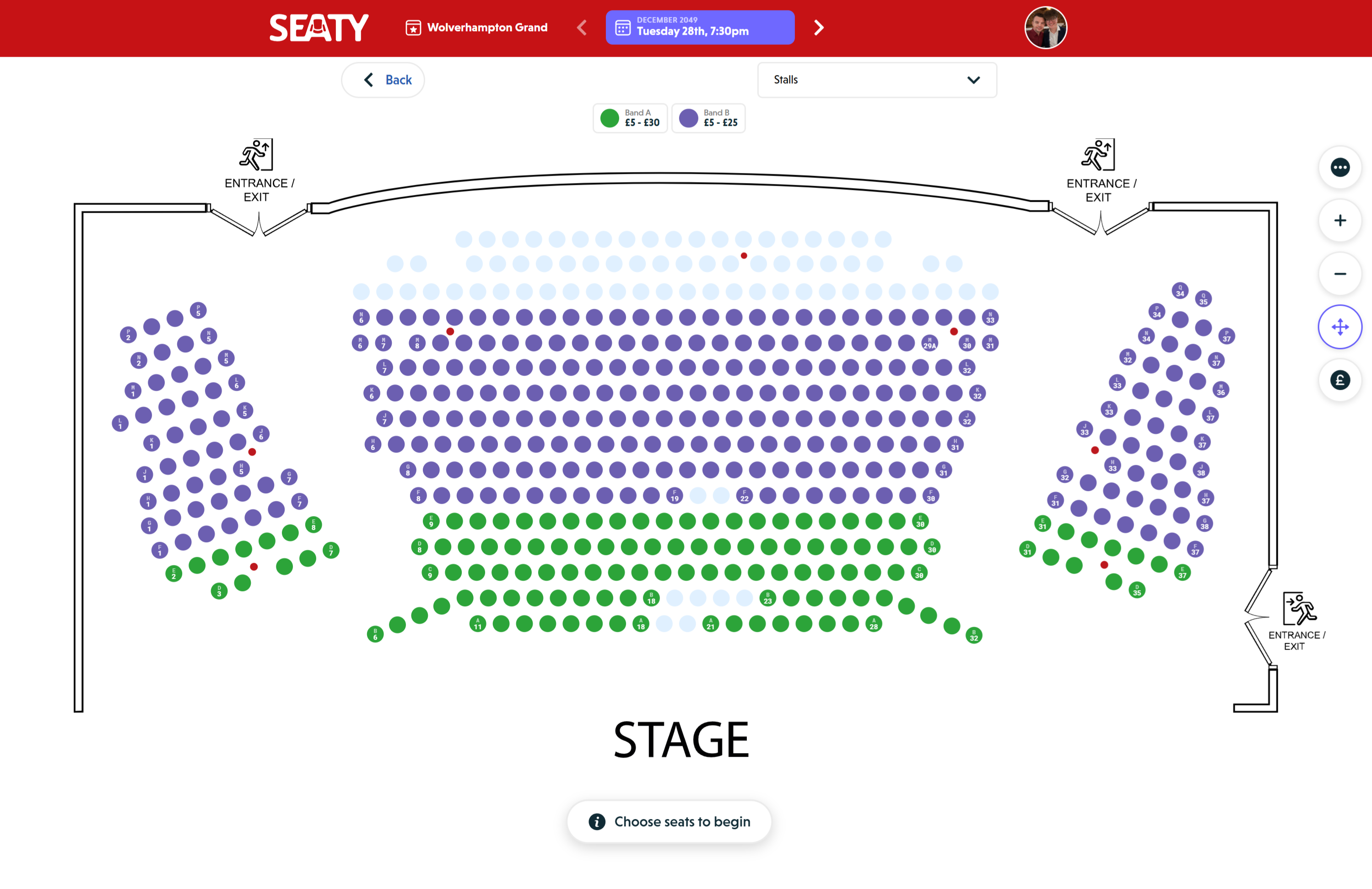 Interactive seating plan showing rows of seats with category colour coding, stage area, and zoom controls
Interactive Seating Plan:
- Pan and zoom the seating plan using mouse/touch gestures
- Different colours indicate different price categories
- Hover over seats to see category and price
- Click the "Prices" button to view all categories
Selecting Seats:
- Click on an available seat to select it (turns selected/highlighted)
- Click again to deselect
- Seats show their current status:
- Available: Can be selected (shown in category colour)
- Selected: Currently selected by you (highlighted)
- Locked: Temporarily held by another customer (grey)
- Purchased: Already sold (grey)
- Requested: Pending approval (grey)
Live updates:
The seating plan updates by itself while you choose, without reloading the page. As other people book, their seats turn grey in front of you, and if a seat you had selected is taken first, it is removed from your selection and flagged so you can pick another. You are always looking at current availability.
Seat Information:
- Seat number (e.g., "A12", "Row F Seat 23")
- Price category name
- Price (including any per-ticket fees)
- Any restrictions or notes
Visual Indicators:
- Pillars: Marked on seating plans to indicate obstructed views
- Sections: Named areas of the venue (e.g., "Stalls", "Circle", "Balcony")
- Aisles: Show venue layout for navigation
Selecting Multiple Seats:
Customers must select seats individually by clicking each seat. Administrators have access to drag-select functionality to choose multiple seats at once for efficiency.
General Admission Events (No Assigned Seats)
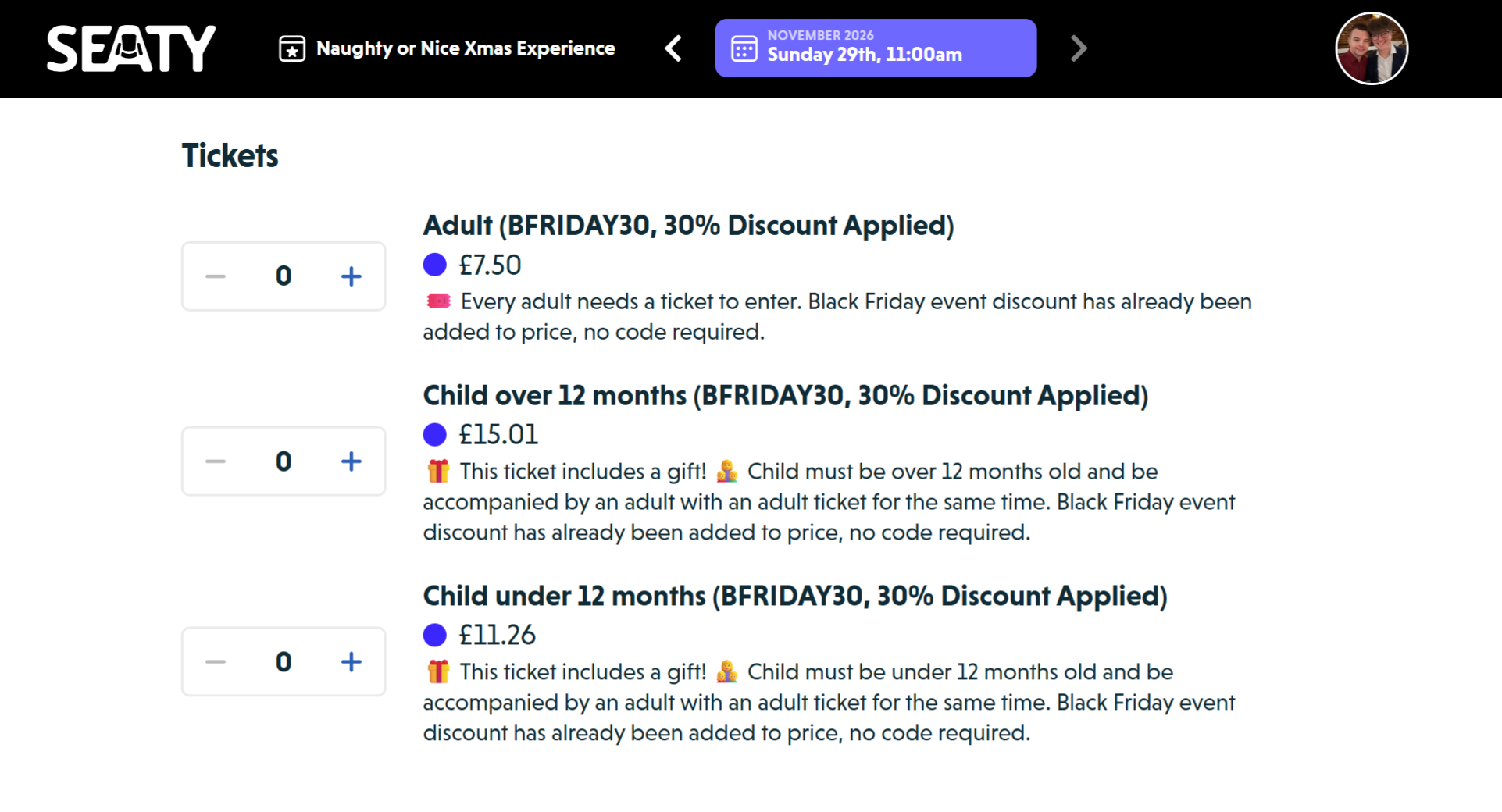 General admission ticket category selection
Ticket Categories:
Events without seating plans show ticket categories:
- Browse available ticket types (Adult, Child, Student, etc.)
- Each category shows:
- Name and description
- Price
- Number of people included (if applicable)
- Any restrictions
- Available quantity
Selecting Quantities:
- Use the quantity selector (+ and - buttons or dropdown)
- Maximum 30 tickets per category for customers
- Some categories may have lower limits set by the organiser
- Remaining availability updates live as other people book, without reloading the page
Why the 30-ticket limit? This prevents bulk purchasing that could disadvantage other attendees and helps organisers manage availability fairly.
Grouped Tickets:
Some events group related ticket types:
- Family tickets (e.g., "2 Adults + 2 Children")
- Group packages
- Multiple ticket types within one category
The system automatically calculates capacity based on the number of people each ticket admits.
Sold Out Indicators:
- Categories show as "Sold Out" when fully booked
- You cannot add sold-out tickets to your basket
- Check other dates if available
Merchandise and Extras
Some events offer additional items:
Programme Books:
- Physical programmes
- Digital programmes
- Souvenir items
Food and Drink:
- Pre-order interval refreshments
- Meal packages
- Bar vouchers
Parking:
- Car park spaces
- Accessible parking
- VIP parking
How to Add Extras:
- Scroll down to the "Merchandise" or "Extras" section
- Select quantities using + and - buttons
- Extras are added to your basket alongside tickets
- You can add extras before or after selecting seats/tickets
Note: Some organisers offer extras during checkout. If prompted, you can add merchandise to your order before finalising payment.
Minimum Quantity Requirements
Some ticket categories have minimum purchase requirements:
Indicators:
- Text showing "Minimum X required per order" on the order page
- Validation message if you try to checkout without meeting minimums
Common Use Cases:
- Car park tickets (often minimum 1 required if purchasing tickets)
- Group packages (minimum group size)
- Special entry requirements
What Happens:
- Customers: You'll see an error message listing which categories need more quantity
- Admins: You'll see a warning but can override with confirmation
Optional Add-ons
After you've picked your main tickets and clicked Order, a second step may appear before checkout: an Optional Add-ons dialog. This is where the organiser can offer extras that go alongside your main tickets. Common examples are an Accessibility ticket or a Car Parking space.
Note: Not every event uses add-ons. If the organiser hasn't set any up, this step is skipped entirely and you'll go straight to checkout.
What add-ons are
Add-ons are extra items, sometimes free, sometimes paid, that attach to the tickets you've already chosen. They're shown separately from the main ticket list because they only make sense when paired with a paid ticket. For example, an Accessibility add-on is meant for someone who is already attending the event with a standard ticket, and a Car Parking add-on is for someone who needs a space for the day.
How the dialog works
When the add-ons step appears:
- You'll see each available add-on with its name, a short description, and the price (or "Free" if there's no charge)
- Use the + and − buttons to choose how many you'd like
- Click Continue to carry on to checkout. This works whether you've added any add-ons or left them all at zero
- Add-ons are entirely optional; there's nothing extra to do if you don't want any, just Continue
- If you close the dialog to go back and change your tickets, it will appear again the next time you click Order, so you won't miss the chance to add an extra
Why some add-ons have a cap
Each add-on can be limited to a certain number per eligible main ticket. For example, an organiser might allow one Accessibility ticket per Adult ticket in your basket. If you have two Adult tickets, you can add up to two Accessibility tickets; if you only have one Adult ticket, the cap is one.
Why the cap? Add-ons like Accessibility are intended to support an attendee who is already coming to the event. Tying the limit to your main tickets keeps things fair and stops add-ons being claimed on their own.
If you try to add more than the cap allows, the dialog will stop you: the + button won't let you go past the limit. If you go back and remove main tickets, the cap on your add-ons reduces too. Should an add-on end up over the new cap, checkout will let you know so you can adjust it before paying.
Note: Add-ons don't appear in the main ticket list on the first step, only after you click Order. This is intentional, so add-ons stay paired with real tickets.
Step 4: Reviewing Your Basket
The Booking Toolbar
At the bottom of the page, you'll see your current selection:
Information Displayed:
- Number of tickets/items selected
- Total price (including all fees)
- Any active discount information
Note: Your seat/ticket selection is temporarily locked to prevent others from booking them while you complete your order. A countdown timer appears during checkout showing how long your selection is held.
Modifying Your Selection
Before Checkout:
- Click seats again to deselect them
- Change ticket quantities using +/- buttons
- Remove all items by clicking "Clear" (if available)
- Switch dates to start fresh
Note: Once you click "Order Tickets" or "Checkout", you enter the checkout process and must complete or cancel the order to change your selection.
Step 5: Checkout Process
Starting Checkout
- Review your selection in the booking toolbar
- Ensure the total price matches your expectation
- Click "Order Tickets" or "Checkout" button
- The checkout modal/window opens
Ticket Summary
The checkout shows your complete order:
For Each Ticket:
- Seat number (if seated)
- Category name
- Price per ticket
- Any per-ticket fees
- Subtotal for this ticket type
For Merchandise:
- Item name and quantity
- Price per item
- Subtotal
Order Totals:
- Subtotal (before discounts and fees)
- Discount (if applied)
- Booking fees (if applicable)
- Enhanced Refund Service (if selected)
- Donation (if added)
- Total amount
Applying Discount Codes
If you have a discount code:
- Click "Enter discount code" button
- Type or paste your code (case-insensitive)
- Click "Apply"
- If valid, you'll see a success message and updated total
- If invalid, you'll see an error message
Discount Types:
Automatic Discounts:
- Applied automatically if you qualify (member prices, early bird, etc.)
- Show as "(Automatic)" in the discount name
- No code needed
Code-Based Discounts:
- Require you to enter a specific code
- Show the code in the discount name once applied
- Can be removed by clicking "Clear discount code"
Single-Use Codes:
- Valid for one order only
- May be tied to specific ticket categories
- Expires once used or after a time limit
Discount Validation:
- "Discount not valid for this order" means your tickets don't qualify
- "No valid discount code found" means the code doesn't exist or has expired
- Discounts may apply to specific ticket categories only
Payment Method Selection
Choose how you want to pay:
Card Payment (Stripe):
- Most common option
- Secure payment via Stripe
- Supports UK debit/credit cards
- Includes additional card processing fees (if applicable)
- Instant confirmation
Request Tickets (if the organiser allows requests and you are signed in):
- Reserve tickets without paying up front
- The organiser approves the request, then contacts you to arrange payment
Cash, cheque and bank transfer are box office methods an administrator uses when recording an order for you in person. They are not shown when you book online yourself.
Handling Fees:
Events may charge handling fees for online card payments:
- Fixed fee per order (e.g., £1.50)
- Percentage of order total (e.g., 2.5%)
- Both fixed + percentage
- Shown clearly before payment
Why handling fees? These help cover payment processing costs and are set by the event organiser to keep base ticket prices lower.
Enhanced Refund Service
Some events offer an optional refund protection service:
What It Covers:
- Illness or injury preventing attendance
- Family emergencies
- Transport disruptions
- Other valid reasons for non-attendance
How It Works:
- Select "Add Enhanced Refund Service" during checkout
- Additional fee is added to your order (typically 10-15% of ticket price)
- If you can't attend, submit a refund request with documentation
- Get a full refund if claim is approved
Note: Terms and conditions apply. Read the refund service policy before purchasing.
Optional Donation
Support the organiser by adding a donation:
- Select a suggested amount or enter a custom amount
- Donation is added to your order total
- Fully optional and can be skipped
- Goes directly to the event organiser
Admission Gift Aid (some charity events)
Some charity events offer a "with donation" version of admission tickets. This is for charities that charge to view property or grounds they look after.
- The "with donation" ticket costs a little more than the standard ticket (at least 10% more)
- You are asked once whether you are a UK taxpayer
- If you are, you complete a short Gift Aid declaration (your name and address)
- The charity can then reclaim 25% of your whole payment from HMRC, which costs you nothing further
- You can still choose the standard ticket instead, and you can mix the two in one order
The higher price is a real cost to you. The "no extra cost" part is the 25% the charity claims back from the taxman, not the ticket price.
Attendee Details
Your Information:
If you are booking as a guest, you provide:
- Full name
- Email address (for ticket delivery)
If Signed In:
- Your name and email are taken automatically from your account
- No details fields are shown, so there is nothing to fill in for a standard order
Custom Questions:
Some organisers ask additional questions:
- Dietary requirements
- Accessibility needs
- T-shirt sizes
- Age confirmation
- Emergency contact information
Question Types:
- Text fields (open answers)
- Dropdowns (select from options)
- Required questions are labelled "Required"; optional ones are not
- Per-order questions (asked once)
- Per-ticket questions (asked for each ticket)
Note: Answer every question labelled "Required" before you can complete your order.
Order Notes
There is no notes field during checkout. If you want to leave a note for the organiser (a special request, an access requirement, or a reference), add one from your order page after you have booked.
Note: A note is not guaranteed to be seen before the event. For urgent matters, contact the organiser directly.
Terms and Conditions
Before completing your order:
- Review the order summary carefully
- Check the timer - ensure you have time to complete payment
- Read the terms and conditions (if shown)
- Understand the refund/cancellation policy
Note: By completing your purchase, you agree to:
- The organiser's event terms
- Seaty's Terms of Service
- Seaty's Privacy Policy
- Any specific conditions for this event
Step 6: Payment
Card Payment with Stripe
Entering Card Details:
- Card number (16 digits)
- Expiry date (MM/YY)
- CVC security code (3 digits on back, 4 on front for Amex)
- Billing postcode
Secure Payment:
- All payment data encrypted
- Payment processing is fully secure and compliant with banking regulations
- Seaty never stores your full card details
- Your bank may require additional verification for certain transactions
Bank Verification:
Modern card security regulations may require additional verification:
- After entering card details, your bank may show a verification screen
- Approve the payment using your bank's app, SMS code, or biometrics
- Complete verification within the time limit
- You'll return to Seaty automatically after approval
Why is this needed? This security measure helps protect against fraud and is required by UK and European payment regulations.
Payment Processing:
- "Processing payment..." message shows while payment is being verified
- Do not close the browser window or click back
- This typically takes 10-30 seconds
- If it takes longer, payment may require additional verification
Payment Errors
Common payment issues:
Card Declined:
- Contact your bank - they've rejected the payment
- Try a different card
- Check your card has sufficient funds/credit
- Ensure card details are correct
Bank Verification Failed:
- Verification was not completed in time
- Try again with your verification method ready
- Ensure your bank has your current contact details
Payment Timeout:
- The session expired during payment
- Your tickets are released back to availability
- Start the booking process again
Technical Error:
- Refresh the page and try again
- If funds were taken, wait 10 minutes for confirmation email
- If no email, payment was not completed - funds will be returned
- Contact support if concerned
Step 7: Order Confirmation
Successful Purchase
After payment is approved:
Confirmation Screen:
- Success message appears
- Order number/reference shown
- Summary of your tickets
- Next steps information
Confirmation Email:
Within minutes, you'll receive an email containing:
- Order confirmation and reference number
- Event details (name, date, venue)
- Ticket details (seats/categories)
- QR codes for entry (attached as PDF or in email)
- Calendar event attachment
- Organiser contact information
- Terms and conditions
Note: Save this email or add tickets to your mobile wallet for event entry.
Accessing Your Tickets
Web Dashboard:
- Sign in to seaty.co.uk with your email
- Click on the event
- View your tickets and QR codes
- Download ticket PDFs
Mobile App:
- Download the Seaty app (iOS/Android)
- Sign in with the same email used for purchase
- Your tickets appear automatically
- Add to Apple Wallet or Google Wallet
Order Reference
Your order reference number (e.g., "ORD-12345" or "ABC123"):
- Used to identify your booking
- Needed for any queries or changes
- Quote when contacting the organiser
- Keep this safe for your records
Understanding Your Order
What You've Purchased
Tickets:
- Each ticket admits one person (unless stated otherwise)
- Seated tickets: Your specific seat is reserved
- General admission: Entry at the specified date/time
- Your name/email is linked to these tickets
Merchandise:
- Items are reserved for collection at the event
- Or posted to you (depending on organiser setup)
- Quantities confirmed in your order confirmation
Ticket Validity
Important Terms:
Non-transferable:
- Many tickets cannot be transferred to another person
- Check organiser's policy in confirmation email
Date-specific:
- Tickets are only valid for the specific date/time shown
- Cannot be used for different performances
Refund policy:
- Most events have limited or no refund options
- Enhanced Refund Service may provide protection
- Check the specific event's policy
Entry requirements:
- May need to show ID matching the ticket name
- Print or digital tickets accepted (check with organiser)
- Age restrictions may apply
Multiple Orders
You can make multiple separate orders:
- For different dates of the same event
- For different ticket types
- If you want to add more tickets later
Note: You cannot combine orders. Each order is a separate transaction.
Special Ticket Types
Accessible Seating
Tickets with accessibility requirements:
- Usually bookable via phone/email rather than online
- Contact the organiser directly for accessible seating
- Mention specific requirements (wheelchair space, companion seat, etc.)
- Venues typically hold accessible seats offline for proper allocation
Complimentary Tickets
Free tickets provided by the organiser:
- May use special discount codes (100% off)
- Or organised directly by the event team
- Still require "checkout" but with £0 payment
Member Tickets
If you're an organisation member:
- Member prices show automatically when signed in
- Or use a member discount code
- May need to verify membership before accessing discounted prices
Troubleshooting Common Issues
Seats/Tickets Not Available
Solutions:
- The page updates availability automatically as others book; reloading it forces an immediate re-check
- Try a different date if available
- Check if your timer expired (seats were released)
- Try different seat locations
- Consider general admission if seated tickets are sold out
Timer Running Out
Prevention:
- Have payment details ready before starting checkout
- Don't leave the booking page inactive for long periods
- Complete the checkout process quickly
If timer expires:
- Your seats/tickets are released automatically
- Start the selection process again
- Seats may still be available or others may have taken them
Discount Code Not Working
Check:
- Code is spelled correctly (try copy-paste)
- Code hasn't expired
- Code applies to the specific tickets you've selected
- Code has available uses remaining
- Code is valid for this event date
Still not working?
- Contact the person who provided the code
- They may need to adjust the code settings
- Try proceeding without the discount if urgent
Payment Not Processing
Steps:
- Wait 60 seconds - may be processing
- Check for SCA authentication popups (could be blocked by browser)
- Try a different browser/device
- Ensure cookies are enabled in your browser
- Disable browser extensions temporarily
- Try a different payment card
Note: If payment fails, check your bank account before trying again to ensure you weren't charged.
Can't Find Confirmation Email
Solutions:
- Check your spam/junk folder
- Check the email address you entered was correct
- Wait 10 minutes - emails can be delayed
- Sign in to seaty.co.uk to view order in your account
- Contact support@seaty.co.uk with your order reference or name/date
Selected Wrong Date
Options:
- Contact organiser immediately - they may be able to swap you to another date
- Check the refund/exchange policy
- Some events allow ticket swaps before the event date
- May need to repurchase correct date (refund not guaranteed)
Note: Once payment is complete, changes are at the organiser's discretion.
After Your Purchase
Before the Event
Preparation:
- Add event to your calendar (attachment in confirmation email)
- Download the Seaty app and add tickets to mobile wallet
- Review venue location and plan journey
- Check for any event-specific instructions in confirmation email
- Note what to bring (ID, printed tickets if required)
Check For Updates:
- Organisers may send update emails about the event
- Changes to timing, venue access, or special instructions
- Check your email a few days before the event
Managing Your Order
Changes:
- Contact the organiser for any changes (not Seaty support)
- Their contact details are in your confirmation email
- Changes are subject to organiser policy and availability
Refunds:
- Follow the organiser's refund policy (in confirmation email)
- Submit refund requests through the organiser's process
- Enhanced Refund Service claims (if purchased) have separate process
- Refunds are not guaranteed unless specifically stated
Transfers:
- Check if tickets are transferable (usually stated in confirmation)
- Some events allow name changes before the event
- Contact organiser to arrange transfers
- Unofficial transfers may result in entry denial
Event Day
What to Bring:
- Confirmation email (printed or on phone)
- Or tickets in mobile wallet (Apple Wallet/Google Wallet)
- Photo ID (if event requires age verification)
- Any accessibility documentation if needed
At the Venue:
- Have your QR code ready
- Staff will scan your ticket at entry
- Your ticket is marked as "scanned" (cannot be used again)
- Keep your ticket/phone handy for any re-entry checks
QR Code Issues:
- Increase phone screen brightness
- Staff can manually enter ticket reference if QR won't scan
- Ensure you're showing the correct ticket (if you have multiple)
Common Questions
Account and Purchasing
Can I purchase tickets without creating an account? Yes, you can checkout as a guest by simply providing your email address. Your order is linked to your email. You can optionally create an account for easier management of multiple orders, but it's not required to complete a purchase.
Can I buy tickets for someone else? Yes, but enter their email address during checkout so they receive the tickets. Check if the event allows name transfers in case of issues.
Can I book multiple dates in one order? No, each date requires a separate order. Make multiple bookings if attending multiple performances.
Payment and Confirmation
How do I know my payment was successful? You'll see a confirmation page immediately after payment, and receive a confirmation email within minutes. If you don't see these, your payment likely failed.
What happens if my payment is declined? Your seats/tickets are held for a short time (usually a few minutes) allowing you to fix the issue and try again. After this grace period, they're released back to availability.
How long are my seats held? Typically 10 minutes from when you first select them. A timer shows how long you have to complete checkout before they're released.
Add-ons
What is the Optional Add-ons step? It's a second screen that appears after you click Order, offering extras like an Accessibility ticket or Car Parking. It only shows up if the organiser has set add-ons for the event, and you can skip it if you don't need anything.
Why can't I add as many Accessibility tickets as I want? Add-ons are capped based on the main tickets in your basket, for example, one Accessibility ticket per Adult ticket. The cap is shown on the dialog, and the + button stops you going past it. Add more main tickets if you need more.
Can I add an add-on without buying a main ticket? No. Add-ons are only available alongside a paid main ticket, which is why they appear on a separate step rather than in the main ticket list.
I closed the add-ons screen by accident, can I get it back? Yes. Just click Order again and the Optional Add-ons step will reappear, as long as you still have an eligible main ticket in your basket. Nothing is lost by closing it.
Changes and Cancellations
What if I can't attend? Contact the organiser immediately using the details in your confirmation email. Refund policies vary by event. Enhanced Refund Service (if purchased) may provide coverage.
Can I change my tickets after purchasing? Contact the organiser directly. Changes depend on their policy and availability. Most changes require their manual intervention.
Need help? Contact the event organiser using the details in your confirmation email, or email support@seaty.co.uk for technical issues with the website.