Creating a Seaty Account for Organisers and Buyers
Creating a Seaty account is quick, free, and unlocks powerful features whether you're buying tickets or running events.
Overview
At its simplest, creating a Seaty account answers one question: How do I access all my tickets and event features in one place?
Who uses this: Anyone who wants to buy tickets, manage orders, or organise events on Seaty.
Account creation is optional - Anyone can purchase tickets as a guest without creating an account. However, an account provides significant benefits for both attendees and event organisers.
Key capabilities:
- Purchase tickets with saved details for faster checkout
- View all your tickets in one centralised location
- Access the Seaty mobile app
- Create and manage events (for organisers)
- Track orders, sales, and attendee data
Do You Need an Account?
Guest Checkout
No account required to buy tickets. Seaty supports guest checkout:
- Browse and purchase tickets without registration
- Complete payment as a guest
- Receive tickets via email
- Access tickets through unique links
When to use guest checkout:
- One-time event attendance
- Quick purchases without registration
- You prefer not to create another online account
Account Benefits
Creating a free Seaty account unlocks features based on how you use the platform:
For Attendees (Ticket Buyers)
- My Tickets page - View all your tickets in one centralised location
- Order history - Access past and upcoming bookings
- Faster checkout - Your details are saved for future purchases
- Ticket notes - Add personal reminders to individual tickets
- Lost ticket recovery - Easy access if you lose confirmation emails
- Mobile app access - Use the Seaty iOS and Android apps (requires account)
- Digital wallet - Add tickets to Apple or Google Wallet
- Automatic linking - Guest purchases with your email automatically appear in your account
For Event Organisers
- Event creation - Create and publish events to sell tickets
- Organisation management - Run multiple events under one organisation
- Tour management - Manage multi-date event series
- Order tracking - Monitor sales and attendee data
- Financial reporting - Access detailed sales and revenue reports
- Marketing tools - Email campaigns, discount codes, referral tracking
- Staff management - Add team members with specific permissions
- Mobile app features - Ticket scanning, event management, file access
One account, multiple roles: Your Seaty account works for both buying tickets and running events. Features you see depend on your permissions.
How It Works
At a glance: Choose a sign-up method, verify your identity, and start using your account immediately.
1. Choose Your Sign-Up Method
Seaty offers four ways to create an account: email with password, or instant sign-up through Apple, Google, or Microsoft. Pick whichever is most convenient for you.
2. Verify Your Identity
For email sign-ups, you'll enter a 6-character security code sent to your email. For Apple, Google, or Microsoft, your identity is verified through their secure authentication systems.
3. Start Using Your Account
Once verified, you're automatically signed in. Your account is ready to purchase tickets, view orders, or create events.
Think of it this way:
- Email sign-up gives you a standalone Seaty account with its own password
- Apple/Google/Microsoft sign-up links your Seaty account to an existing identity you already manage
- Both approaches create the same type of account with identical features
Quick Sign-Up
Ready to create your account?
Four Ways to Sign Up
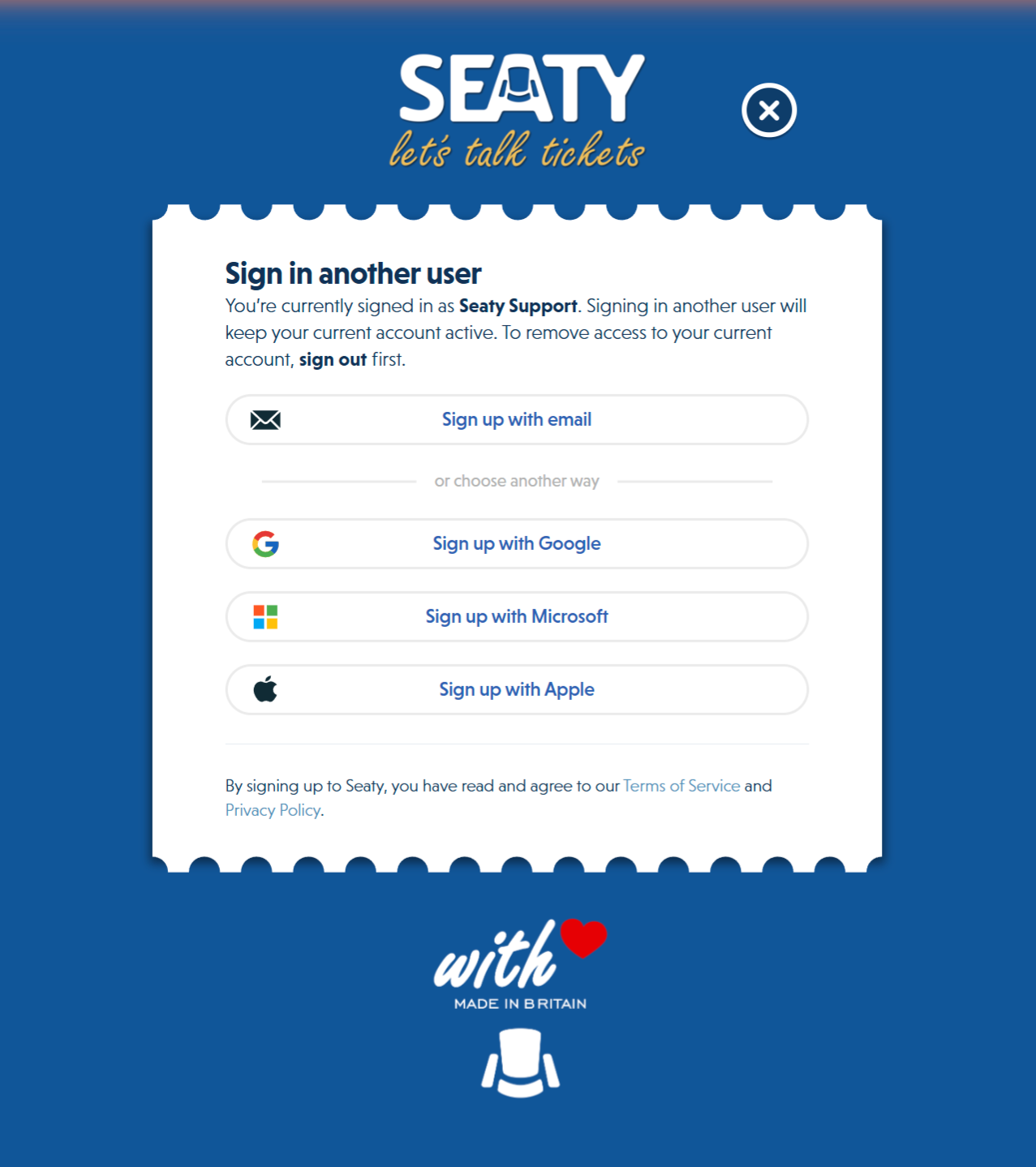 Sign-up modal showing four authentication options: email, Google, Microsoft, and Apple
Seaty offers multiple authentication methods. Choose the option that works best for you.
1. Sign Up with Email
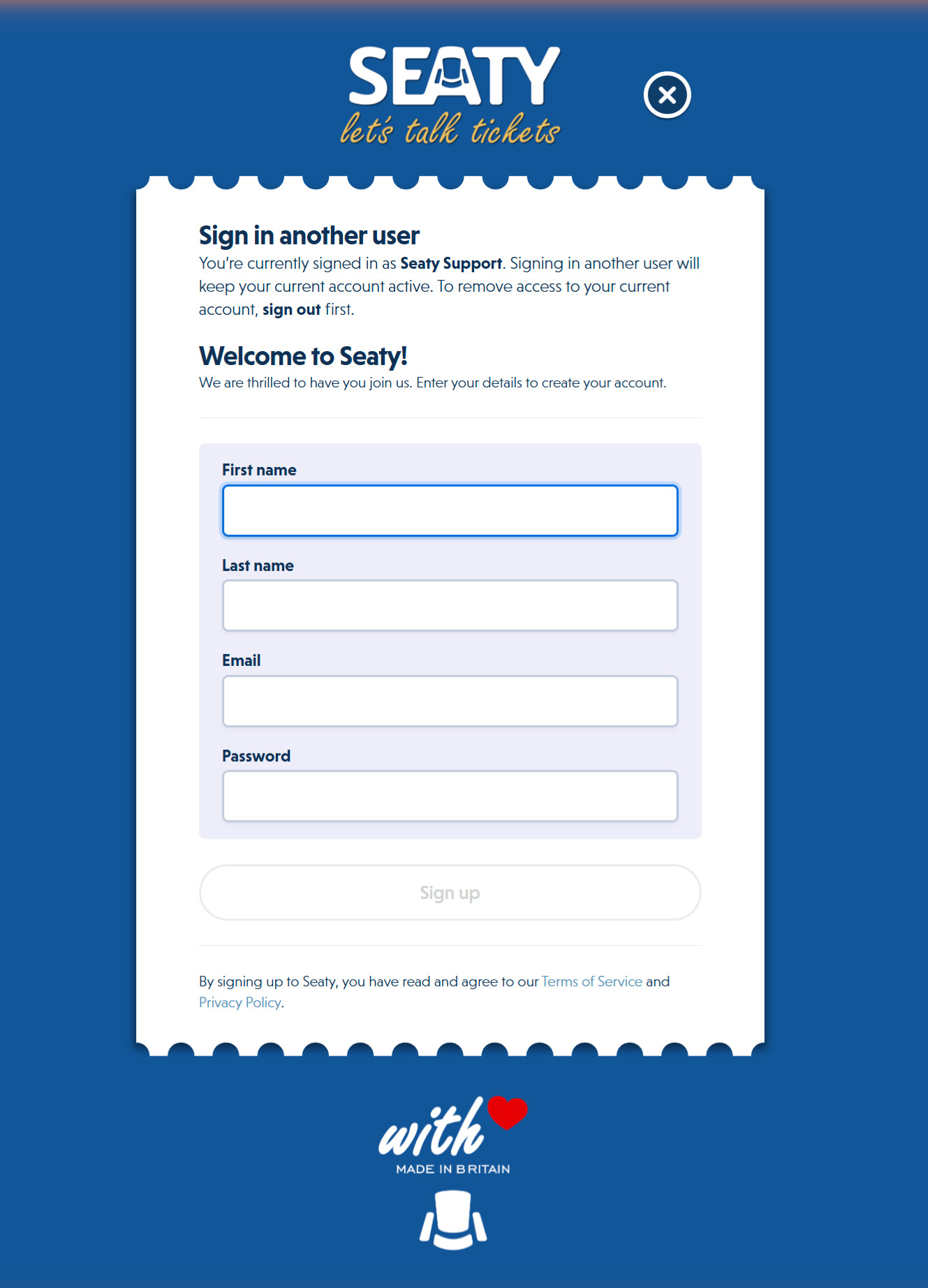 Email sign-up form with fields for first name, last name, email address, and password
Create an account using your email address and a password.
Steps:
- Click the user icon in the top-right corner of any Seaty page
- Select "Sign up" or "Create account"
- Choose "Sign up with email"
- Enter your details:
- First name - Your given name
- Last name - Your family name
- Email address - A valid email you can access
- Password - Minimum 6 characters
- Click "Sign up"
- Check your email for a 6-character security code
- Enter the security code when prompted
- Click "Submit code"
- Your account is created and you're automatically signed in
Why email verification? The security code confirms you own the email address, prevents unauthorised sign-ups, and ensures you receive ticket confirmations.
Password requirements:
- Minimum 6 characters
- No maximum length
- Can include letters, numbers, and special characters
- Choose a unique password for security
Email not arriving?
- Check your spam/junk folder
- Wait 1-5 minutes for delivery
- Verify you entered the correct email address
- Try signing up again if the code expires
2. Sign Up with Apple
Use your Apple ID to create a Seaty account instantly.
Steps:
- Click the user icon in the top-right corner
- Select "Sign up" or "Create account"
- Choose "Sign up with Apple"
- Authenticate with Face ID, Touch ID, or your Apple password
- Choose whether to share or hide your email address:
- Share my email - Seaty sees your actual email
- Hide my email - Apple provides a private relay address
- Click "Continue"
- Your account is created and you're automatically signed in
Benefits:
- No password to remember or manage
- One-tap authentication on Apple devices
- Email privacy option to hide your real email
- Secure authentication using Apple's systems
- Quick setup - account created in seconds
Requirements:
- Must have an Apple ID
- Works on any device with Apple Sign-In support
- Best experience with Safari on Apple devices
3. Sign Up with Google
Use your Google account to create a Seaty account.
Steps:
- Click the user icon in the top-right corner
- Select "Sign up" or "Create account"
- Choose "Sign up with Google"
- Select your Google account or sign in if needed
- Authorise Seaty to access your basic profile information:
- Name
- Email address
- Profile picture
- Click "Continue"
- Your account is created and you're automatically signed in
Benefits:
- No separate password needed
- Fast sign-up using existing Google account
- Secure authentication through Google's systems
- Access anywhere you're signed into Google
Requirements:
- Must have a Google account (Gmail, Google Workspace, etc.)
- Works on any modern web browser
- Authorises basic profile access only
4. Sign Up with Microsoft
Use your Microsoft account to create a Seaty account.
Steps:
- Click the user icon in the top-right corner
- Select "Sign up" or "Create account"
- Choose "Sign up with Microsoft"
- Enter your Microsoft email or phone number
- Enter your Microsoft password
- Complete any two-factor authentication if enabled
- Authorise Seaty to access your basic profile information:
- Name
- Email address
- Click "Continue"
- Your account is created and you're automatically signed in
Benefits:
- Enterprise-grade security from Microsoft
- Single sign-on if you use Microsoft at work
- Integration with Microsoft 365, Outlook, Hotmail
- No separate password for Seaty
Requirements:
- Personal Microsoft account, Outlook.com, Hotmail, or Microsoft 365 account
- Works on any modern web browser
- Organisational accounts supported
Accessing Sign-Up
From Any Page
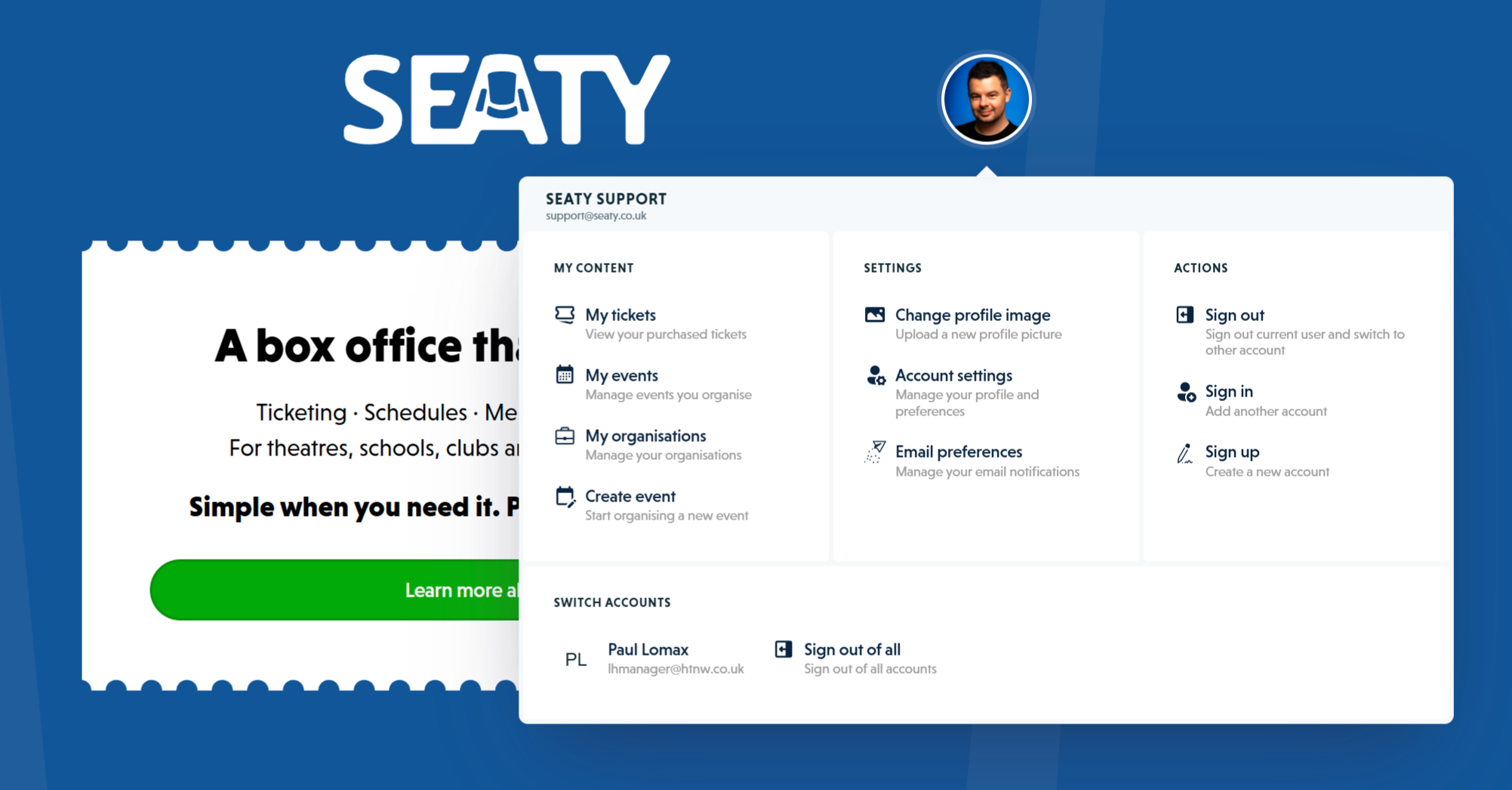 User menu showing My Content, Settings, Actions with Sign in and Sign up options, and Switch Accounts section
- Look for the user icon in the top-right corner
- Click the icon to open the user menu
- Select "Create account" or "Sign up"
- Choose your preferred sign-up method
From the Home Page
- Visit Seaty
- Click the user icon in the top-right corner
- Select "Create account"
- Choose how you want to sign up
Direct Sign-Up Link
Fastest option: Navigate directly to sign-up:
This link opens the authentication modal with all sign-up options ready.
During Checkout
When purchasing tickets as a guest:
- Complete your purchase as a guest
- On the order confirmation page, look for "Access your tickets later"
- Click "Sign up" or "Create account"
- Create your account using the same email you used for purchase
- Your tickets will automatically link to your new account
After Creating Your Account
Once your account is created, you're automatically signed in.
Immediate Changes
- Welcome message - Confirmation that your account is ready
- Automatic sign-in - You're signed in immediately
- Page refresh - The page reloads to show your personalised view
- User menu updated - Your name appears in the user icon menu
What You Can Do Next
For Attendees:
- View tickets - Click user icon → "My tickets"
- Browse events - Start purchasing tickets with faster checkout
- Complete profile - Click user icon → "Account settings"
- Download mobile app - Seaty iOS App or Seaty Android App
For Event Organisers:
- Creating an Organisation - Set up your organisation profile with contact information, branding, and payment settings for your events
- Creating an Event - Build your first event on Seaty with dates and times, venue setup, seating plans or general admission, ticket categories with pricing, and going live.
- Complete profile - Add profile picture and update details
- Explore features - Familiarise yourself with the platform
Account Features
My Tickets Page (Attendees)
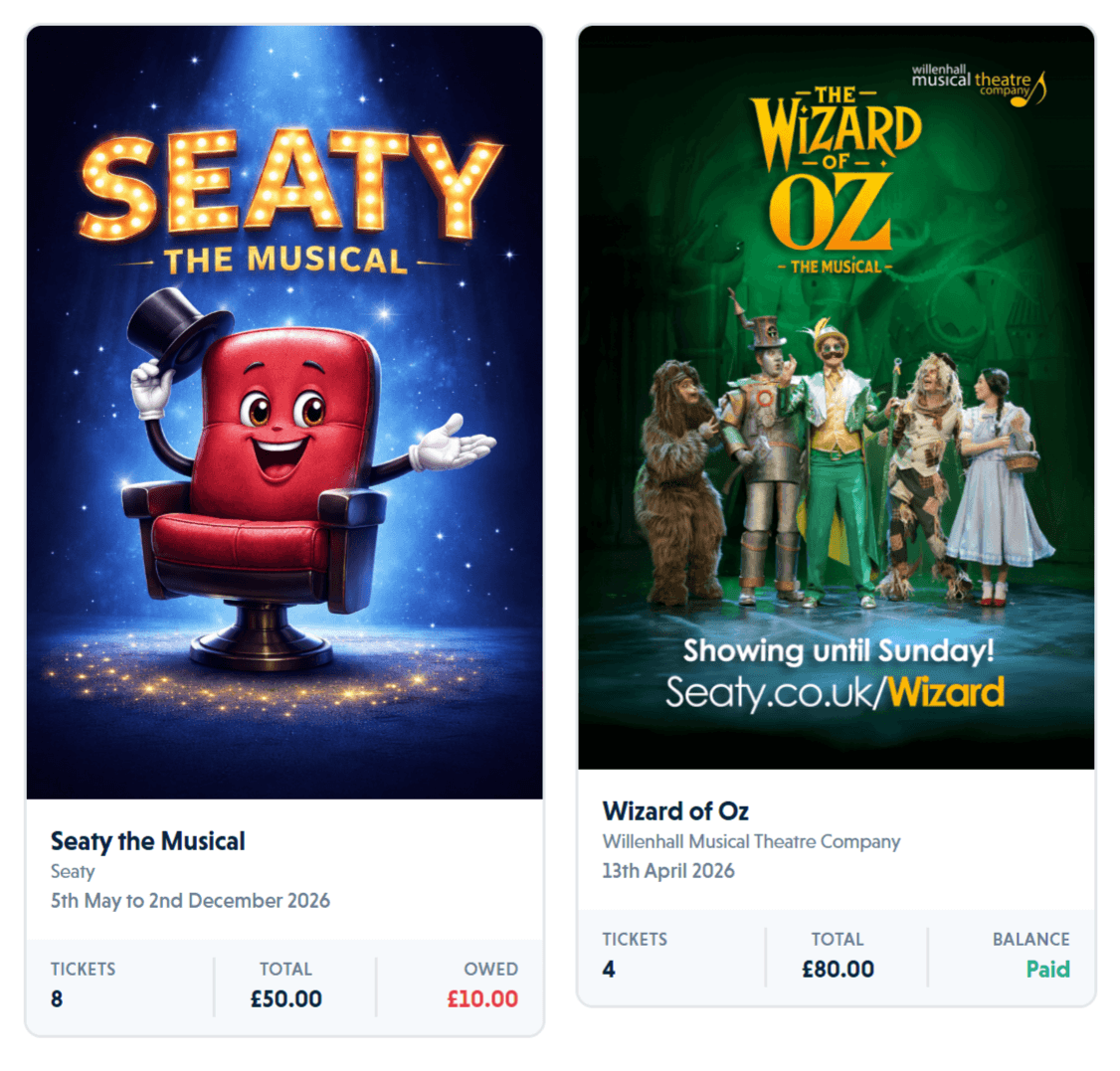 My Tickets page showing event cards with ticket counts, totals, and balances for multiple events
Access all your tickets in one place:
- Click the user icon in the top-right corner
- Select "My tickets"
- View all your upcoming and past tickets
What you'll see:
- Event name and date
- Seat information (if applicable)
- QR codes for entry
- Order details and pricing
- Personal notes (if added)
Actions available:
- View individual tickets
- Print tickets
- Add personal notes
- Request refunds (if allowed)
- Download tickets
- Add to Apple/Google Wallet
Account Settings
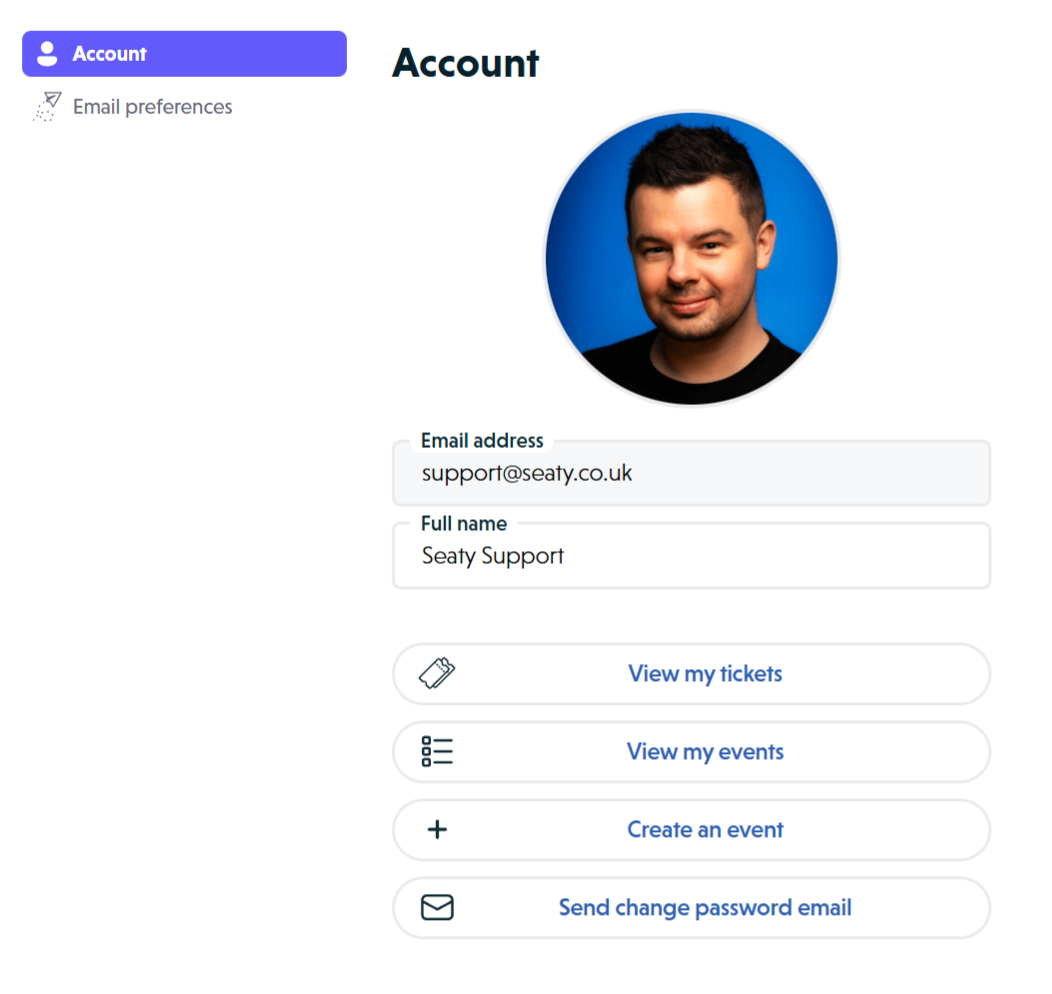 Account settings page showing profile picture, email address, full name, and action buttons
Manage your profile and preferences:
- Click the user icon
- Select "Account settings"
Profile information:
- Update your name
- Upload or change profile picture
- Request password reset email (email accounts only)
Email preferences:
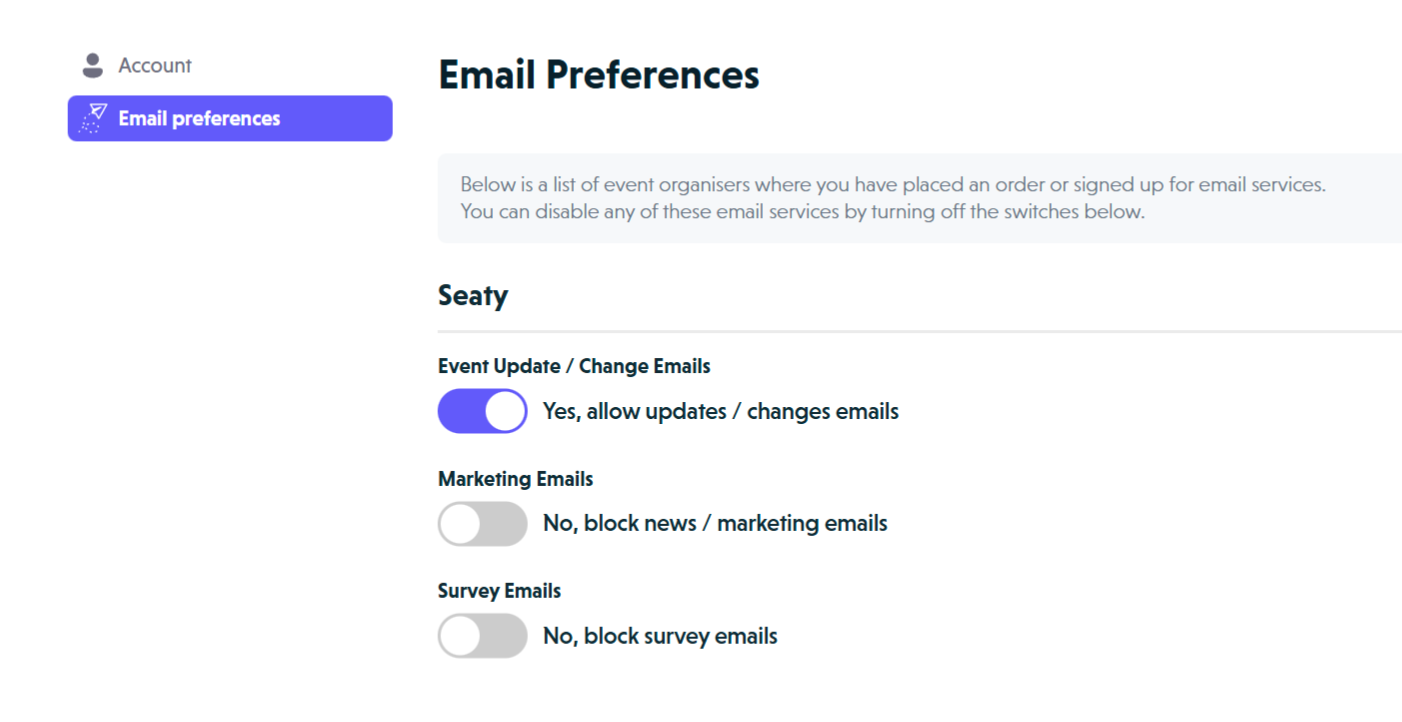 Email preferences page showing per-organisation toggles for event updates, marketing, and survey emails
- Marketing emails - Promotions and news
- Order confirmations - Purchase receipts (cannot disable)
- Event reminders - Upcoming event notifications
Why can't I change my email address? Your email address is permanently linked to your authentication method and order history. This ensures secure account ownership and consistent records.
Security Features
Your Seaty account is protected by:
- Email verification - Confirms you own your email address
- Secure authentication - OAuth 2.0 for Apple, Google, and Microsoft
- HTTPS encryption - All data transmitted securely
- Password requirements - Minimum security standards
- Account recovery - Password reset for email accounts
Linking Guest Purchases to Your Account
Automatic linking: When you create an account using the same email address you used for guest purchases, those tickets automatically appear in your "My tickets" page.
How it works:
- You purchased tickets as a guest using example@email.com
- You create a Seaty account using example@email.com
- Your previous guest purchases are automatically linked
- All tickets appear in "My tickets"
What gets linked:
- All past orders using that email address
- Upcoming event tickets
- Order history and details
- QR codes and ticket information
What doesn't get linked:
- Purchases made with different email addresses
- Orders placed before email verification (will link after verification)
Manual linking:
If tickets don't appear automatically, contact the event organiser with your order number and email address for assistance.
Common Questions
Account Creation
Can I change my sign-up method later?
No, the authentication method you choose during sign-up is permanent:
- If you signed up with email, you must always sign in with email
- If you signed up with Apple, you must always sign in with Apple
- If you signed up with Google, you must always sign in with Google
- If you signed up with Microsoft, you must always sign in with Microsoft
You cannot convert between methods or link multiple authentication types to one account.
Why can't I change my sign-up method? Your authentication method is permanently linked to your account identity for security. Allowing changes could create opportunities for account takeover.
Passwords & Sign-In
What if I forget my password?
Email accounts:
- Go to the
- Click "Forgot your password?"
- Enter your email address
- Check your email for a password reset link
- Follow the link to create a new password
Apple/Google/Microsoft accounts:
You manage your password through those services. If you forget your Apple ID password, for example, use Apple's password recovery process.
Email & Multiple Accounts
Can I use the same email for multiple accounts?
Email sign-ups: No, each email address can only be used once for email-based accounts.
Social sign-ups (Apple/Google/Microsoft): Your email is tied to your authentication provider. Using the same Google account will always access the same Seaty account.
Workaround: If you need multiple accounts, use different email addresses for each.
Verification
Do I need to verify my email?
Email sign-ups: Yes, you must enter a 6-character security code sent to your email during sign-up.
Apple/Google/Microsoft sign-ups: No additional verification needed - your authentication provider confirms your email.
Account Changes
Can I change my email address?
No, email addresses cannot be changed after account creation.
Why? Your email address is permanently linked to your authentication method and order history. This ensures:
- Secure account ownership verification
- Consistent order and ticket records
- Prevention of account conflicts
Workaround: If you need a different email:
- Create a new account with the desired email address
- Future purchases will be linked to the new account
- Your old account and tickets remain accessible with the original email
Why can't purchases be transferred? Transfer requests could be used to fraudulently claim someone else's tickets. Keeping purchases linked to their original account protects both buyers and organisers.
Can I delete my account?
Account deletion is not self-service. If you wish to close your account, contact support@seaty.co.uk with your request.
Important considerations:
- Order history: Past purchases and tickets cannot be fully deleted (required for event organiser records and legal compliance)
- Financial records: Transaction history is retained for accounting and legal requirements
- GDPR compliance: We comply with UK data protection laws and will handle your request according to legal obligations
Alternative: If you simply want to stop using Seaty, you can:
- Stop signing in (no action required)
- Unsubscribe from marketing emails via email preferences
- Your account remains dormant with no ongoing obligations
Guest Purchases & Linking
Will my guest purchases appear in my account?
Yes, if you create an account using the same email address you used for guest purchases, those tickets automatically link to your account and appear in "My tickets".
Timeline: Linking happens immediately upon account creation or email verification.
Using Multiple Accounts
Can I use multiple accounts?
Yes, Seaty supports signing into multiple accounts simultaneously:
- Sign in to your first account
- Click the user icon
- Select "Sign in" again
- Sign in with a different account
- Switch between accounts from the user menu
This is useful if you have separate personal and business accounts.
Learn more in our Using Multiple Accounts guide.
Devices & Access
Can I sign in on multiple devices?
Yes, you can sign in to your Seaty account on as many devices as you like:
- Web browsers on desktop computers
- Mobile web browsers
- Seaty iOS app
- Seaty Android app
All devices show the same tickets and account information.
Account Types & Permissions
What's the difference between attendee and organiser accounts?
There's only one type of Seaty account. The features you see depend on your permissions:
All accounts can:
- Purchase tickets as an attendee
- View "My tickets"
- Access account settings
- Use the mobile app for ticket viewing
Accounts with organiser permissions can also:
- Create and manage events
- Manage organisations
- Access admin tools and reports
- Use the mobile app for ticket scanning and event management
How do I get organiser permissions? Create your first event or organisation, or be added as a team member to an existing organisation by another organiser.
Troubleshooting
"Email already in use"
This email is already registered with Seaty.
Solutions:
- Sign in instead - You likely already have an account with this email
- - If you forgot your password
- Use a different email - Create a new account with another email address
- Check authentication method - You may have signed up with Apple, Google, or Microsoft instead of email
Security code not arriving
If you don't receive the security code email:
- Check spam/junk folder - Security emails sometimes filter incorrectly
- Wait a few minutes - Email delivery can take 1-5 minutes
- Verify your email address - Check for typos in the email you entered
- Try again - Cancel and restart the sign-up process
- Use a different email - Some email providers may block automated emails
"Sign up failed" or other errors
If you encounter errors during sign-up:
- Check your internet connection - Ensure stable connectivity
- Try a different browser - Some browsers may have compatibility issues
- Clear your browser cache - Cache can sometimes cause problems
- Disable browser extensions - Ad blockers may interfere with sign-up
- Contact support - Email support@seaty.co.uk for help
Apple/Google/Microsoft sign-up not working
If social authentication fails:
- Ensure you're signed in - Sign in to Apple/Google/Microsoft first
- Allow pop-ups - Authentication requires pop-up windows
- Check browser settings - Ensure third-party cookies are enabled
- Try a different browser - Chrome, Safari, or Edge work best
- Clear cookies - Old authentication cookies may cause conflicts
- Use email sign-up - Create an account with email as an alternative
Can't access my account
If you're unable to sign in:
- Verify authentication method - Use the same method you used to sign up
- Try all methods - If unsure, try Apple, Google, Microsoft, and email
- Check email for confirmation - Look for a sign-up confirmation email from Seaty
- Reset password (email accounts only) - Use the "Forgot password" link
- Contact support - Email support@seaty.co.uk with your email address
My tickets aren't showing in "My Tickets"
If your tickets don't appear in "My tickets":
- Verify email match - Your account email must match the email used for purchase
- Sign in - Ensure you're signed in to the correct account
- Check guest purchases - If you purchased as a guest with a different email, tickets won't link automatically
- Wait for verification - If you just created your account, email verification may be pending
- Contact the organiser - Provide your order number and ask them to verify your email address
Privacy & Security
By creating a Seaty account, you agree to our:
- Terms of Service - How you can use Seaty
- Privacy Policy - How we protect your data
- Cookies and Related Technologies - How we use cookies
We take your privacy seriously:
- Data minimisation - We only collect essential information
- Secure storage - Your data is encrypted and protected
- No spam - We won't sell your email or send unsolicited emails
- Control - Manage your email preferences and account settings
- GDPR compliant - Full compliance with UK data protection laws
What we collect:
- Name and email address
- Ticket purchases and order history
- Event attendance (when you attend)
- Account preferences
What we don't collect:
- Sensitive personal data (unless you choose to provide it)
- Payment card numbers (handled by Stripe, our payment processor)
- Location data (unless you enable it in the mobile app)
- Browsing history outside Seaty
Need Help?
If you need assistance creating your account:
- Email: support@seaty.co.uk
- Attendee FAQ: Check our Attendee FAQ
- Organiser FAQ: Check our Organiser FAQ
Ready to create your account?
Already have an account?