Using Multiple Seaty Accounts on the Same Browser
Overview
Seaty allows you to store and switch between multiple accounts in your browser, making it easy to manage different organisations or roles without repeatedly signing in and out.
At its simplest, multiple accounts answers one question: How do I manage several organisations or roles without constant re-authentication?
Who uses this: Anyone managing multiple organisations, working across personal and professional accounts, or sharing a device with family members.
Key capabilities:
- Store multiple account credentials in your browser
- Switch between accounts with one click from the user menu
- Browser remembers your accounts between sessions
- Signing out of one account automatically switches to your next stored account
How It Works
At a glance: Sign into multiple accounts, store them in your browser, and switch between them instantly from the user menu.
1. Sign In and Store
Sign into your first account as normal. This becomes your active account and is stored in your browser for future sessions.
2. Add More Accounts
 Sign-in modal showing four authentication options for adding another account: email, Google, Microsoft, and Apple
While already signed in, use the "Sign in" option to add additional accounts. Each new account is stored alongside existing ones without signing you out.
3. Switch and Manage
Access all your stored accounts from the user menu. Switch between them with a single click, and sign out of individual accounts or all at once.
Think of it this way:
- Stored accounts are like bookmarks - your browser remembers them for quick access
- The active account determines which organisations and events you see
- Switching accounts instantly changes your view without affecting other stored accounts
What You'll See in the User Menu
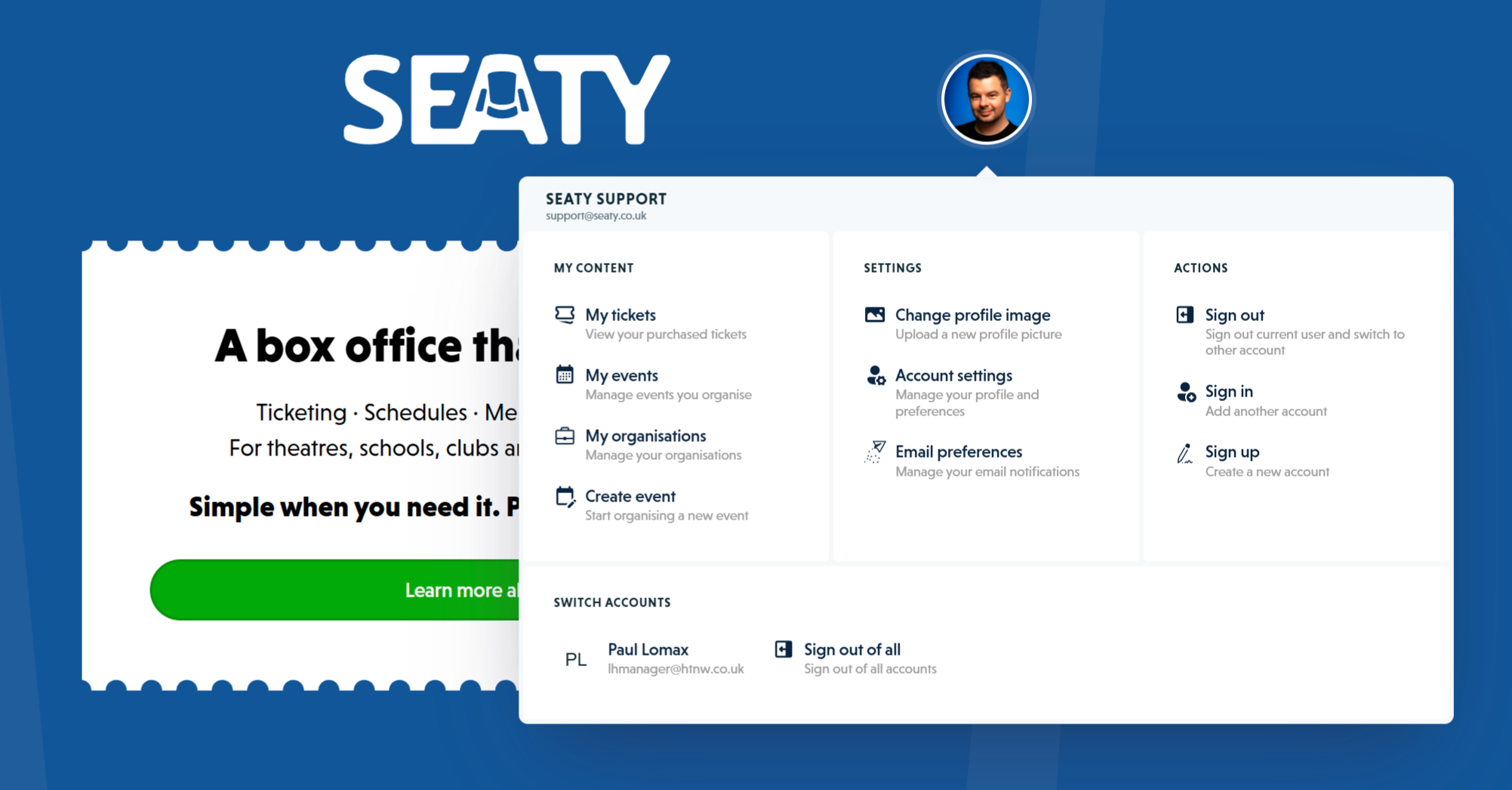 User menu showing My Content, Settings, Actions including Sign in and Sign up, and Switch Accounts with another stored account
When multiple accounts are stored, the user menu shows:
- Current account - Name, email, and profile picture at the top
- My Content - Tickets, organisations, events, and account options for the current user
- Other accounts - List of all other stored accounts with profile pictures and emails
- Sign in / Sign up - Buttons to add new accounts
- Sign out - Signs out current user and switches to the next account
- Sign out of all accounts - Completely removes all stored accounts
Why independent storage? Each account is stored separately in your browser, allowing instant switching without re-entering credentials.
Use Cases
Personal & Work
Theatre company manager who also runs school events can easily switch between personal and work accounts.
Multiple Organisations
Manage your drama society and community centre separately with different accounts for each.
Shared Devices
Family members can each sign in on a shared computer without logging others out.
Client Management
Event coordinators managing multiple client organisations can maintain separate accounts for each client.
Example Workflow
Sarah manages events for three organisations:
- Signs in with her personal email (manages theatre company)
- Clicks "Sign in" and adds her work email (manages school events)
- Clicks "Sign in" again and adds community centre account
- All three accounts are now stored in her browser
- Switches between them instantly from the user menu
- Each account shows only its relevant organisations and events
Switching Between Accounts
- Click the user icon in the top-right corner
- Scroll to "Other accounts" section
- Click any account to switch instantly
- The page reloads and displays that account's dashboard
Sign Out Behaviour
Sign Out (Single Account)
When you click "Sign out" with multiple stored accounts:
- Removes the current account from browser storage
- Automatically switches to your next stored account
- Keeps other accounts in storage
- Shows an alert confirming the switch
Why this behaviour? This allows you to remove one account without affecting others, maintaining your workflow across multiple roles.
Sign Out of All Accounts
To completely remove all stored accounts:
- Click "Sign out of all accounts" at the bottom of the menu
- Clears all account tokens from browser storage
- Returns you to the signed-out homepage
Individual Account Removal
The current account can be removed by clicking "Sign out", which automatically switches to the next stored account. To remove a specific non-current account, first switch to it, then sign out.
Account Independence
Each stored account is completely independent:
- Separate organisations - Each account has its own organisations
- Separate events - Events are tied to the account that created them
- Separate tickets - Ticket purchases appear only in the account used to purchase them
- Separate settings - Profile settings and preferences are per-account
- No cross-account sharing - Data doesn't transfer between accounts
Email Addresses
Can I use different email addresses for multiple accounts?
Yes! Each account can use a different email address.
Common setups:
- Personal Gmail + work email
- Theatre company email + school email
- Main account + organisation-specific account
Can I use the same email for multiple accounts?
Email sign-ups: No, each email address can only be used once for email-based accounts.
Social sign-ups (Apple/Google/Microsoft): Your email is tied to your authentication provider. If you use the same Google account, you'll access the same Seaty account.
Common Questions
Adding and Managing Accounts
How do I add a second account?
While already signed in:
- Click the user icon in the top-right corner
- Click "Sign in" (this adds another account, doesn't sign you out)
- Sign in or create a new account
- You'll now have both accounts active simultaneously
How do I sign out of one account but keep others?
Click "Sign out" in the user menu. This:
- Removes the current account from browser storage
- Automatically switches you to your next stored account
- Keeps other accounts stored in your browser
To remove all accounts at once, click "Sign out of all accounts" at the bottom of the menu.
How many accounts can I store at once?
There's no fixed limit, but for best performance we recommend storing no more than 5 accounts in your browser simultaneously.
Sign-In Methods and Storage
Do all accounts need to use the same sign-in method?
No! You can mix and match:
- One account signed in with email
- Another with Google
- Another with Apple
- Another with Microsoft
Each account uses whatever authentication method it was created with.
Will my browser remember all my accounts?
Your stored accounts are saved in browser local storage. They'll persist between browser sessions unless you:
- Clear your browser's local storage or site data
- Use private/incognito browsing mode
- Sign out of all accounts
Why local storage? This allows quick switching without server requests, while keeping your data secure on your device.
If you clear your browser data, you'll need to sign in again.
Mobile
Can I use multiple accounts on mobile?
The Seaty mobile app supports multiple accounts in the same way as the website. Switch between accounts using the account menu in the app.
Related Information
- - How to create your free Seaty account: sign up by email, link existing organisations, recover access, and set the foundations for buying or running events.
- Creating an Organisation - Create organisations for each account
- Creating an Event - Manage events across accounts
Need Help?
If you have trouble managing multiple accounts:
Email support:
- Address: support@seaty.co.uk
- Include: Your account emails, what you were trying to do, and any error messages
Self-service:
- Check our Organiser FAQ
- See
Ready to add another account?