Managing Customer Orders, Payments and Refunds
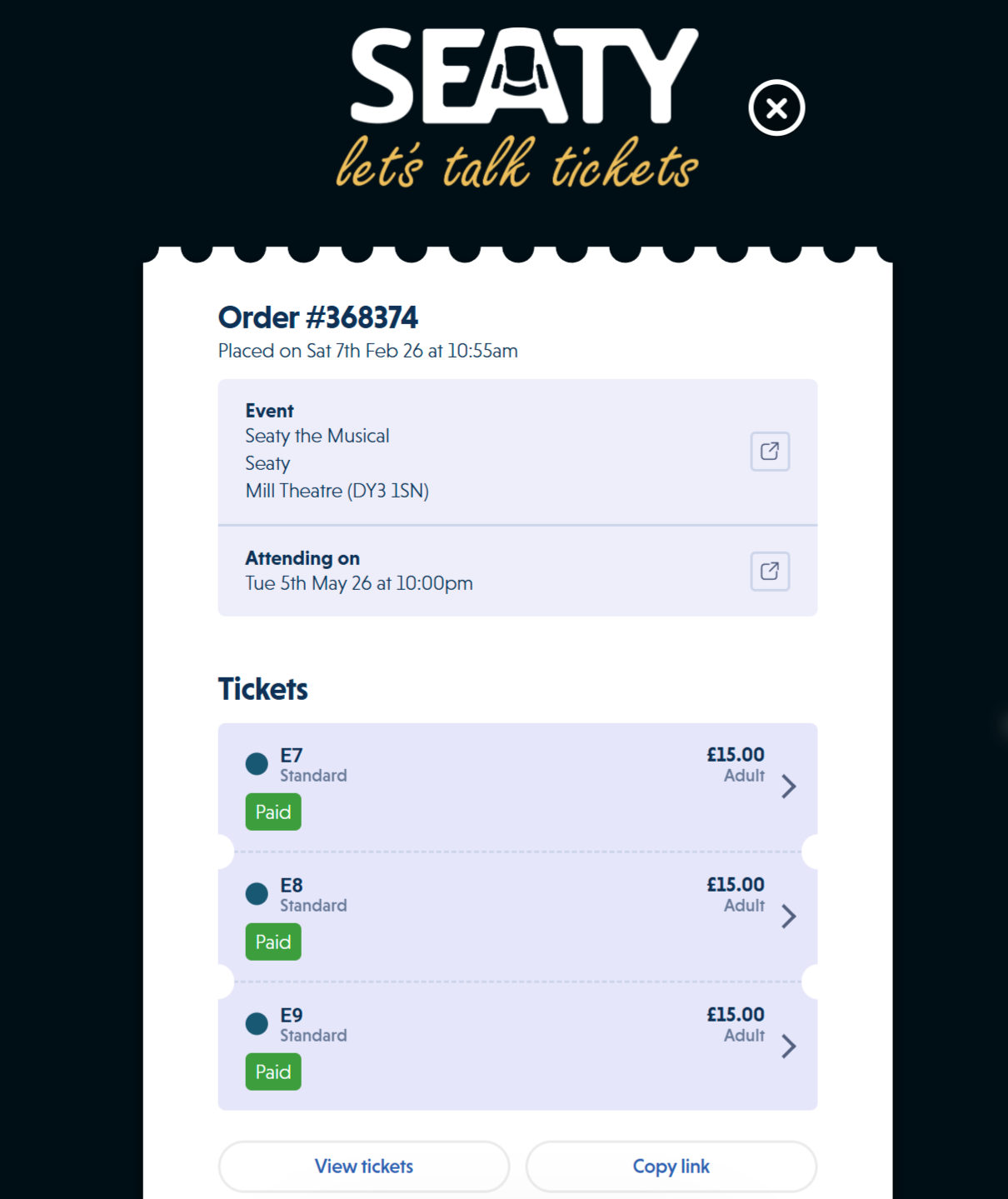 Order overview showing order header, event details and tickets
Every ticket purchase, payment, refund, and customer interaction flows through the order system. This guide covers accessing orders, understanding order information, and managing customer purchases across your events.
At its simplest, the order system answers one question: What did this customer purchase and what's the current status?
Who uses this: Event administrators and organisation staff with order viewing permissions.
Key capabilities:
- View complete purchase details including tickets, merchandise, and payment status
- Track financial breakdowns showing both customer payments and organisation income
- Manage attendee information and answer custom checkout questions
- Add internal notes and track marketing referrals
- Process refunds, transfers, and other order modifications
How It Works
At a glance: You find an order, review its details, and take action if needed.
1. Access the order
Find the order using Feed, Order Search, Attendees, Balances, Banking, Scans, or Summary - whichever matches your starting point.
2. Review order details
The order dashboard shows everything about the purchase: tickets, merchandise, attendee information, payment status, and financial summaries.
3. Take action if needed
Depending on the situation, you might process a refund, add notes, transfer ownership, flag tickets, or simply confirm details for a customer enquiry.
Think of it this way:
- Feed shows all transactions chronologically - use it when browsing or filtering
- Order Search finds specific orders quickly - use it when you have the order number
- Attendees shows customer history - use it when investigating a person's purchases
- Balances shows financial profiles - use it for payment tracking and reconciliation
Accessing Orders
Orders can be accessed from multiple admin pages throughout Seaty. The order dashboard opens as a modal overlay, allowing you to view and manage order details without losing your place.
Why a modal overlay? This keeps you in context - you can check order details without navigating away from your current task.
From Feed
What is Feed? Feed displays all transactions for an event or organisation (orders, payments, refunds, requests) in chronological order with filtering and search capabilities.
How to access:
- Navigate to Feed from the event or organisation admin menu
- Locate the order using filters (all transactions, online purchases, admin orders, donations, etc.) or search
- Click any order row to open the order dashboard
When to use:
- Searching for orders by attendee name or email
- Filtering orders by transaction type or date range
- Reviewing recent activity across multiple events
- Finding orders without knowing the order number
From Attendees
What is Attendees? Attendees shows all customers who have purchased tickets across your organisation's events, with marketing preference filtering and purchase history.
How to access:
- Navigate to Attendees from the organisation admin menu
- Search or browse the attendee list
- Click an attendee row to view their statement
- Click any order within the attendee statement to open that order
When to use:
- Viewing a customer's complete purchase history
- Finding all orders for a specific email address
- Analysing repeat customer behaviour
- Managing attendees who opted in/out of marketing
From Balances
What is Balances? Balances displays financial profiles for each attendee at an event, showing ticket counts, spending totals, referral activity, and outstanding payment balances.
How to access:
- Navigate to Balances from the event admin menu
- Browse attendee financial summaries
- Click an attendee to expand their order list
- Click any order to open the order dashboard
When to use:
- Reviewing customer spending patterns
- Identifying outstanding balance payments
- Tracking referral activity
- Financial reconciliation for specific attendees
From Banking
What is Banking? Banking shows revenue breakdown, absorbed fees, pending balances, and withdrawal request management for events with financial tracking.
How to access:
- Navigate to Banking from the event admin menu
- Review revenue batches and payment lists
- Click orders within payment breakdowns to view details
When to use:
- Financial reconciliation and verification
- Investigating revenue discrepancies
- Reviewing orders in specific payment batches
- Preparing withdrawal requests
From Scans
What is Scans? Scans displays ticket validation history organised by order, showing which tickets have been scanned at entry with timestamps and event date filtering.
How to access:
- Navigate to Scans from the event admin menu
- Browse scan history by event date
- Click any scanned order to open the full order details
When to use:
- Verifying ticket validation during/after events
- Investigating admission disputes
- Checking which tickets from an order were used
- Real-time event attendance tracking
From Summary
What is Summary? Summary shows revenue, ticket sales, and performance metrics with recent activity feeds for events or organisations.
How to access:
- Navigate to Summary from admin menu
- Scroll to recent activity sections
- Click order entries to view details
When to use:
- Quick access to recent orders
- Reviewing latest transactions
- Monitoring real-time sales activity
From Order Search
What is Order Search? Order Search is a dedicated search modal accessible from event admin pages, allowing quick order lookup by number, email, or attendee name.
How to access:
- Look for "Search orders" button on event admin pages
- Enter order number, email, or attendee name
- Select order from search results
- Order dashboard opens immediately
When to use:
- Fastest way to find specific orders by order number
- Quick lookup during customer service calls
- When you know the order number or exact email
Quick tip: Order numbers provide instant access. If a customer has their order number, use Order Search for the fastest lookup.
Note: Each access method suits different scenarios. Feed is best for browsing and filtering, Order Search for direct lookup, and Attendees for investigating customer history.
Understanding Order Information
When you open an order, you'll see comprehensive information organised into clear sections.
Order Header
Every order displays identifying information at the top:
- Order number - Unique identifier (e.g., Order #12345)
- Order date - When placed, shown as "Placed on DD/MM/YYYY at HH:MMam/pm"
- Event name - Which event they're attending
- Organisation - Who's presenting the event
- Venue - Venue name and postcode
- Performance date - Specific date/time shown as "Attending on DD/MM/YYYY at HH:MMam/pm"
Quick actions in header:
- Click event name icon to view event page in new tab
- Click performance date icon to view that booking page
Box Office Collection
If the attendee requested box office collection, you'll see: "This attendee has requested that they collect their tickets from the box office."
This helps staff identify collection requirements during day-of-event operations.
Tickets Section
What you'll see:
- Individual ticket listings with seat assignments (e.g., "A12")
- Seat category in the assigned colour (e.g., "Stalls", "Circle")
- Ticket category and pricing (e.g., "Adult £15.00")
- Payment status with "Paid" tag when payment received
- Cancellation status showing cancellation date if cancelled
- Admin notes for each ticket (if you have permissions and notes exist)
Available actions:
- Click individual tickets to view detailed ticket information including custom question answers, flags, and payment details
- View tickets button opens customer-facing ticket page in new tab (changes to "View tickets & merch" if order includes merchandise)
- Copy link button copies ticket page URL to clipboard (shows "Link copied!" confirmation)
- Print button (shown when your organisation has kiosk printers) opens a print chooser: pick a kiosk printer to print the tickets on that kiosk's thermal receipt printer at the venue, or Print on this device to print in your own browser on an ordinary office printer. Kiosk printers are only offered to staff who can manage the organisation's orders (see Kiosks); your last choice is remembered. The same chooser appears behind the Print button on the customer-facing ticket page for admins.
- Flag tickets to mark for special attention (dietary requirements, accessibility needs, etc.)
- Cancel / refund to process cancellations and refunds (requires permission)
Ticket link format: Each order has a unique ticket link that customers can use to access their tickets.
Merchandise Section
Only appears if the order includes merchandise items.
Displays same information as tickets:
- Item identifier
- Item category in assigned colour
- Ticket category name
- Price
- Payment status
- Cancellation status
- Admin notes (if applicable)
Same actions available as for tickets (view, flag, cancel).
Attendee Information
Contact details shown:
- Name (or "Not set" if not provided)
- Email address with clickable mailto link and copy button
Available actions:
- View attendee statement - See all orders and activity across your events for this customer
- Change name - Update the name on the order
- Change email - Transfer order ownership to different email address (requires permission)
Use cases:
- Correcting name typos before ticket delivery
- Transferring tickets to gift recipients
- Investigating customer purchase history
- Contacting attendees about event changes
Question Answers Section
Only appears if the event has custom questions and the attendee provided answers.
Shows order-level question responses:
- Question name
- Attendee's answer
Note: These are order-level questions. Individual ticket questions appear when viewing specific tickets.
Common question types:
- Accessibility requirements
- Dietary restrictions
- Group booking information
- Special requests or comments
Financial Summary
The financial summary provides two breakdowns showing different perspectives on the transaction.
Note: This section only appears for orders with online card payments. Manual payment orders show payment status instead.
Customer Payment
Shows what the attendee actually paid at checkout:
- Tickets - Total face value of all tickets
- Merchandise - Total value of merchandise items (if applicable)
- Discounts - Discount codes applied (shown as negative amounts with discount name)
- Donation - Voluntary donation amount (if given)
- Handling fee - Organisation handling fee (if applicable)
- Enhanced refund service - ERS fee (if purchased)
- Service fees - Seaty service fees (only shown if not absorbed by organisation)
- Total customer paid - Final checkout amount (shown in bold)
Net Income to Organisation
Shows what the organisation receives after deductions:
- Tickets - Total face value of all tickets
- Merchandise - Total value of merchandise items (if applicable)
- Donation - Voluntary donation amount (if given)
- Gift aid claimable - 25% of donation if Gift Aid declaration provided
- Handling fee - Organisation handling fee (if applicable)
- Discounts - Deducted amounts (shown as negative)
- Refunded amount - Refunds already processed (shown as negative)
- Enhanced refund service - ERS fees deducted (shown as negative)
- Service fees deducted - Seaty fees deducted if absorbed by organisation (shown as negative)
- Net income - Final amount to organisation (shown in bold)
- Displays as "Net income (incl. Gift aid)" when Gift Aid is claimable
Why two summaries? Customer payment shows the complete checkout experience from the attendee's perspective. Net income shows actual revenue from the organisation's perspective after fees, refunds, and Gift Aid eligibility. These differ based on fee absorption settings and refund processing.
Understanding net income:
Net income represents what the organisation actually receives. If service fees are absorbed by the organisation, they appear as deductions here. If passed to customers, they don't affect net income.
Gift Aid Declaration
Only appears if the attendee made a donation and opted in to Gift Aid.
Shows: "This order opted in to Gift Aid"
Click to view full Gift Aid declaration details including name, address, and declaration text for HMRC compliance.
Payment Status Section
Only appears for orders without online card payments (legacy or manual payments).
Shows:
- Number of tickets marked as paid
- Whether all tickets are paid or only some
- "Add payment" button (if you have permissions and unpaid items exist)
Admin Section
Admin notes:
- Internal notes about the order (never visible to customers)
- Shows "Add admin note" when no notes exist
- Shows "Admin notes" with content when notes exist
- Click to add or edit notes
Referral tracking:
- Shows how customer heard about the event
- Click to add or edit referral source
- Only available if order hasn't been fully cancelled
- Used for marketing analysis
Order logs:
- Complete history of all actions and changes made to order
- Shows who did what and when
- Essential for investigating disputes
Email controls:
- Re-send order confirmation email (if you have permission and order isn't fully cancelled)
Ticket Flagging
Flag tickets that require special attention (accessibility needs, dietary requirements, VIP treatment, etc.).
Creating flags:
- Click "Flag tickets" to enter selection mode
- Select one or more tickets using checkboxes (cancelled tickets cannot be flagged)
- Click "Create flag" or "Create flags" depending on selection count
- Button shows how many tickets are selected
Quick actions in selection mode:
- "Select all" / "Deselect all" - Toggle all uncancelled tickets
- "Cancel" - Exit without creating flags
Viewing flags:
Existing flags appear on individual ticket pages with:
- Priority badge with colour coding
- Flag type label
- Flag ID for reference
Click a flag to view or edit details.
Visual Indicators
Colour Coding
The order dashboard uses consistent colour coding throughout:
- Seat categories - Display in assigned seat category colours
- Ticket categories - Display in assigned ticket category colours
- Payment status - "Paid" tags shown in confirmation green
- Priority badges - Ticket flags show colour-coded priority levels
This matches visual appearance throughout Seaty, from seating plans to selection interfaces.
Pricing Display
All prices formatted using event's currency symbol (typically £ for UK events) and displayed in pounds and pence (e.g., £12.50).
Order Totals
Face value totals calculated automatically and exclude:
- Cancelled tickets and merchandise
- Fees of any kind
- Donations
Navigation Patterns
Within the Order Dashboard
The dashboard uses section-based navigation:
- Main dashboard - Overview with all sections
- Deep dive views - Click sections to see detailed interfaces
- Back navigation - Return to main dashboard from any deep view
Example flow:
- View main dashboard → See ticket list
- Click specific ticket → View individual ticket details
- Click "Back to order" → Return to main dashboard
- Click "Admin notes" → Edit internal notes
- Click "Back to order" → Return to overview
Every deep dive view includes clear back navigation with section titles in the header. You can always return to overview without losing context.
Permission-Based Features
Different sections and actions appear based on your user permissions:
| Feature | Required Permission |
|---|---|
| View order details | Order viewing |
| Cancel and refund | Order cancellation and refunds |
| Admin notes | Order admin notes |
| Edit referrals | Order referral editing |
| Transfer ownership | Order ownership transfer |
| Re-send emails | Order email resending |
| Add payments | Balance payment recording |
| Ticket flags | Ticket flagging |
Note: Super admins have access to all features. Organisation-level permissions are managed by account administrators.
Why permissions? Different team members need different access levels. Box office staff might need payment recording but not refund processing. Permissions let you control who can do what.
If you can't see a button or section, contact your organisation administrator to request additional permissions.
Order Management Actions
From the order dashboard, you can perform several actions. Each has dedicated documentation:
Cancel individual tickets or entire orders and process associated refunds for both online card payments and manual payments.
When to use:
- Processing customer refund requests
- Removing tickets from orders
- Handling event cancellations
Need to cancel a whole event and refund every attendee at once? That is handled by Seaty on request rather than self-served: email support with the event, date, and reason, and we process the refunds for you. See Cancelling and Refunding Tickets for what to include.
Manually mark tickets as paid when customers pay via cash, cheque, bank transfer, or card outside Seaty.
When to use:
- Processing box office cash payments
- Recording bank transfers
- Marking cheque payments as received
Change the email address associated with an order to transfer ownership to a different customer.
When to use:
- Customers gifting tickets to others
- Correcting email address typos
- Transferring corporate bookings to attendees
Add internal notes at order or ticket level, plus track referral sources for marketing analysis.
When to use:
- Recording special requests
- Documenting customer interactions
- Tracking marketing campaign effectiveness
- Adding seat-specific requirements
Mark tickets requiring special attention with categorised flags and priority levels.
When to use:
- Flagging accessibility requirements
- Highlighting dietary restrictions
- Marking VIP tickets
- Tracking suspicious activity
Review and manage Gift Aid opt-ins for donation-inclusive orders to maximise HMRC tax reclaim.
When to use:
- Managing charitable donations
- Preparing HMRC Gift Aid claims
- Verifying declaration completeness
View complete history of all actions and system events for an order.
When to use:
- Investigating customer disputes
- Answering "what happened" questions
- Tracking who made changes and when
- Financial reconciliation verification
Common Workflows
Handling a Refund Request
Typical scenario: Customer emails requesting a refund
Steps:
- Search for order by order number or email (use Feed or Order Search)
- Review order details to understand what was purchased
- Check audit logs if customer mentions previous communications
- Process cancellation and refund following your refund policy
- Add admin notes documenting refund reason and customer interaction
- Confirm with customer that refund has been processed
Processing Box Office Cash Payment
Typical scenario: Customer pays cash at venue for pre-ordered tickets
Steps:
- Open order using order number or email search
- Record payment using "Paid with cash" option
- Add payment notes documenting who accepted payment
- Provide tickets to customer or confirm QR codes are active
- Add admin notes if special circumstances exist
Transferring Gift Tickets
Typical scenario: Someone bought tickets as gift and needs to transfer to recipient
Steps:
- Open order from Feed or Order Search
- Transfer ownership to recipient's email address
- Change attendee name to recipient's name
- Add admin notes documenting it was gift transfer
- Confirm recipient received order confirmation email
Investigating a Customer Complaint
Typical scenario: Customer claims they never received refund promised last week
Steps:
- Search for order by number or email
- Review order audit logs to check for refund entries
- Check admin notes for any previous staff interactions
- Review financial summary for refund status
- Provide customer with specific dates and amounts from logs
- Add admin notes documenting investigation outcome
Preparing Gift Aid Claims
Typical scenario: End of financial quarter, preparing HMRC Gift Aid claims
Steps:
- Export order data for period using Event Feed or reporting features
- Filter for Gift Aid orders using order exports
- Review each Gift Aid declaration for completeness
- Calculate total eligible donations and claimable Gift Aid amounts
- Submit claim to HMRC through their online service
- Maintain records for 6 years (HMRC requirement)
Recommended: The Gift Aid claims page (organisation admin area, under Analytics & Finance) is the easiest way to prepare and track claims. It lists events with Gift Aid orders (filtered by Active or year), exports an HMRC Gift Aid schedule spreadsheet (.xlsx) per event, and lets you mark orders as claimed so you can see what has already been submitted (with an audit trail of who marked them and when). It covers both admission Gift Aid and standard donation Gift Aid. Seaty does not submit to HMRC for you, and marking as claimed is your own record-keeping rather than an HMRC submission. See Gift Aid Declarations for the full detail.
Handling Special Requirements
Typical scenario: Customer has accessibility needs or dietary restrictions
Steps:
- Open order from Feed or Search
- Check question answers to see what customer already provided
- Add ticket-level admin notes for specific requirements per seat
- Create ticket flags if using flagging system for box office attention
- Brief box office staff about special requirements before event
Important Behaviours
Real-Time Loading
When you open an order, the dashboard:
- Shows a loading indicator while fetching data
- Loads complete order details
- Calculates financial summaries automatically
- Displays sections based on what's relevant to that order
Performance tip: Order numbers provide fastest access. Searching by email or name takes slightly longer as the system needs to find matching records first.
Dynamic Section Display
Sections appear conditionally based on order characteristics:
- Merchandise section - Only if order includes merchandise
- Question answers - Only if event has questions and attendee provided answers
- Financial summary - Only if order has associated online card payment
- Payment status - Only for orders without online card payments (manual payment tracking)
- Gift Aid block - Only if donation exists and Gift Aid was opted into
This keeps the interface clean and focused on relevant information.
Order vs Ticket Level
Many features work at two levels:
Order level:
- Applies to entire order (all tickets and merchandise)
- Examples: Order-level admin notes, referrals, financial summaries
Ticket level:
- Applies to individual tickets within order
- Examples: Ticket-level admin notes, seat-specific requirements, individual ticket flags
Understanding this distinction helps you document information at the right level.
Best Practices
For All Users
Search efficiently:
- Use order numbers for fastest access
- Search by email when you don't have order number
- Use Event Feed filtering for bulk operations
Document everything:
- Add admin notes for every significant customer interaction
- Include dates, staff names, and decisions made
- Reference order numbers in external communications
Verify before acting:
- Review order details before processing refunds
- Check audit logs when investigating complaints
- Confirm email addresses before transferring ownership
For Customer Service Teams
Quick reference guide:
- Keep order numbers handy during customer calls
- Add admin notes for every interaction - creates paper trail
- Check question answers before responding - customer may have already provided info
- Use attendee statement to understand customer history
- Copy ticket links when emailing customers - saves them searching
For Box Office Staff
Day-of-event workflow:
- Access orders from Scans when validating tickets
- Check admin notes for special requirements
- Review flagged tickets for accessibility or dietary needs
- Verify payment status before admission
- Add notes documenting collection or issues
For Finance Teams
Reconciliation workflow:
- Use correct payment dates for accurate financial reporting
- Include reference numbers in payment notes
- Verify money is in your account before marking as paid
- Export order data regularly for accounting records
- Maintain Gift Aid records for 6 years (HMRC requirement)
For Marketing Teams
Analysis workflow:
- Use referral data to track campaign effectiveness
- Review attendee statements to identify loyal customers
- Cross-reference question answers for demographic insights
- Track discount code usage through financial summaries
- Build customer segmentation using purchase patterns
Important Concepts
Payment Types
Online Card Payments:
- Processed automatically during checkout
- No manual recording needed
- Refunds process automatically
- Money transferred to your bank on Seaty's payout schedule
Balance Payments (Manual Recording):
- Cash, cheque, bank transfer, or card outside Seaty
- Require manual recording using "Add payment"
- Refunds handled outside Seaty (you process them manually)
- You handle depositing money to your bank
Why two payment types? Online payments are fully automated and tracked. Manual payments give you flexibility for box office sales, bank transfers, and other payment methods collected outside the ticketing system.
Financial Summaries Explained
Customer Payment: What the attendee actually paid at checkout, including all fees if not absorbed.
Net Income to Organisation: What your organisation receives after deductions (fees, refunds, discounts), plus Gift Aid if applicable.
These can differ based on fee absorption settings.
Common Questions
Order Access and Navigation
How do I find an order if I only have the attendee name?
Use Feed or Order Search. Enter the name and filter results by event if needed. Email addresses provide more accurate results than names.
Can customers see anything on this dashboard?
No. The order dashboard is staff-only. Customers see a simplified version when viewing their tickets at their public ticket link.
Order Modifications
Can I edit ticket assignments after purchase?
No. Seat assignments are fixed once purchased. To change seats, you'll need to cancel the existing order and create a new one, or use the resale feature for applicable events.
Why the restriction on seat changes? This prevents accidental double-booking and maintains accurate records of what was actually sold.
Why don't I see the Cancel / Refund button?
The button is hidden if all items are already cancelled or if you don't have order cancellation permission. Contact your organisation administrator to request additional permissions.
Notes and Documentation
What's the difference between order-level and ticket-level admin notes?
Order-level notes apply to the entire order. Ticket-level notes are specific to individual tickets. Use ticket-level notes for per-seat requirements like dietary restrictions.
Can I search within admin notes?
This depends on your system configuration. Check with your administrator about whether admin notes are indexed for search functionality.
Financial Questions
Why do some orders show two different totals?
"Customer payment" shows what the attendee paid at checkout (including fees if not absorbed). "Net income" shows what the organisation receives after deductions. Fee absorption settings cause these to differ.
Why track both amounts? Customer payment helps with customer service enquiries about what they paid. Net income helps with financial reconciliation and understanding actual revenue.
Cancelled Orders
What happens to the dashboard when an order is cancelled?
All information remains visible for record-keeping. The dashboard shows cancellation dates and refund details. Most action buttons are hidden as they're no longer applicable.
Related Event Management Topics
Order management integrates with other event management areas:
- Feed - Viewing and filtering order lists across events/organisations
- Attendees - Customer profiles with purchase history and marketing preferences
- Balances - Financial reconciliation and payment tracking per attendee
- Banking - Revenue breakdown and withdrawal management
- Scans - Ticket validation history organised by order
- Summary - Performance metrics with recent order activity
- Event Reports - Exporting order data for analysis
Need Help?
If you can't find what you're looking for:
- Use search function to find specific keywords
- Check action-specific documentation (cancelling, payments, transfers, etc.)
- Review relevant workflow section above
- Contact organisation administrator for permission-related questions
- Contact Seaty support for technical issues
Documentation feedback: If you find errors or missing information, please report to Seaty support.