Transferring Order Ownership Between Customers
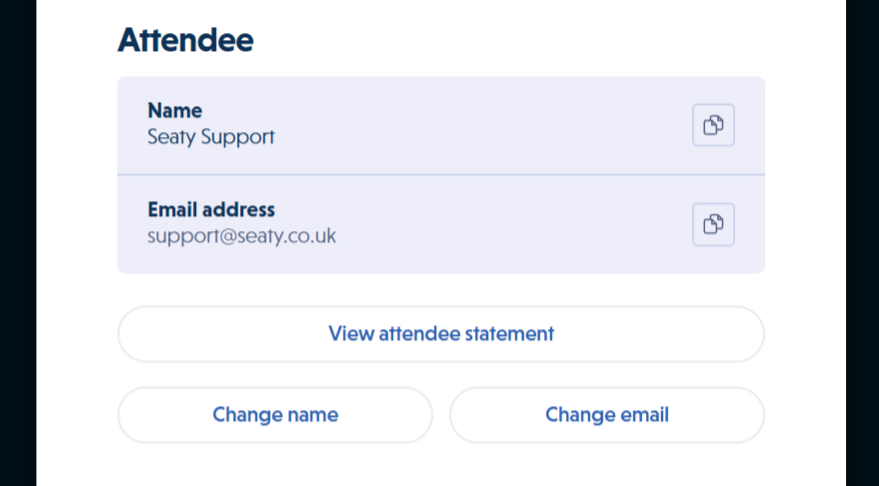 Order view showing attendee details with change name and change email buttons
Order transfer changes the email address associated with an order, moving ownership from one account to another. This is essential when tickets were purchased by one person but need to be accessed by someone else.
At its simplest, order transfer answers one question: How do I move tickets to a different person's account?
Who uses this: Administrators with OrderTransferOwnership permission.
Key capabilities:
- Transfer complete orders to a different email address
- Automatically notify the new owner with their ticket details
- Preserve all pricing, fees, and ticket assignments
- Maintain a full audit trail of ownership changes
How It Works
At a glance: Locate the order, enter the new owner's email address, confirm the transfer, and the new owner receives immediate access.
1. Find the order
Search for the order by order number, customer name, or email address. Open the order details to access the transfer option.
2. Initiate the transfer
In the attendee section, select "Change email" to open the transfer interface. Enter the new owner's email address.
3. Confirm and complete
Verify the email address is correct and confirm the transfer. The system immediately updates ownership and sends a confirmation email to the new owner.
4. Verify the result
Check that the order now shows the new email address and that the new owner has received their access email.
Think of it this way:
- Order transfer moves WHO can access the tickets (changes the account)
- Name change updates WHOSE name appears on the tickets (cosmetic change)
- Resale creates a NEW order for someone else (financial transaction)
What Transfers
What transfers:
- Account ownership - The new email address becomes the order owner
- Ticket access - Access to view, download, and manage tickets
- Order notifications - Future emails are sent to the new address
- Order history - The order appears in the new account's purchase history
- Order-linked payments - Payments directly associated with this order (see Payment Transfer Details below)
What stays the same:
- Order number - Remains unchanged
- Tickets - All seat assignments, categories, and ticket types remain identical
- Pricing - All prices, fees, and discounts remain as originally purchased
- Purchase date - Original order date is preserved
- Attendee name - The name on the order stays the same (change separately if needed)
- Payment records - Original payment dates and amounts are preserved
What does NOT transfer:
- Balance-only payments - Payments made to an email address with no specific order link (see Payment Transfer Details below)
When to Transfer Orders
Common situations requiring order transfer:
- Gift purchases - Someone bought tickets for another person
- Wrong account - Order placed using incorrect email address
- Company bookings - Transferring from booker to actual attendee
- Group purchases - Moving tickets to individual group members
- Account changes - Customer changed their email address and wants order history consolidated
Payment Transfer Details
Think of it this way: Some payments are attached to specific tickets (these move with the order). Other payments are general credits to a customer's account (these stay with the original customer).
Why payments behave differently: Order-linked payments represent money paid for specific tickets. Balance payments represent a financial relationship with the customer, independent of any particular order.
Payments That Transfer With the Order
These payments are connected to the specific tickets being transferred:
- Card payments at checkout - When the customer paid online
- Payments marked when creating the order - Admin marked it as paid during order creation
- Payments added later - Admin used "Add payment" on an existing order
When you transfer the order, these payments move to the new owner's balance. The tickets show as paid under the new email address.
Example scenario:
Customer orders 4 tickets for £40, pays by card. Admin later adds £20 payment for 2 more tickets to the same order.
When transferred: Both the £40 and £20 payments appear in the new owner's balance. All 6 tickets show as paid.
Payments That Stay With the Original Owner
These payments have no connection to any specific order:
- Account credits - Money added to a customer's balance
- Advance payments - Paid before any order existed
- Balance settlements - Clearing debts across multiple orders
These remain with the original email address. They represent a financial relationship with that customer, not with specific tickets.
Example scenario:
Customer owes £100 across several events. They make a £50 payment to their account.
When one order transfers: The £50 credit stays with the original customer. Only payments specifically linked to the transferred order move to the new owner.
How to Check Which Type
Open the event balances screen and look at the payment:
- Shows an order number → Payment is linked, will transfer with that order
- Shows "No linked order" → Payment stays with the email address
After Transferring
Check both accounts to verify:
- Order-linked payments now appear under the new owner
- The transferred order shows as paid
- Balance-only payments (if any) stayed with the original owner
- Both account balances are correct
Transfer vs Name Change
Order Transfer changes WHO can access the tickets:
- Changes the email address and account ownership
- New email receives all future communications
- Tickets appear in the new account's order history
- Requires
OrderTransferOwnershippermission
Attendee Name Change changes the displayed name:
- Updates the name shown on the order
- Doesn't change email address or account access
- Original email address still receives communications
- Available to more users (doesn't require special transfer permission)
Example scenario:
Sarah Johnson buys tickets for her friend Emily Brown:
- After purchase: Order email is sarah.johnson@email.com, name is "Sarah Johnson"
- Name change only: Email stays sarah.johnson@email.com, name becomes "Emily Brown"
- Transfer only: Email becomes emily.brown@email.com, name stays "Sarah Johnson"
- Both operations: Email becomes emily.brown@email.com, name becomes "Emily Brown" (complete gift transfer)
Who Can Transfer Orders
Transferring order ownership requires the OrderTransferOwnership permission.
Why transfer requires special permission: Order transfer changes account ownership and controls who receives email communications. This sensitive operation is restricted to ensure only authorised staff can reassign ticket access.
Note: This permission is separate from viewing orders (
OrderView), editing attendee names, cancelling orders (OrderCancelAndRefund), or adding admin notes (OrderAdminNotes).
If you don't have transfer permissions, the "Change email" option won't appear in the attendee section. You can still change the attendee name. Contact an administrator to request transfer permissions.
Transferring an Order
Step-by-Step Process
- Open the order - Navigate to the order using order search or from an event's order list
- Access transfer section - In the attendee information section, click "Change email" to open the transfer interface
- Enter new email address - Type the new email address. As you type, Seaty searches for existing customers and shows suggestions to prevent typos
- Verify the email address - Double-check the address is correct. The transfer is immediate and cannot be automatically undone
- Transfer the order - Click "Transfer order". The transfer button only activates when a valid email address is entered
- Confirmation - On success, you'll see "The tickets have been transferred" and the order dashboard reloads showing the updated email
What Happens During Transfer
The system validates the email address, verifies your permission, updates the order record, creates a log entry, and sends a confirmation email to the new address.
The new owner immediately receives an order confirmation email containing complete order details, all ticket information, access link to view and download tickets, and event information.
The order now appears in the new email address's account history and is removed from the original owner's visible orders.
After Transfer
New Owner Access
The new owner can immediately:
- View their tickets using the link in the confirmation email
- Access tickets from their account dashboard
- Download tickets as PDF
- Add tickets to Apple Wallet or Google Pay
- Receive all future order-related communications
Original Owner Access
The original owner:
- No longer sees the order in their account
- Cannot access the tickets
- No longer receives emails about this order
- Loses all ownership rights
Admin Access
As an administrator, you can still:
- View the order by searching the order number
- See the transfer in the order log
- Perform additional admin operations if needed
- Transfer the order again if necessary
Important Notes
Email Validation
The transfer system validates email addresses for proper format (must contain @ and domain), no leading or trailing spaces, and valid characters only. Invalid email addresses prevent the transfer button from activating.
Cannot Undo Automatically
Order transfers are immediate and cannot be automatically reversed. To undo a transfer, perform another transfer back to the original email address. This creates a new log entry showing both transfers.
Why transfers are immediate: This ensures the new owner has instant access to their tickets without waiting for batch processing.
Transfer Limits
There are no technical limits on number of times an order can be transferred, time restrictions, or order value.
Cancelled Orders
You can transfer cancelled orders for record-keeping purposes, consolidating refund communications, or preparing for potential re-booking.
Multiple Tickets
Transfers always include all items in the order. All tickets and merchandise move together. You cannot split an order during transfer.
Why entire orders transfer together: Orders represent a single purchase transaction. To split tickets, use the resale feature or cancel and create separate orders.
Email Notification Details
The order confirmation email sent to the new owner includes full order summary with order number, event details, complete ticket list with seat assignments, financial breakdown, and a direct link to view and download tickets.
The email sends immediately after successful transfer. If the recipient doesn't receive it, check spam/junk folders, verify the email address is correct, use "Re-send order email" to send again, or contact the recipient to confirm their email settings.
After transfer, you can re-send the order email by viewing the transferred order and clicking "Re-send order email" in the admin actions section.
Combining Name and Email Changes
To completely transfer tickets to a new person, first transfer ownership by clicking "Change email" and entering the new owner's email address. After the transfer completes, click "Change name" and update to the new owner's name.
Why this order matters: Transferring first ensures the order confirmation email goes to the correct recipient. Changing the name afterwards ensures they see their own name on the tickets.
Common Questions
Partial Transfers
Can I transfer just some tickets from an order?
No. Transfer moves the entire order to the new email address. All tickets and merchandise in that order transfer together. To split tickets, use the resale feature or cancel specific items and create new orders.
Pricing and Fees
Does transfer affect pricing or fees?
No. All pricing, fees, discounts, and financial details remain exactly as they were when purchased.
Does transfer affect refund eligibility?
No. Enhanced Refund Service (ERS) and standard refund policies remain unchanged. The new owner has the same refund rights as the original purchaser.
Mistakes and Corrections
What if I transfer to the wrong email address?
Immediately transfer again to the correct email address. Both transfers will appear in the order log. The most recent transfer determines current ownership.
New Owner Access
Does the new owner need a Seaty account?
No. The order confirmation email includes a direct link to view tickets. Account creation is optional.
Can customers request transfers themselves?
No. Order transfers require administrative OrderTransferOwnership permission. Customers must contact your organisation
to request transfers.
Audit and Permissions
What appears in the order log?
The order log records the date and time of transfer, admin user who performed the transfer, original email address, new email address, and notation "Order transfer".
Can I transfer orders for other organisations?
Only if you have OrderTransferOwnership permission for that specific organisation. Permissions are
organisation-specific.
Troubleshooting
Transfer button stays disabled: Verify email address format is valid, check for extra spaces before or after the email, and ensure the email contains @ symbol and domain.
Error: "You do not have permission": You need OrderTransferOwnership permission. Contact an administrator to
request this permission for the organisation.
Error: "Order not found": The order ID may be incorrect. Verify you're viewing the correct order.
Email not received by new owner: Check spam/junk folders, verify the correct email address in order details, use "Re-send order email" function, or check the recipient's email provider isn't blocking automated emails.
Transfer succeeded but email shows old address: Refresh the order page. The updated email should appear in the attendee section.