Organisation Theme: Branding and Visual Identity
Overview
Your organisation theme establishes the visual identity customers see when booking tickets, receiving confirmations, and interacting with your events. Rather than configuring branding for each event individually, you set it once at the organisation level and it flows through to all your events automatically.
At its simplest, the theme system answers one question: How do I make my events look professionally branded without repeating the same setup work?
Who uses this: Organisation administrators and event managers with edit access to the organisation.
Key capabilities:
- Set a main brand colour that applies to headers, buttons, and key interface elements
- Upload your organisation logo to appear in booking dialogs and email confirmations
- Control spacing around your logo for precise visual balance
- Enable optional sparkle animation for festive or celebratory event portfolios
- Override the organisation theme at tour or event level when needed
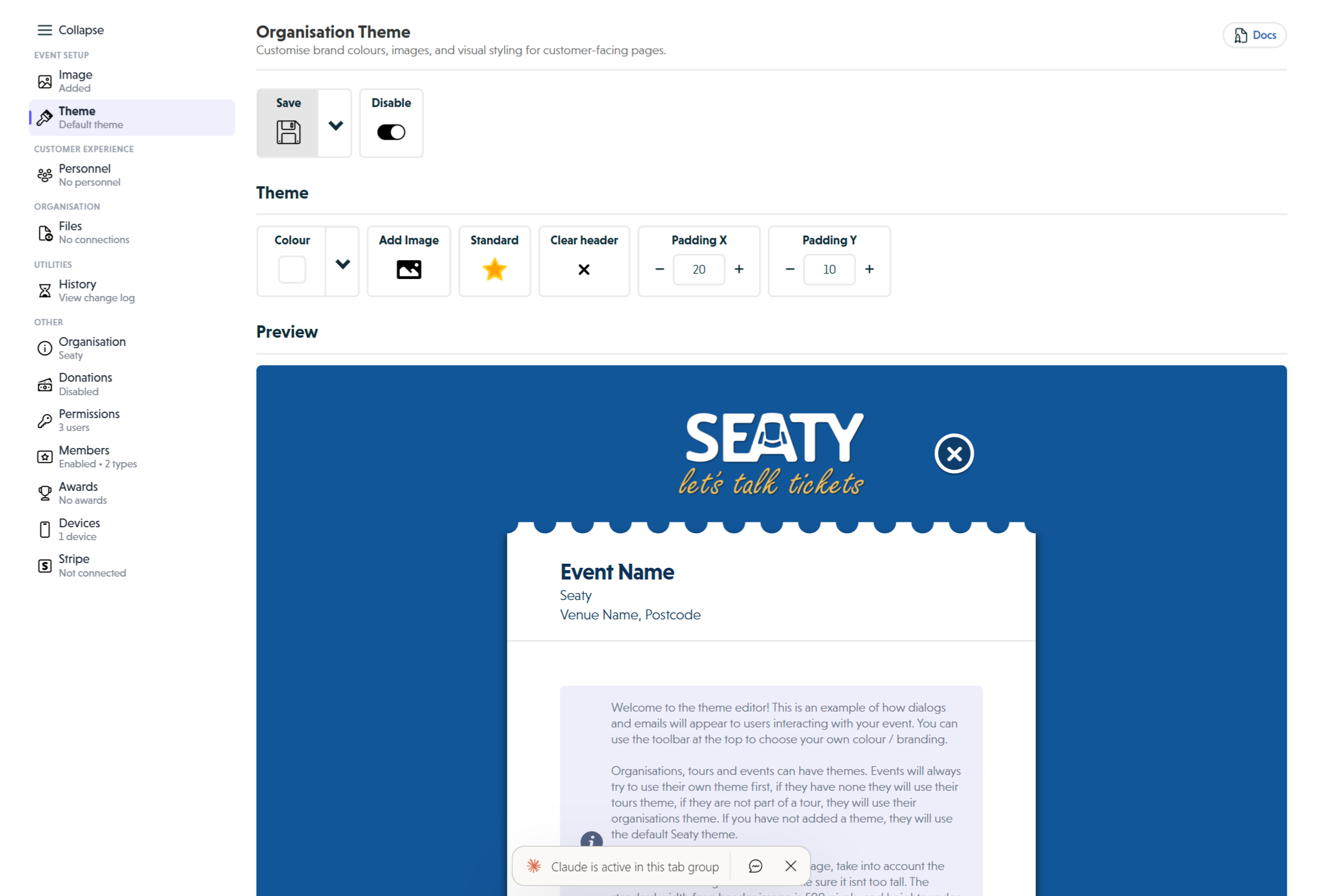 Theme section showing colour picker, header image controls, padding adjustments, and live preview
How It Works
At a glance: You enable your theme, choose a colour, upload your logo, adjust spacing, and save. All events without their own theme automatically use your organisation branding.
1. Enable and Configure
Navigate to your organisation's Theme section and enable customisation. Select your brand colour using the colour picker or enter your exact hex code. Upload your organisation logo and adjust the padding controls until it sits comfortably in the header area.
2. Preview Your Changes
The preview section shows exactly how your theme appears to customers. Check that your logo looks professional, text remains readable against your colour choice, and buttons stand out clearly.
3. Save and Verify
Save your theme and test it on one of your existing events. Walk through the booking journey to confirm your branding appears correctly at every stage.
Think of it this way:
- Organisation theme provides your default branding for all events
- Tour theme overrides the organisation theme for events in that tour
- Event theme overrides both tour and organisation themes for that specific event
- Default Seaty theme applies when no custom theme exists at any level
Theme Hierarchy System
Seaty uses a three-level theme system that provides flexibility whilst maintaining consistency.
Priority Order
- Event Theme - Applied to a specific event only
- Tour Theme - Applied to all events within a tour
- Organisation Theme - Your default branding (applies when no event or tour theme exists)
- Default Seaty Theme - Professional blue theme used when no custom theme is set
How the Fallback Works
When a customer views an event, the system determines which theme to display:
- Event has its own theme? Use the event theme
- Event is part of a tour with a theme? Use the tour theme
- No event or tour theme? Use the organisation theme
- No organisation theme set? Use the default Seaty theme
This hierarchy means you can set professional branding once as your organisation's default, whilst retaining the flexibility to override it for tours or special occasions.
Why this approach? A theatre company can set their standard brand colours (deep blue and gold) at organisation level. All 20+ events throughout the year automatically use these colours. For their Christmas pantomime tour, they create a festive tour theme with red and green. For the opening night gala, they create a one-off event theme with special gold styling.
Theme Inheritance to Events
Automatic Fallback Application
When you create a new event without specifying a theme, it automatically uses your organisation theme as its default with no additional setup required. This includes:
- Main colour scheme
- Header logo/image
- Padding settings
- Visual effects (sparkles)
Benefits of Inheritance
Time Savings: Set your branding once rather than configuring 20 individual events
Brand Consistency: Every event looks professionally coordinated
Easy Updates: Change your organisation theme and all events without event or tour overrides update automatically
Flexibility: Override the organisation theme for special events that need unique branding
When Events Bypass Organisation Theme
Events use higher-priority theming when:
- Event-specific theme: The event has its own custom theme configured
- Tour membership: The event belongs to a tour that has its own theme
When neither condition applies, the event falls back to using the organisation theme (or the Seaty default if no organisation theme exists).
Key Features
Main Colour Selection
Your organisation's main colour establishes brand identity across the entire customer experience.
Where It Applies:
- Modal headers - Top banner of all booking dialogs
- Background gradients - Subtle radial gradient effects
- Button styling - Confirmation and action buttons
- Email headers - Consistent branding in all automated emails
Choosing Your Colour:
Use the integrated colour picker to select your exact brand colour. The picker supports visual selection by clicking and dragging, direct hex code entry, and RGB value input.
Brand Considerations:
- Choose colours with sufficient contrast against white text
- Consider colour psychology for your venue type
- Test against your logo to ensure visual harmony
- Verify accessibility standards (WCAG AA contrast ratio)
Header Image Management
Your header image appears at the top of every modal and email, establishing immediate brand recognition.
Recommended Specifications
- Width: 500 pixels (optimised for modal display)
- Height: Under 400 pixels (maintains compact dialogs)
- Format: PNG with transparent background (professional appearance)
- File size: Under 200KB (ensures fast loading)
- Content: Organisation logo or wordmark (not event-specific artwork)
Best Practices for Organisation Logos
Logo Design Considerations:
- Use your standard organisation logo, not event-specific artwork
- Ensure the logo works on your chosen brand colour background
- Consider horizontal logos rather than square/vertical (fits header format better)
- Leave space in the top-right corner for the close button
Preparing Your Logo:
- Export from your design software at 500px width
- Use PNG format with transparent background
- Optimise file size using image compression tools
- Test the logo on both light and dark backgrounds
Padding Controls
Fine-tune the spacing around your logo for perfect visual balance:
- Padding X - Horizontal spacing (left and right margins)
- Padding Y - Vertical spacing (top and bottom margins)
- Increment: 5 pixels per click
- Recommended range: 10-30 pixels typically looks best
Why start at zero? When you first upload a header image, padding starts at 0px. This lets you see exactly where your image sits before adding space. Most logos look best with 10-30 pixels of padding added using the padding controls.
Sparkle Effect
The sparkle effect adds animated sparkle particles to your theme background, creating a festive, magical atmosphere.
When to Enable for Organisation Theme
Recommended for:
- Children's entertainment venues - Pantomime theatres, family show venues
- Festival organisations - Seasonal event organisations with celebratory focus
- Community groups - Local drama societies with family-friendly productions
Not recommended for:
- Professional concert venues - Classical music, corporate conferences
- Traditional theatres - Serious drama, professional repertory companies
- Corporate event venues - Business conferences, professional events
- Standard arts organisations - Most general-purpose venues
Note: Organisation theme sparkles apply to ALL events. Only enable sparkles if the majority of your events benefit from a festive, energetic atmosphere.
Step-by-Step Setup Guide
Creating Your Organisation Theme
Follow these steps to establish consistent branding across all your events:
1. Access Organisation Settings
- Click your organisation name in the admin navigation
- Select Edit Organisation from the menu
- Navigate to the Theme section
2. Enable Theme Customisation
- Click the Enable toggle in the toolbar
- The preview displays the default Seaty theme
- Customisation options become available
3. Configure Your Brand Colour
- Click the Colour dropdown in the toolbar
- Enter your brand's hex code if you have one
- Alternatively, use the visual picker to select your colour
- Watch the preview update in real-time
- Verify text remains clearly readable
Why use a hex code? If your organisation has formal brand guidelines, using the exact hex code ensures perfect colour matching across all your materials.
4. Upload Your Organisation Logo
- Prepare your logo (500px wide, PNG format with transparency)
- Click Add Image in the toolbar
- Browse to your logo file
- Select and upload
- Wait for processing to complete
5. Adjust Header Padding
- Review how your logo sits within the header area
- Header images start with no padding (0px)
- Click the - and + buttons to adjust Padding X (horizontal spacing)
- Click the - and + buttons to adjust Padding Y (vertical spacing)
- Each click adjusts by 5 pixels
- Aim for balanced whitespace around your logo
- Most logos look best with 10-30px padding added on all sides
6. Choose Visual Style
- Consider whether sparkles enhance your organisation's character
- Click the Sparkle / Standard toggle if desired
- Remember: This affects ALL events in your organisation
- Most organisations should use Standard
7. Review the Preview
The preview section demonstrates exactly how your theme appears to customers.
Check These Elements:
- Header appearance - Does your logo look professional?
- Colour application - Does the colour work with white text?
- Text readability - Can you easily read all text?
- Button contrast - Do call-to-action buttons stand out?
- Overall impression - Does this represent your brand well?
8. Save Your Organisation Theme
- Review any warnings in the Save button dropdown
- Address any issues highlighted
- Click Save to apply your theme
- Confirmation appears when saved successfully
9. Verify Application to Events
- Open one of your existing events
- Navigate to the Theme section
- Verify the event is using your organisation theme (unless it has an event-specific override)
- Test the complete booking journey on your event page
Testing Your Organisation Theme
After saving your organisation theme, test it thoroughly:
Test on Multiple Events
- Open 2-3 different events from your organisation
- Click through the booking journey (Buy Tickets, Select Seats, Checkout)
- Verify your branding appears consistently on all events
- Check that the colour and logo display correctly
Test Email Confirmations
- Complete a test ticket purchase on one of your events
- Check your email confirmation
- Verify your organisation logo appears in the email header
- Confirm colours render accurately
Test Mobile Experience
- View your events on a smartphone
- Tap through the booking process
- Verify logo scales appropriately
- Check padding looks correct on small screens
Cross-Browser Verification
Test in multiple browsers to ensure consistent appearance:
- Chrome (most common browser)
- Safari (iOS users)
- Firefox
- Edge
Resetting Theme
Reset to Default
If you want to remove your custom organisation theme and return to the Seaty default:
- Navigate to Organisation Settings then Theme
- Click Disable in the toolbar
- Your custom theme is disabled and settings are reset
- All events now use the default Seaty theme (unless they have event/tour overrides)
Important: Disabling resets your custom theme settings. Re-enabling creates a fresh default theme. Note down your hex colour code and save your header image before disabling if you plan to re-use them later.
Starting Fresh
To completely reconfigure your organisation theme:
- Enable your theme (if disabled)
- Click Clear header to remove your logo (if one exists)
- Select a new colour using the colour picker
- Upload a new logo with Add Image
- Configure padding (starts at 0px, adjust to 10-30px typically)
- Choose sparkle or standard visual effect
- Save the updated theme
Previewing Changes
Live Preview System
The theme preview updates instantly as you make changes, showing exactly how customers will see your branding.
Preview Components:
- Header area - Your logo with brand colour background
- Close button - Positioned in top-right (verify it does not overlap your logo)
- Body content - Example event information and ticket listings
- Call-to-action buttons - Styled with your brand colour
- Footer - Seaty branding
Interactive Testing:
- Click the sample "View tickets" button to test hover states
- Verify the close button is clearly visible
- Check text readability throughout the preview
- Ensure your logo looks sharp and professional
Real-World Testing
The preview provides a good indication, but test in real scenarios before going live:
- Desktop browser: Complete test booking journey
- Mobile device: Test full purchase flow on smartphone
- Email clients: Check confirmation emails in Gmail, Outlook, Apple Mail
- Multiple events: Verify consistency across different events
Design Tips
Colour Contrast and Accessibility
Meeting Accessibility Standards:
Your theme colour must provide sufficient contrast against white text to ensure all customers can read your content, including those with visual impairments.
WCAG AA Standard: Requires a contrast ratio of at least 4.5:1 for normal text
Testing Your Colour:
- Use online contrast checking tools
- Enter your hex code and #FFFFFF (white)
- Verify the result shows "Pass" for WCAG AA
- If it fails, choose a darker or more saturated colour
Safe Colour Choices:
- Dark blues - Professional and accessible
- Deep purples - Elegant with good contrast
- Forest greens - Natural and readable
- Burgundy/maroon - Sophisticated and accessible
Colours to Avoid:
- Pastels - Light colours rarely provide sufficient contrast
- Yellow/light orange - Very difficult to read white text against
- Light grey - Insufficient contrast with white
- Neon/bright colours - Can cause eye strain
Branding Consistency
Align with Your Existing Materials:
Your Seaty theme should match your other branding materials:
- Website: Use the same colour palette as your main website
- Printed materials: Match colours in your programmes and posters
- Social media: Maintain consistency across all digital presence
- Physical venue: Consider your venue's colour scheme
Creating a Brand Standards Document:
Document your theme settings for future reference and team training:
- Hex code of your brand colour
- Logo file location and specifications
- Padding values (X and Y)
- Sparkle setting (on/off)
- Any special considerations for overrides
Training Your Team:
If multiple people manage events in your organisation:
- Document your organisation theme settings
- Explain when to use organisation theme vs. event overrides
- Establish guidelines for event-specific themes (when to use, when not to)
- Provide brand guidelines for consistency
Logo Design Considerations
Optimising Your Logo for Theme Use:
- Horizontal layout works best - Fits the header format naturally
- Transparent background essential - Blends seamlessly with brand colour
- Clear at small sizes - Must remain legible when displayed in modals
- Top-right consideration - Leave space for the close button
Logo Variations:
Many organisations have multiple logo versions. Choose:
- Not the full-colour version - It must work on your brand colour background
- White/reversed version - Often looks best on coloured backgrounds
- Simplified version - Wordmark or simplified logo works better than complex crests
Testing Your Logo:
- Upload and preview
- Verify it is clearly visible against the brand colour
- Check the close button does not overlap important elements
- Test at various screen sizes
- Verify it displays clearly in email clients
Professional Polish
Achieving a Professional Appearance:
Padding Balance:
- Too little padding makes designs feel cramped
- Too much wastes valuable screen space
- Header images start with 0px padding - add 10-30px using the padding controls for best results
- Logos with built-in whitespace need less added padding
Colour Harmony:
- Ensure your brand colour complements your logo
- Test the combination in the preview
- Consider whether your logo needs adjustment for the coloured background
Consistency Across Touchpoints:
- Test the complete customer journey from discovery to confirmation
- Verify branding appears consistently at every stage
- Check email confirmations match on-screen appearance
Regular Review:
- Review your organisation theme every 6-12 months
- Update if your branding changes
- Refresh imagery to keep it current
Accessibility Considerations
Colour Contrast Requirements
WCAG Standards:
The Web Content Accessibility Guidelines (WCAG) define minimum contrast ratios:
- WCAG AA (minimum): 4.5:1 contrast ratio for normal text
- WCAG AAA (enhanced): 7:1 contrast ratio for normal text
Why It Matters:
Approximately 1 in 12 men and 1 in 200 women have some form of colour vision deficiency. Sufficient contrast ensures:
- Customers with low vision can read your content
- Colour-blind users can distinguish text from background
- Customers viewing on older displays or in bright light can read comfortably
Testing Your Theme:
- Use an online contrast checker tool
- Enter your hex code and white (#FFFFFF)
- Verify you meet WCAG AA standards minimum
- If possible, aim for WCAG AAA standards
Visual Effects and Sensory Considerations
Sparkle Animation:
The sparkle effect creates moving particles on screen. Consider:
- Some users with sensory processing sensitivities may find animations distracting
- Individuals with vestibular disorders may experience discomfort from motion
- Users with ADHD may find continuous animation makes concentration difficult
Best Practice: Use "Standard" mode for your organisation theme. Reserve sparkles for specific events where the festive atmosphere significantly enhances the experience and outweighs potential accessibility concerns.
Text Legibility
Font Rendering:
The system uses clear, readable fonts optimised for screen display. Your colour choice affects legibility:
- Dark colours - Excellent legibility with white text
- Medium colours - Generally good, but verify in preview
- Light colours - Often poor legibility, choose darker alternatives
Note: Your organisation theme uses solid colour backgrounds, which provide optimal accessibility and text legibility.
Focus Indicators
The system maintains proper keyboard navigation regardless of theme colour:
- Focus indicators remain visible on all interactive elements
- Keyboard users can navigate modals without a mouse
- Screen readers work correctly with themed content
Your theme colour does not affect these accessibility features - they are built into the platform's foundation.
Common Questions
Theme Scope and Inheritance
Should all my events use the organisation theme?
For most events, yes. The organisation theme provides consistent branding across your entire portfolio of events. Only create event-specific themes for genuinely special occasions like special galas, partner collaborations with co-branding requirements, or themed productions with very specific visual requirements.
What happens to my events if I change the organisation theme?
When you update your organisation theme, the changes automatically apply to all events without event-specific themes that are not part of a tour with a theme, plus any future events you create. Events with custom themes or events in tours with tour themes are not affected. Update your organisation theme during quiet periods, and test on a representative event to verify the changes appear correctly.
Can I use different themes for different types of events?
Yes, using the theme hierarchy. You can create tours for different event categories (such as "Classical Series" or "Children's Shows"), give each tour its own theme, and add events to the appropriate tour. Alternatively, you can configure event-specific themes for individual events requiring unique branding. Both approaches work alongside your organisation theme, which serves as the fallback default.
Making Changes
How do I override the organisation theme for one event?
Open the specific event in the Event Editor, navigate to the Theme section, click Enable to create an event-specific theme, configure the event's unique branding, and save. The event now uses its own theme instead of the organisation theme.
What if I change my organisation's logo?
Navigate to Organisation Settings then Theme, click Clear header to remove the old logo (this resets padding to 0px), upload your new logo using Add Image, adjust padding using the Padding X and Padding Y controls (most logos need 10-30px), and save. All events using the organisation theme as their fallback immediately show the new logo.
Can I disable themes completely?
Yes. If you disable your organisation theme and ensure no events have event-specific themes, all your events use the default Seaty theme - a professional blue colour scheme that looks clean and trustworthy.
Platform and Features
Will my organisation theme work in the mobile app?
Yes. Your organisation theme automatically applies to events viewed in the Seaty mobile application, maintaining consistent branding across both web and mobile experiences.
Should I use sparkles for my organisation theme?
Most organisations should not use sparkles. Sparkles work well for children's entertainment venues with primarily family shows, festival organisations with consistently celebratory events, and community groups with predominantly light-hearted productions. For standard theatres, concert venues, and professional event spaces, the "Standard" option looks more professional.
Are background images available?
Background images are not available for standard organisation themes. Contact support if you have special requirements.
Verification and Troubleshooting
Can I see which events are using my organisation theme?
Your organisation theme serves as the default for events that do not have their own theme enabled and are not part of a tour with a theme. To check a specific event, open it in the Event Editor, navigate to Theme, and if theme is disabled, the event uses the fallback (tour theme if in a tour, otherwise organisation theme).
Do I need technical skills to set up a theme?
No. The theme system uses visual controls: a colour picker for colour selection (no need to know hex codes), point-and-click image upload, simple +/- buttons for padding adjustment, and a live preview that shows changes immediately. If you can upload an image and choose a colour, you can create a professional organisation theme.
Next Steps
Once your organisation theme is configured, continue setting up your organisation:
- Organisation Details - Complete your organisation profile and contact information
- Stripe Integration - Connect your payment processing for ticket sales
- Permissions - Set up team member access and roles
- Create Your First Event - Your new event will automatically inherit your organisation theme
Need help? Visit our FAQ or contact support.