Organisation Files: Share Documents with Team and Members
Overview
The Files section of the organisation editor lets you share documents, templates, and resources across your entire organisation. Unlike event files which are tied to a single event, organisation files remain available to your team regardless of which event they're working on.
At its simplest, Organisation Files answers one question: How do I share resources that my whole organisation needs access to?
Who uses this: Organisation administrators with Edit permission.
Key capabilities:
- Share files with all organisation members through a member connection
- Share sensitive files with administrators only through an admin connection
- Upload files directly from the website with drag-and-drop support
- Create, rename, move, and delete files and folders from the web interface
- Select multiple files for bulk operations
- Search files across folders
- Play audio and video files directly in the browser
- Store templates, brand guidelines, and procedures that apply across all events
- Manage two independent file connections (admin and member) simultaneously
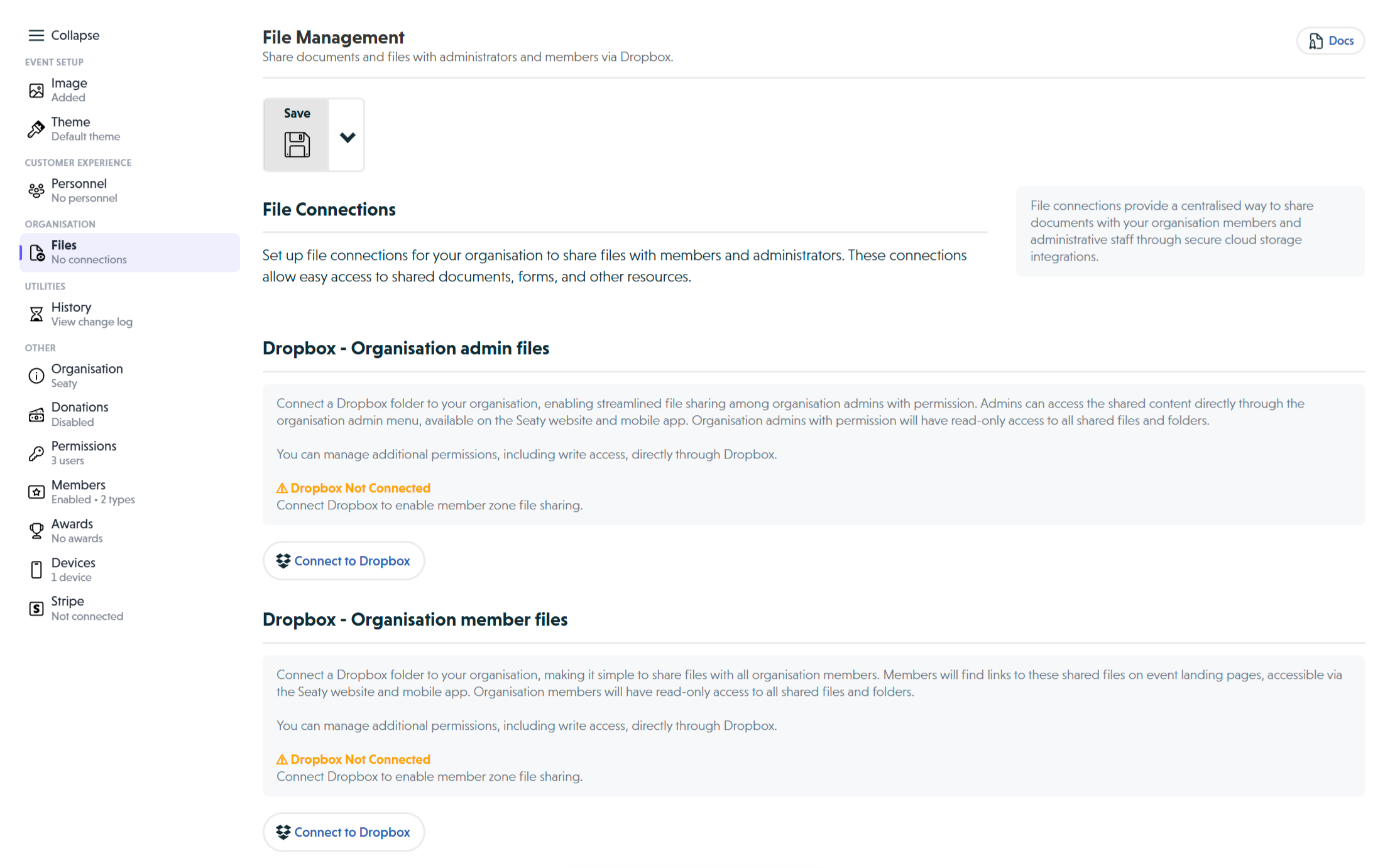 Organisation Files section showing admin and member Dropbox connection options
How It Works
At a glance: You connect your cloud storage account, add files to a dedicated folder, and your team accesses them through Seaty.
1. Connect your cloud storage
From the Organisation Editor, navigate to the Files section. Choose which type of connection you need (admin files, member files, or both). Click "Connect to Dropbox" and authorise access in the popup window.
2. Add files to your folder
Once connected, a dedicated folder appears in your cloud storage. Add files using any method you prefer - the website, desktop app, or mobile app. Any files you place in this folder become available through Seaty.
3. Team members access files
Administrators access files through the organisation admin menu. Members see a "Member organisation files" button on event landing pages. Both the website and mobile app provide full access.
Think of it this way:
- Organisation admin files work like a private cabinet for sensitive documents only administrators can see
- Organisation member files work like a shared resource library available to everyone in your organisation
- Event files (covered separately) work like project folders specific to one production
Two Connection Types
Organisation Files supports two independent connections. You can use one, both, or neither depending on your needs.
Admin Connection
Purpose: Share files with organisation administrators who have appropriate permissions.
Who can access:
- Users with Organisation Files permission
- Only administrators, never members
Typical uses:
- Financial templates and budgets
- Administrative procedures
- HR policies and documents
- Sensitive company information
- Contract templates
Access method: Through organisation admin menu
Member Connection
Purpose: Share files with all organisation members.
Who can access:
- Any organisation member (requires memberships to be enabled)
- Organisation administrators with Organisation Files permission
Typical uses:
- Brand guidelines and logos
- Marketing templates
- Public policies
- Training materials
- Venue maps and information
Access method: Through member zone on event landing pages (members see "Member organisation files" button)
Note: The member connection only appears in the editor if your organisation has memberships enabled.
Setting Up Organisation Files
Connecting Cloud Storage
What you need:
- Organisation Edit permission
- An active Dropbox account
- Popup windows enabled in your browser
Steps to connect:
- Navigate to Organisation Editor (from organisation admin menu)
- Select Files from the side menu
- Choose which connection to set up:
- Organisation admin files - For administrators only
- Organisation member files - For all members (requires memberships enabled)
- Click "Connect to Dropbox"
- A popup opens - log into Dropbox if needed
- Review the permissions and click "Allow"
- The popup closes automatically when complete
- You'll see a success message confirming the connection
What happens next:
- A dedicated folder is created in your cloud storage
- Files you add to this folder become available organisation-wide
- Access is controlled automatically based on the connection type
- The connection remains active until you disconnect it
Adding Files
Once connected, add files using any method:
Via the cloud storage website:
- Log in to your cloud storage account
- Navigate to
Apps→Seaty Organisations→[your-organisation-tag] - Upload files or create folders
- Files appear in Seaty within seconds
Via desktop app:
- Open your cloud storage folder on your computer
- Navigate to
Apps/Seaty Organisations/[your-organisation-tag] - Drag and drop files
- Changes sync automatically
Via mobile app:
- Open your cloud storage mobile app
- Navigate to Apps → Seaty Organisations → [your-organisation-tag]
- Upload files from your device
Create folder structures that make sense for your organisation's workflow. Changes reflect in Seaty within moments.
Managing Files from the Web Interface
Administrators can also manage files directly from Seaty without opening Dropbox:
Uploading Files
- Drag files from your computer onto the file list
- Or click the Upload button to select files
- Upload progress shows with a circular indicator and cancel option
- Drag entire folders to upload their complete contents
Creating Folders
- Click New folder in the toolbar
- Enter the folder name and confirm
Renaming Items
- Select a single file by ticking its checkbox
- Click Rename and enter the new name
Moving Files
- Select files using checkboxes
- Click Move and navigate to the destination folder
- Confirm the move
Bulk Operations
- Use Select all to select everything in a folder
- Perform bulk moves or deletes on selected items
Searching
- Use the search box to find files across folders
- Click results to navigate directly to them
Media Playback
- Play audio files with the inline player (controls at bottom of screen)
- Play video files in a dedicated overlay player
Accessing Organisation Files
As an Administrator
To view admin files:
- Navigate to your organisation admin page
- Click the organisation admin menu (three dots)
- Select "View organisation admin files"
- Browse, preview, and download as needed
To view member files:
- In Organisation Editor → Files section
- After connecting member files
- Click "View organisation member files"
- This lets you verify what members will see
Administrator advantages:
- Access both admin and member connections
- Test the member experience before wider release
- Manage files directly from the admin interface
- No membership required to view member files
As a Member
Organisation members can access member files when:
- The organisation has member files connected
- Memberships are enabled for the organisation
- The user is recognised as an organisation member
- The member is logged into their Seaty account
Access method:
- A button appears in the member zone section on event landing pages
- Members see "Member organisation files" alongside event-specific file buttons
- Available on both website and mobile app
Organisation Files vs Event Files
Organisation Files for:
- Templates used across multiple events
- Brand assets needed across all events
- Standard procedures applicable to all productions
- Company-wide policies
- Persistent resources
Event Files for:
- Event-specific scripts and run sheets
- Individual event schedules
- Production documents unique to that event
- Files only relevant to ticket holders
- Temporary event materials
Example workflow:
- Store blank budget template in Organisation Files (admin)
- Store brand guidelines in Organisation Files (member)
- Store specific event script in Event Files (member)
- Store specific event production schedule in Event Files (admin)
Why separate them? This separation keeps organisation resources available long-term while event-specific materials remain contextually organised. When an event ends, you can archive its files without affecting your organisation-wide resources.
File Organisation Best Practices
Recommended Folder Structure
For Admin Connection:
your-organisation-tag/
├─ Templates/
│   ├─ Budget Template.xlsx
│   ├─ Risk Assessment Template.docx
│   └─ Contract Templates/
├─ Policies/
│   ├─ Health and Safety.pdf
│   ├─ Safeguarding Policy.pdf
│   └─ GDPR Compliance.pdf
├─ Financial/
│   ├─ Invoice Templates.xlsx
│   └─ Expense Claims.xlsx
└─ Staff Resources/
    ├─ Employee Handbook.pdf
    └─ Training Materials/
For Member Connection:
your-organisation-tag/
├─ Brand Guidelines/
│   ├─ Logo Files/
│   ├─ Colour Palette.pdf
│   └─ Typography Guide.pdf
├─ Marketing Templates/
│   ├─ Social Media Templates.psd
│   ├─ Poster Template.pdf
│   └─ Email Newsletter Template.html
├─ Venue Information/
│   ├─ Theatre Seating Plan.pdf
│   ├─ Stage Dimensions.pdf
│   └─ Technical Specifications.pdf
└─ Member Resources/
    ├─ Welcome Pack.pdf
    └─ FAQs.pdf
Naming Conventions
Folders:
- Use clear, descriptive names
- Keep names concise for mobile viewing
- Use consistent capitalisation
- Avoid special characters
Files:
- Include version information: "Brand Guidelines v3.2.pdf"
- Use date stamps when relevant: "Budget Template 2025.xlsx"
- Be specific: "Theatre A Seating Plan.pdf" not "Plan.pdf"
- Consider numeric prefixes for ordering: "01 Introduction", "02 Setup"
Use Cases
Theatre Company
Admin connection:
- Production budget templates
- Director contracts
- Venue hire agreements
- Staff timesheets
- Financial reporting templates
Member connection:
- Company brand guidelines
- Headshot style guide
- Standard audition forms
- Rehearsal room locations
- Member handbook
School/Education
Admin connection:
- Safeguarding policies
- Risk assessment templates
- Budget planning documents
- Staff training materials
- Compliance documentation
Member connection:
- Student information packs
- Parent guides
- Facility maps
- Term schedules
- General school policies
Event Management Company
Admin connection:
- Client contract templates
- Budget planning tools
- Staff scheduling documents
- Vendor agreements
- Internal procedures
Member connection:
- Brand assets (logos, colours)
- Marketing templates
- Standard venue information
- Equipment inventory lists
- Public-facing policies
Community Organisation
Admin connection:
- Grant application templates
- Financial records templates
- Committee meeting agendas
- Volunteer background check forms
- Insurance documentation
Member connection:
- Volunteer handbook
- Venue directions
- Equipment usage guides
- Event planning checklists
- Public policies
Managing Connections
Disconnecting
Why disconnect:
- No longer need organisation-wide file sharing
- Switching to a different solution
- Cleaning up unused integrations
- Revoking access for security reasons
To disconnect:
- Navigate to Organisation Editor → Files
- Find the connection to remove (Admin or Member)
- Click "Disconnect Dropbox from organisation"
- Confirm the action
- Connection immediately removed
What happens:
- Seaty loses access to that folder
- Files no longer accessible via Seaty
- Your files remain in cloud storage unchanged
- Members/administrators see a "Dropbox Not Connected" message
- You can reconnect at any time
Using Both Connections
You can have both Admin and Member connections active simultaneously:
- Each operates independently
- Separate folders in your cloud storage
- Different access permissions
- Independent connect/disconnect actions
Permission Requirements
To connect or disconnect:
- Organisation Edit permission
To view admin files:
- Organisation Files permission
To view member files:
- Organisation membership (for regular members)
- Organisation Files permission (for administrators accessing member view)
Security and Privacy
Access control:
- Permissions checked on every request
- Members must be logged in to access member files
- Administrators need Organisation Files permission
- No cross-organisation access possible
Folder isolation:
- Each organisation has separate folders
- Disconnection immediately revokes all access
Temporary access:
- Download links expire after use
- No permanent external URLs to your files
Common Questions
Connection
Can I use the same cloud storage account for multiple organisations? Yes. Each organisation gets its own folder within your cloud storage account. You can connect the same account to multiple organisations.
What happens if I disconnect and reconnect? If you reconnect with the same cloud storage account, your existing files will still be there. The folder structure is preserved in your cloud storage even when disconnected from Seaty.
Can I change which cloud storage account is connected? Yes. Disconnect the current connection, then connect again with a different account. Your files remain in the original account; the new folder will be empty until you add files.
Access
Why can't my members see organisation files? Check these requirements:
- Memberships must be enabled for your organisation
- The member connection must be active (connected in Organisation Editor → Files)
- Members must be logged into their Seaty account
- Members access files through event landing pages for events in your organisation
Can members edit files? By default, members have read-only access. They can view, preview, and download files but cannot modify them. You can configure additional permissions directly through your cloud storage provider.
Do members need to create a cloud storage account? No. Members access files through Seaty. They never interact directly with cloud storage.
Files and Folders
How quickly do file changes appear? Changes typically appear within seconds. If you don't see recent changes, try refreshing the page.
Is there a file size limit? Seaty can display and provide access to files of any size your cloud storage supports. Very large files may take longer to preview or download.
Can I reorganise folders after connecting? Yes. Reorganise your folder structure at any time through your cloud storage. Changes reflect in Seaty automatically.
Troubleshooting
Files not appearing?
- Verify files are in the correct folder:
Apps/Seaty Organisations/[your-organisation-tag] - Ensure your cloud storage has finished syncing
- Refresh the Files page in Seaty
- Check you're viewing the correct connection (Admin vs Member)
Connection failed?
- Ensure popup windows are enabled in your browser
- Check you're logged into your cloud storage account
- Try a different browser if issues persist
- Contact support if the problem continues
Permission denied?
- Verify you have the required permission (Organisation Files for admin files)
- Confirm you're an organisation member (for member files)
- Check the connection is still active
- Contact your organisation administrator
Related Features
- Event Files: Event-specific file sharing
- Memberships: Required for member file access
- Permissions: Manage who can access organisation admin files
Need Help?
If you have questions about Organisation Files:
- Email: support@seaty.co.uk
- Check connection status in Organisation Editor → Files
- Verify your cloud storage folder path and contents
- Ensure permissions are configured correctly