Event Venue Setup: Address, Imagery, Maps and Directions
Overview
Every event needs a location. Whether you are hosting a performance at a local theatre, a meeting in a community hall, or a webinar online, the venue section captures where your event takes place and helps attendees find it.
At its simplest, venue setup answers one question: Where is this event happening?
Who uses this: Event administrators with permission to edit events.
Key capabilities:
- Enter venue name, address, city, and postcode
- Generate venue descriptions automatically with AI assistance
- Add specific travel directions and car parking instructions
- Add venue imagery: a header banner across the top of the Venue page, a Showcase gallery of real photos (interior, gardens, the building, the entrance), and a footer banner at the bottom
- Reuse venues from previous events to save time
- Inherit venue details (including venue imagery) from your organisation, so changes update everywhere
- Support virtual events with online joining information
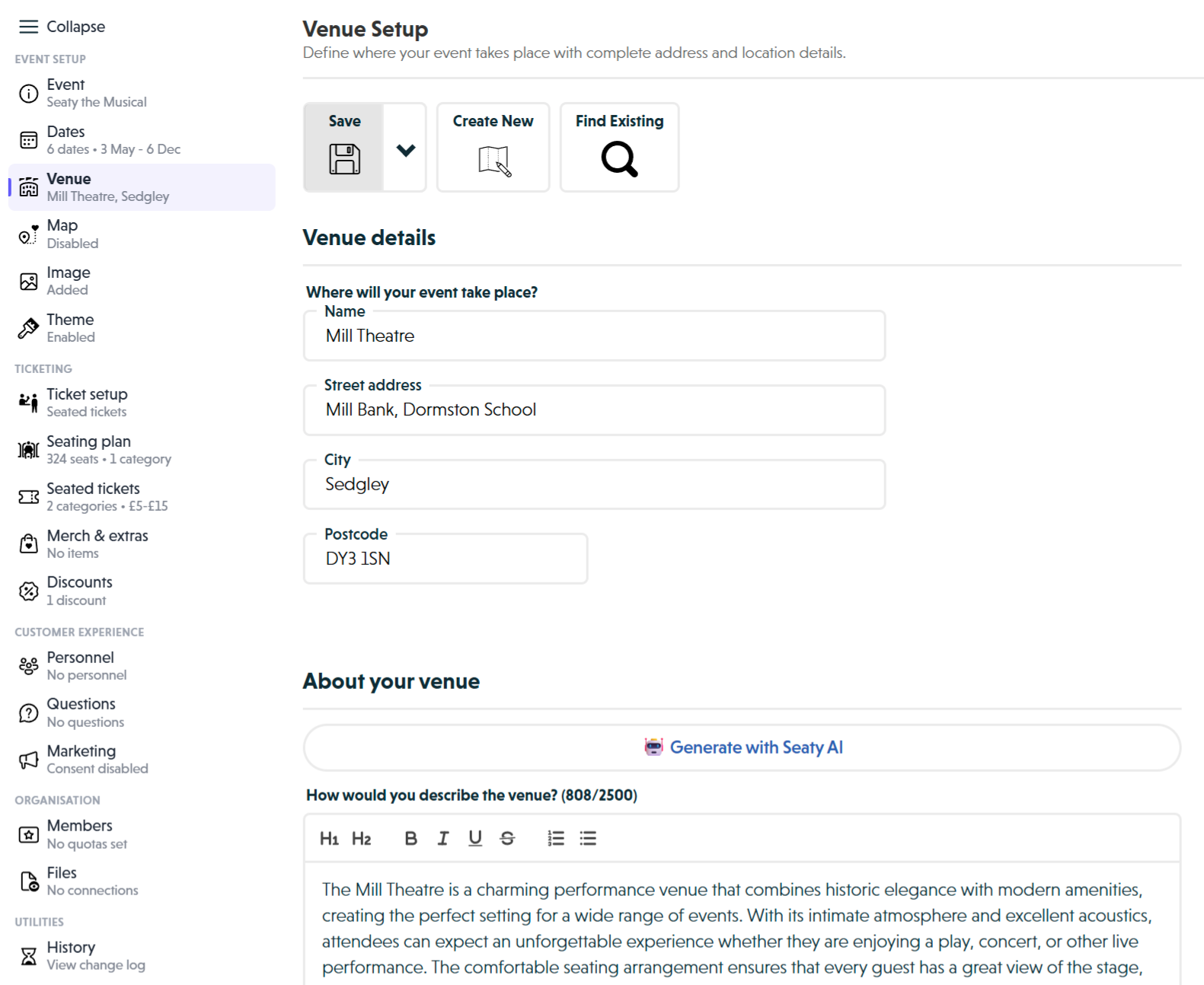 The Venue Setup editor showing the toolbar with Save, Create New, and Find Existing buttons, the venue details form with name, street address, city, and postcode fields, and the About your venue section with the Generate with Seaty AI button and rich text description editor
How It Works
At a glance: Venue setup follows a simple journey from selecting your venue to providing helpful information for attendees.
1. Choose or create your venue
You start by deciding whether to create a new venue or reuse one from a previous event. If you have hosted events at the same location before, finding an existing venue loads all the details instantly. Otherwise, you create a new venue from scratch.
2. Enter the location details
You provide the venue name and complete UK address. This information appears on your event page and helps attendees understand where they need to go. For virtual events, you can use placeholder text like "Online" in the address fields.
3. Describe the venue
You can write a description of the venue or generate one automatically using AI. The description helps attendees understand what to expect when they arrive, covering details like the venue's character, facilities, and atmosphere.
4. Add travel and parking information
You provide directions to help attendees find the venue, including public transport options and driving routes. You also add car parking instructions covering where to park, any costs, and alternative options.
Think of it this way:
- Venue details tell attendees where to go
- Descriptions help attendees know what to expect
- Directions and parking help attendees get there smoothly
Venue Details
Field Limits:
- Venue name is required (maximum 100 characters)
- Street address (maximum 100 characters)
- City (maximum 100 characters)
- Postcode (maximum 100 characters)
Name - The full venue name as it appears to attendees. Include room or space name if relevant (e.g., "The Grand Theatre - Main Auditorium").
Street Address - Complete street address including building number. Use standard UK address format.
City - Town or city name.
Postcode - Full UK postcode with a space between the outward and inward codes (e.g., "M1 1AA" not "M11AA"). Correctly formatted postcodes enable map integration.
Rich Text Content
Three rich text fields allow you to provide additional information:
Venue Description - General information about the venue (maximum 2,500 characters). Supports headings, bold, italic, and lists. Visible on the public event page.
Directions - Specific travel directions (maximum 2,500 characters). Helpful for venues that are hard to find. Include public transport routes, landmarks, and approach roads.
Car Parking Instructions - Where and how to park (maximum 2,500 characters). Cover parking location, restrictions, costs, and alternative parking options.
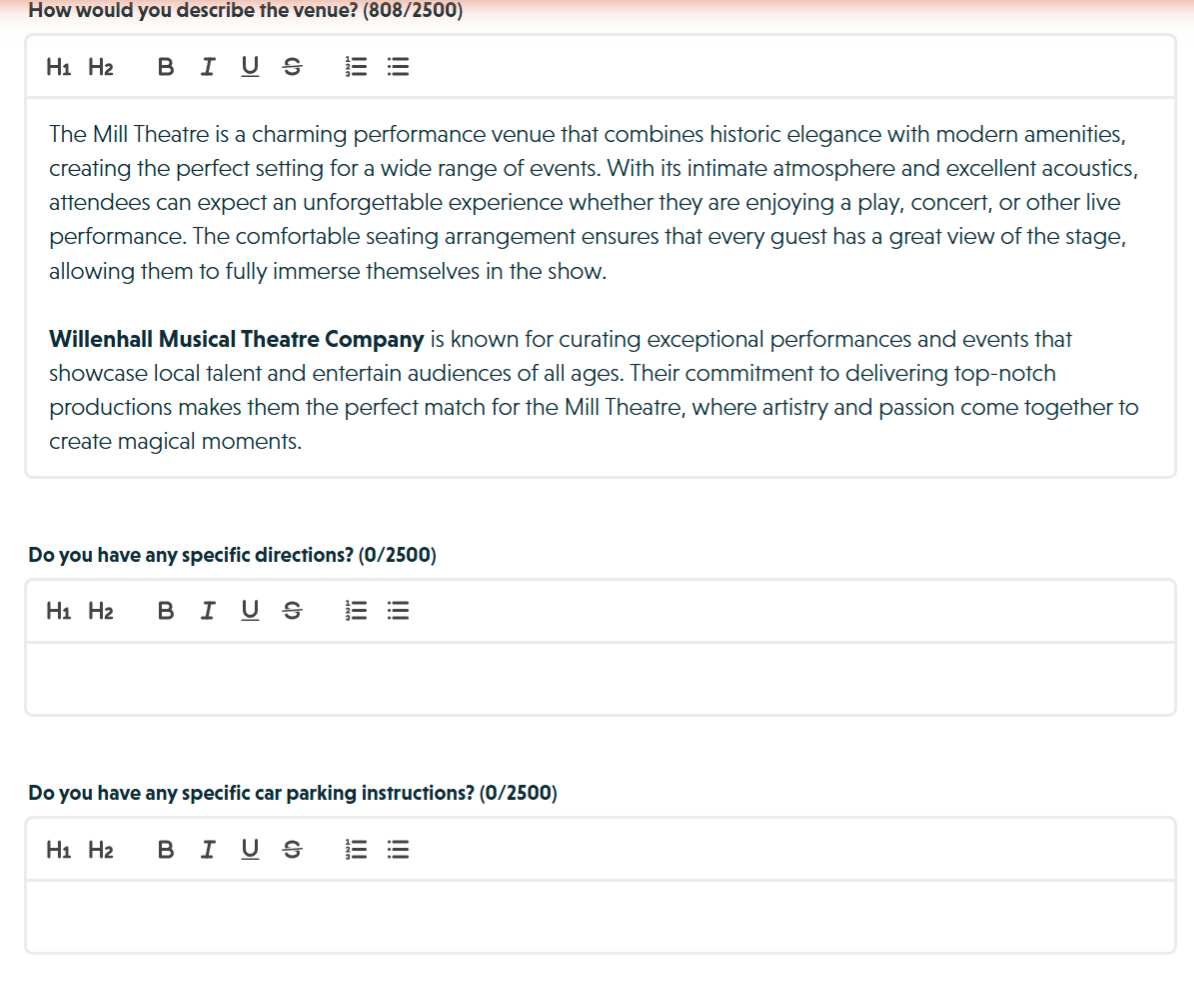 The venue editor scrolled to show the description rich text editor, the directions field, car parking instructions field, and the Venue map section with an Add a map button
Venue Imagery
Below the rich text fields, the Venue Imagery section adds three optional image slots to your event's public Venue page:
- Venue header banner: a single wide image shown above the venue details on the Venue page. Banner aspect: at least 2:1 (twice as wide as tall). You can pick 2:1, 3:1, 4:1 or 5:1, where higher numbers give a thinner strip.
- Venue showcase: up to five images shown below the venue description. This is the natural home for proper photos of the venue itself: the building, interior, gardens, accessibility ramps, the car park entrance, performance space. Pick Horizontal for a side-by-side strip or Vertical for a stacked, magazine-style flow. Each image opens fullscreen when an attendee clicks it.
- Venue footer banner: a single wide image shown at the bottom of the Venue page. Same banner aspect rules as the header.
Showcase vs the event Images section: The main Images section is for event marketing (poster, cast photos, production shots). The venue Showcase is for the venue itself: real photographs that help attendees know what the place looks like. A stately home would use the venue Showcase for gardens and interiors; a community hall might use it for the main room and parking layout.
When venue details are inherited from your organisation
If "Use organisation's venue & map" is switched on for this event, venue imagery is managed at the organisation level instead. The Venue section shows a notice and a button to open the organisation editor's Venue Info section in a new tab.
The same imagery automatically appears on every event that uses your organisation venue. Change it once on the organisation, and every event updates.
For details on managing venue imagery at the organisation level, see Organisation Venue Info.
AI-Generated Descriptions
Click "Generate with Seaty AI" to automatically create a venue description based on your venue name and address.
Note: All address fields must be completed before AI generation is enabled. The AI creates professional descriptions that you can then edit and personalise.
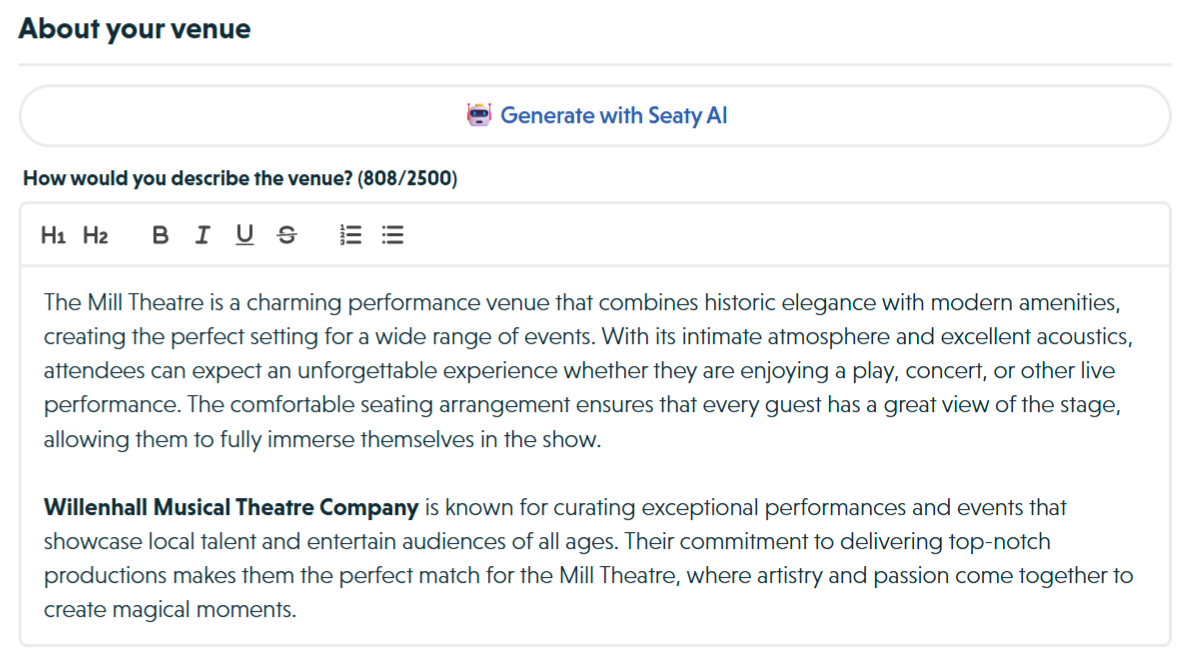 The About your venue section showing the Generate with Seaty AI button, the description rich text editor with character count, and the directions rich text field below
Finding Existing Venues
Every venue in Seaty can be reused across multiple events. Click "Find Existing" to search and select from venues used in your previous events.
When you find an existing venue, you can choose to load:
- Just the venue details (name, address, description)
- Venue and map coordinates (if the source event had a map configured)
Why reuse venues? Consistent information across your events, faster event creation, and less repetitive data entry.
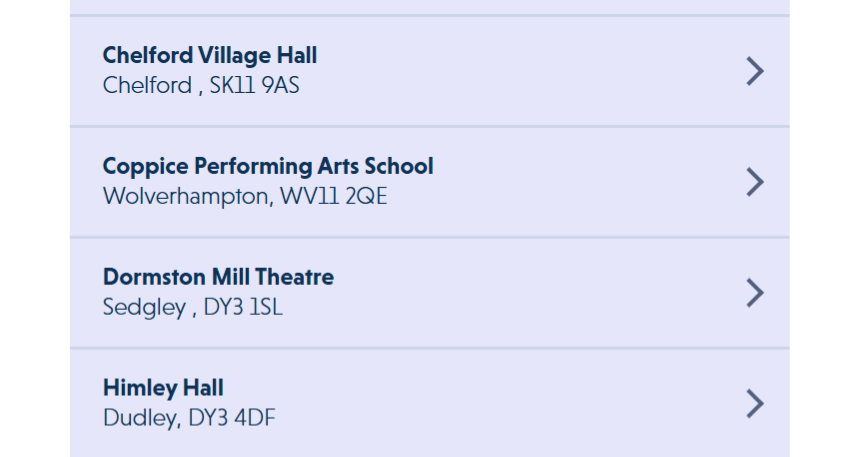 The Find Existing Venue modal showing venues listed alphabetically with name, city, and postcode, and an info notice that loading maps has been disabled because the event has orders
Step-by-Step Guide
Step 1: Choose How to Create Your Venue
At the top of the Venue section, you'll see two toolbar buttons:
Create New
- Appears if you're currently editing an existing venue (one with an ID)
- Click to clear the current venue and start fresh
- Creates a brand new venue specific to this event
Find Existing
- Opens a modal showing all venues from your previous events
- Venues are listed alphabetically by name
- Shows venue name, city, and postcode for each option
Step 2: Enter Venue Name and Address
In the "Venue details" section:
1. Venue Name
Enter the complete venue name including any specific room or space:
Examples:
- "The Grand Theatre - Main Auditorium"
- "St Mary's Community Hall"
- "Riverside Arts Centre - Studio 2"
- "Manchester Central Library - Conference Room A"
For virtual events: Use "Online" or platform name:
- "Online via Zoom"
- "Virtual Event"
- "Online Webinar"
2. Street Address
Enter the full street address including building number:
Examples:
- "123 High Street"
- "The Community Centre, Park Road"
- "Unit 4B, Industrial Estate"
For virtual events: Leave blank or enter "N/A"
3. City
Enter the town or city name:
Examples:
- "London"
- "Manchester"
- "Edinburgh"
- "Cardiff"
For virtual events: You can enter "Online" or leave blank
4. Postcode
Enter the complete UK postcode in standard format:
Examples:
- "M1 1AA"
- "SW1A 1AA"
- "EH1 1YZ"
For virtual events: You can enter "ONLINE" or leave blank
UK Postcode Format:
- Outward code + space + inward code
- Example: M1 1AA (not M11AA)
- Correctly formatted postcodes enable map integration
Step 3: Generate or Write Venue Description
In the "About your venue" section:
Option 1: Generate with AI
- Ensure all venue address fields are completed
- Click "Generate with Seaty AI" button
- The AI creates a description based on your venue details
- Review and edit the generated content if needed
- You can regenerate if you're not satisfied with the result
What AI generates:
- Professional venue introduction
- Context-appropriate tone for your event type
- Highlights based on venue name and location
- Suitable starting point for further customisation
Option 2: Write Manually
Click into the description field and compose your own:
What to include:
- Brief history or background of the venue
- Notable features (architecture, facilities, atmosphere)
- Capacity and space characteristics
- Accessibility information
- What makes this venue special
Example - Theatre Venue:
The Grand Theatre has been entertaining audiences since 1875.
This beautiful Victorian playhouse features ornate period
architecture and excellent acoustics. The 450-seat auditorium
offers intimate performances with clear sightlines from every
seat. Fully accessible with lift access to all levels.
Example - Community Hall:
St Mary's Community Hall is a welcoming space in the heart
of the village. Recently refurbished with modern facilities
while maintaining its character, the hall provides a
comfortable setting for performances and events. Free parking
available on site with disabled bays near the entrance.
Example - Virtual Event:
This event takes place entirely online via Zoom. Join from
the comfort of your own home - all you need is an internet
connection and a device. The Zoom link will be sent to your
registered email address 24 hours before the event.
Character limit: 2,500 characters (including formatting)
Step 4: Add Directions
In the "Do you have any specific directions?" section:
Provide clear travel directions to help attendees reach the venue.
What to include:
- How to reach the venue by car (major roads, junctions)
- Public transport options (bus routes, nearest stations)
- Key landmarks or reference points
- Any unusual routing or hidden entrances
- Walking directions from transport hubs
Example - City Centre Venue:
By Car: From the M60, take junction 12 and follow signs for
City Centre. The venue is located on High Street near the
Town Hall.

By Train: Manchester Piccadilly station is 10 minutes walk.
Exit onto Fairfield Street, turn left and continue onto
Portland Street, then right onto High Street.

By Bus: Routes 42, 43, and 142 stop directly outside on
High Street.
Example - Rural Venue:
The village hall is located at the end of Church Lane. From
the main A123 road, turn onto Church Lane at the war memorial.
The hall is 200 metres on your left, just past the church.

Parking is in the field behind the hall - follow the signs
from Church Lane.
Example - Virtual Event:
This is a virtual event - no travel required! You'll receive
your Zoom joining link via email 24 hours before the event
starts. Make sure to check your spam folder if you don't see it.

Technical requirements: Stable internet connection,
computer/tablet/smartphone, latest Zoom app installed.
Character limit: 2,500 characters
Step 5: Add Car Parking Instructions
In the "Do you have any specific car parking instructions?" section:
Help attendees understand where and how to park.
What to include:
- On-site parking availability and location
- Parking charges or restrictions
- Disabled parking provisions
- Alternative parking locations nearby
- Time restrictions or permit requirements
Example - Theatre with Own Car Park:
Free parking is available in the theatre car park accessed
via Back Street. Enter your vehicle registration at the box
office to validate your parking. 50 spaces available
including 4 disabled bays near the main entrance.

The car park closes 30 minutes after the performance ends.
Example - Street Parking:
Street parking is available on High Street and surrounding
roads. Parking is free after 6pm on weekdays and all day
Sunday. Disabled bays are located directly outside the venue
entrance.

Alternative: The multi-storey car park on Park Road is 5
minutes walk away (£3 for 4 hours).
Example - Park and Ride:
We recommend using the Park and Ride service from Junction 15
(follow brown tourist signs). Parking is free and buses run
every 15 minutes, stopping right outside our venue.

Limited on-street parking is available but spaces fill up
quickly on event nights.
Example - Virtual Event:
No parking needed - enjoy the event from home! We recommend
finding a comfortable spot with good Wi-Fi coverage and
minimal distractions.
Character limit: 2,500 characters
Step 6: Add Venue Imagery (optional)
In the Venue Imagery section, you can add up to three optional images that frame your event's public Venue page.
Venue header banner
- Click the empty area in the Venue header banner panel (or drop a file onto it)
- Pick a JPEG or PNG that's at least twice as wide as it is tall
- You'll be asked to crop it: pick 2:1, 3:1, 4:1, or 5:1 (higher numbers give a thinner strip)
- The banner appears edge-to-edge above the address on your Venue page
Venue Showcase gallery
- Click the empty area in the Venue showcase panel
- Pick up to five JPEG or PNG files of the venue (interior, gardens, exterior, accessibility, parking)
- Choose Horizontal for a side-by-side strip or Vertical for a stacked, magazine-style flow
- Drag images to reorder
- Click any image once it's added to set a focal point or add a caption
- Attendees click any showcase image on your Venue page to open a fullscreen lightbox
What to put in the venue Showcase
- The exterior of the building (especially distinctive ones such as stately homes, theatres, churches)
- Key interior spaces (auditorium, hall, foyer, gardens, lounge)
- Accessibility features (ramps, lifts, accessible toilets)
- The car park or arrival point
- Any feature that helps an attendee picture the venue before they arrive
Use real photos, not marketing artwork. The Showcase is meant to help attendees know what the venue looks like. Anything that belongs on a poster or social-share preview belongs in the Image section, not here.
Venue footer banner
- Click the empty area in the Venue footer banner panel
- Pick a JPEG or PNG that's at least 2:1
- Crop to 2:1, 3:1, 4:1, or 5:1
- The banner appears edge-to-edge at the bottom of the Venue page
Character limits and aspect rules
- Banners (header + footer): exactly one image each, minimum 2:1 aspect, croppable to 2:1 / 3:1 / 4:1 / 5:1
- Showcase: up to 5 images, no aspect requirement (each image's natural shape is preserved in Vertical mode; in Horizontal mode the row uses the tallest image's aspect)
Step 7: Save Your Changes
Once you've completed the venue information:
- Click the Save button in the top toolbar
- All venue details are saved with your event
- The venue becomes available for reuse in future events
Important: If there are validation errors (such as a missing event name or invalid event tag in other sections), the Save button will show tasks that need completing before you can save.
Finding and Reusing Existing Venues
Why Reuse Venues?
If you regularly host events at the same location, reusing venues saves time:
- All venue details are pre-filled instantly
- Consistent information across your events
- Updates to shared venues can apply across events
- Faster event creation workflow
How to Find Existing Venues
- Click "Find Existing" in the toolbar
- The venue search modal opens showing all your organisation's venues
- Venues are listed alphabetically with city and postcode
- Click a venue to select it
What Gets Loaded
Basic Selection: When you click a venue from the list:
- Venue name, address, and postcode
- Venue description
- Directions and parking instructions
Advanced Options (if available): If the source venue has additional features configured and your current event has no orders yet:
- Venue & map: Loads venue details plus map coordinates
- You'll see options to choose what to load
Important: Seating plans cannot be loaded from existing venues using this interface. You'll need to recreate seating plans in the Seating Plan section.
Best Practices
Writing Effective Venue Descriptions
Be specific and accurate
- Don't exaggerate or oversell
- Mention real features attendees will experience
- Update descriptions if venue circumstances change
Include practical information
- Accessibility features
- Facilities available (toilets, refreshments, cloakroom)
- What to expect on arrival
Set the atmosphere
- Historical context adds interest
- Architectural details paint a picture
- Character and ambiance help attendees anticipate the experience
Keep it concise
- Front-load important information
- Use short paragraphs for readability
- Aim for 150-300 words unless more detail genuinely adds value
Providing Helpful Directions
Consider all transport modes
- Not everyone drives - include public transport
- Walking routes from transport hubs
- Cycle parking if available
Use clear landmarks
- "Opposite the Town Hall" is more helpful than "On High Street"
- Reference well-known buildings or features
- Describe what attendees will see as they approach
Be explicit about tricky access
- Hidden entrances that aren't obvious
- Buildings with multiple entrances
- Shared venues with confusing signage
Test your directions
- Ask someone unfamiliar with the venue to follow them
- Google Maps link can help but written directions still matter
- Update if road layouts or landmarks change
Car Parking Information
Be honest about availability
- If parking is limited, say so
- Suggest arrival times for best chance of spaces
- Recommend alternatives proactively
Include costs upfront
- Parking charges should never be a surprise
- Payment methods accepted
- Any validation or discount schemes
Cover accessibility
- Disabled parking location and number of spaces
- Drop-off points for those with mobility issues
- Distance from parking to venue entrance
Mention restrictions
- Time limits on street parking
- Resident permit areas to avoid
- Height restrictions in car parks
UK Address Standards
Postcode formatting
- Always include a space: "M1 1AA" not "M11AA"
- Use uppercase for consistency
- Verify postcodes are real (Royal Mail postcode finder)
Address structure
- Building name/number, street name
- District or locality (if applicable)
- Town or city
- Postcode
- Don't include county (not needed for postcodes)
Example correct format:
Name: The Community Centre
Street: 45 Church Road
City: Birmingham
Postcode: B15 3TN
Using AI Generation Effectively
When AI works best:
- Well-known venues with distinctive names
- Standard theatre, hall, or centre names
- Clear location indicators in the address
When to edit AI output:
- Add specific details AI can't know (recent renovations, unique features)
- Adjust tone to match your organisation's voice
- Include practical information like accessibility specifics
Regenerating content:
- Try different venue name formats if first attempt is generic
- Add more context to venue name field temporarily
- Use AI as starting point, always personalise afterward
Common Questions
Editing and Updates
Can I change venue details after people have booked?
Yes, you can update venue information at any time. Changes to the venue details do not affect existing bookings or orders. However, significant venue changes (like moving to a different location) should be communicated to existing ticket holders directly.
What happens if I change the venue address - will the map update?
Changing the address in the Venue Setup section does not automatically update map coordinates. If you have configured a map in the Map section, you will need to update the map separately to reflect the new location.
What if I made a mistake and want to start over?
If you are editing an existing venue and want to create a new one instead, click "Create New" in the toolbar. This clears the current venue and gives you blank fields. Remember to save your changes.
Reusing Venues
Can I use the same venue for multiple events?
Yes. This is one of the key benefits of Seaty's venue system. Once you have created a venue, use "Find Existing" when setting up future events to load all the venue details instantly.
Will updating a venue affect other events using it?
When you edit venue details, changes may affect future events that use this venue through "Find Existing". Past event records are generally not affected. If you need event-specific venue details, create a new venue instead of modifying a shared one.
Required Fields and Virtual Events
Do I need to fill in all the fields?
Only the venue name is strictly required. The street address, city, and postcode fields are strongly recommended for in-person events as they help attendees find your venue. The description, directions, and parking fields are optional but highly recommended. They significantly improve the attendee experience by providing helpful information upfront.
Can I create a venue without an address?
For virtual events, you can use placeholder text like "Online" in the address fields. However, the fields themselves need to contain some content. For in-person events, complete venue addresses are essential.
AI Descriptions
How does the AI know about my venue?
The AI does not have prior knowledge of your specific venue. It generates descriptions based on the venue name, location, and your organisation context. The more distinctive your venue name, the better the AI can create relevant content. Always review and customise AI-generated descriptions to add venue-specific details.
Attendee Visibility
Can attendees see all the venue information?
Yes, venue details appear on the public event page. Venue name and address are prominently displayed. Venue description appears in the event details section. Directions and parking information are available to help attendees plan their visit. The venue information integrates with the map (if configured) to provide a complete location experience.
Next Steps
After configuring your venue:
Configure the Map
If your event has a physical location, add an interactive map:
- Venue Maps
- Shows Google Maps location
- Provides directions and street view
- Helps attendees find your venue
Complete Event Details
Return to the Event section:
- Event Details
- Add or refine your event description
- Set event category and type
- Configure event settings
Add Event Images
Upload promotional images:
- Event Images
- Event poster or header image
- Photo gallery images
- Venue photos to complement descriptions
Set Up Ticketing
Configure how tickets are sold:
- Ticket Setup - Choose seating plan or general admission
- Seating Plans - Design your seating layout
- General Admission Tickets - Set up general admission tickets
Need help? Visit our Organiser FAQ or contact support.