Event History: Audit Trail of Saved Versions
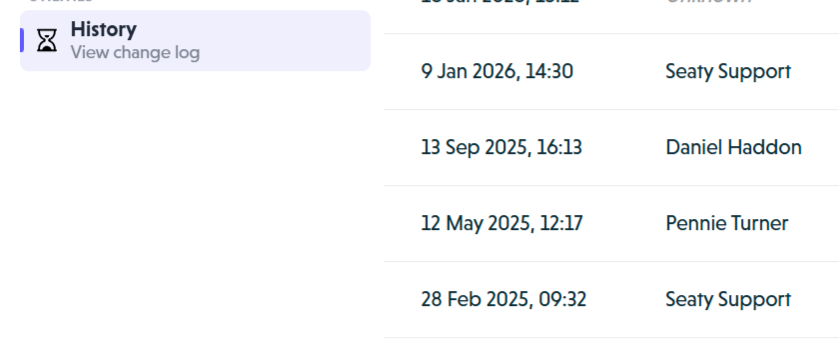 Event History section showing saved versions list
Overview
Event History provides a complete audit trail of every change made to your event. Each time your event is saved, a snapshot is created that you can view and compare later.
At its simplest, Event History answers one question: What changed in my event, and when?
Who uses this: Administrators with event permissions.
Key capabilities:
- View a chronological list of all saved versions
- Compare any version to its predecessor to see exactly what changed
- See who made each change and when it occurred
- Reference historical settings without affecting your current event
How It Works
At a glance: Every save creates a snapshot. You can view any snapshot and compare it to the one before it.
1. Automatic snapshots
Each time your event is saved (whether manually or automatically), the system creates a complete snapshot of your event's configuration. This includes all settings, ticket categories, dates, venue information, seating plans, and discount codes.
2. Browsing the history list
When you open Event History, you see a list of all saved versions with the most recent at the top. Each entry shows the date, time, and the name of the administrator who saved the event.
3. Viewing comparisons
Click any version to see what changed between that version and the previous one. Changes are highlighted using colour coding: green for added content, red for removed content, and yellow for modified content.
4. Navigating between versions
Use the navigation buttons to move forwards and backwards through your event's history, examining how your configuration evolved over time.
Think of it this way:
- Snapshots are photographs of your event at a specific moment
- Comparisons show the differences between two photographs
- The history list is your photo album, organised by date
Viewing Your Event History
History List
The history list displays all saved versions of your event:
- Date and Time - When the save occurred (includes seconds for saves made close together)
- Modified By - The administrator who made the changes
- First Version - The oldest version is marked with a special label
Note: The most recent saves appear at the top. Use your browser's find feature (Ctrl+F or Cmd+F) to search for specific dates or names.
Selecting a Version
Click any row to view that version's details. For most versions, this automatically shows a comparison with the immediately previous version.
The first version is special - since there's nothing before it to compare against, it displays the complete configuration as it was when the event was created.
Comparing Versions
Colour-Coded Changes
When comparing two versions, changes are highlighted to make them easy to spot:
- Green highlights - Added content or new fields
- Red highlights - Removed content or deleted fields
- Yellow highlights - Modified content (changed values)
- No highlight - Unchanged content (visible only when "Show All" is enabled)
Side-by-Side View
The comparison displays:
- Left side - The older version with its date, time, and administrator name
- Right side - The newer version with its date, time, and administrator name
Line numbers help you locate specific changes, and the structured format shows how your event data is organised.
Navigation Controls
Back - Return to the history list to select a different version
Older - Navigate backwards in time to compare earlier versions
Newer - Navigate forwards in time to compare more recent versions
Changes Only / Show All - Toggle between showing only the differences or the complete configuration with differences highlighted
Display Options
Changes Only (Default)
This focused view shows only the parts of your configuration that changed between versions.
When to use:
- Quick checks after making edits
- Investigating when a specific setting was modified
- Understanding the scope of recent changes
Show All Content
This comprehensive view displays the complete configuration with changes highlighted.
When to use:
- Detailed compliance audits
- Understanding context around changes
- Seeing how different settings relate to each other
Common Use Cases
Troubleshooting
Scenario: Ticket prices are wrong, but you don't know when they changed.
- Open Event History
- Browse recent saves looking for pricing changes (they'll be highlighted in yellow)
- Find the version where the change occurred
- Note the correct values and who made the change
- Return to the event editor to fix them
Compliance and Auditing
Scenario: You need records of all changes for audit purposes.
- Access Event History to view the complete audit trail
- Note timestamps and administrator names for all modifications
- Use the comparison view to document specific changes
Recovering Information
Scenario: Someone deleted important text from the event description.
- Navigate back through history to find a version that contains the text
- View the complete configuration in that version
- Copy the text you need
- Return to the event editor and paste it back
Common Questions
Viewing History
What gets tracked? Everything in your event configuration: event details, dates, venue settings, ticket categories, pricing, seating plans, discount codes, marketing settings, theme customisation, and member settings.
How far back does history go? History is retained for as long as your event exists. Every save since the event was created is available.
Can I search the history? Use your browser's find feature (Ctrl+F or Cmd+F) to search for specific dates or administrator names in the list.
Permissions and Access
Who can view event history? Administrators with permissions for the event can access its history.
Can I see who made each change? Yes. Each save records the administrator who made it, displayed in the "Modified By" column.
Restoring and Editing
Can I restore a previous version? Not directly. History is read-only for audit purposes. To restore previous settings, view the historical version, copy the values you need, and manually update them in the event editor.
Can I add notes to explain why changes were made? No. The system automatically records what changed and who changed it, but doesn't support custom annotations.
Can I delete history entries? No. History is preserved for accountability and cannot be modified or deleted.
First Version
Why can't I compare the first version? The first version represents your event's initial state when it was created. Since there's no version before it, there's nothing to compare against. You can still view its complete configuration.