General Admission Tickets: Capacity and Pricing
Overview
General admission tickets let you sell unreserved entry to your event. Unlike seated tickets where customers choose specific seats, general admission tickets give customers access without assigned seating. This works well for standing-room events, festivals, workshops, and any venue where first-come-first-served seating is acceptable.
At its simplest, general admission answers one question: How many people can attend, and at what price?
Who uses this: Event administrators with event editing permission.
Key capabilities:
- Create ticket categories with different prices (Adult, Child, Concession, VIP)
- Share capacity across multiple ticket types in a group
- Control which event dates each ticket group is available for
- Configure multi-person tickets (family tickets counting as 4 people)
- Set maximum and minimum quantities per order
- Cap how many tickets one person can buy across multiple orders
- Make tickets private (admin-only) or public
- Hide pricing from general price ranges (useful for free parking tickets)
- Mark a category as an add-on (e.g. free Accessibility, Car Parking) that only appears once the customer has a main ticket in the basket
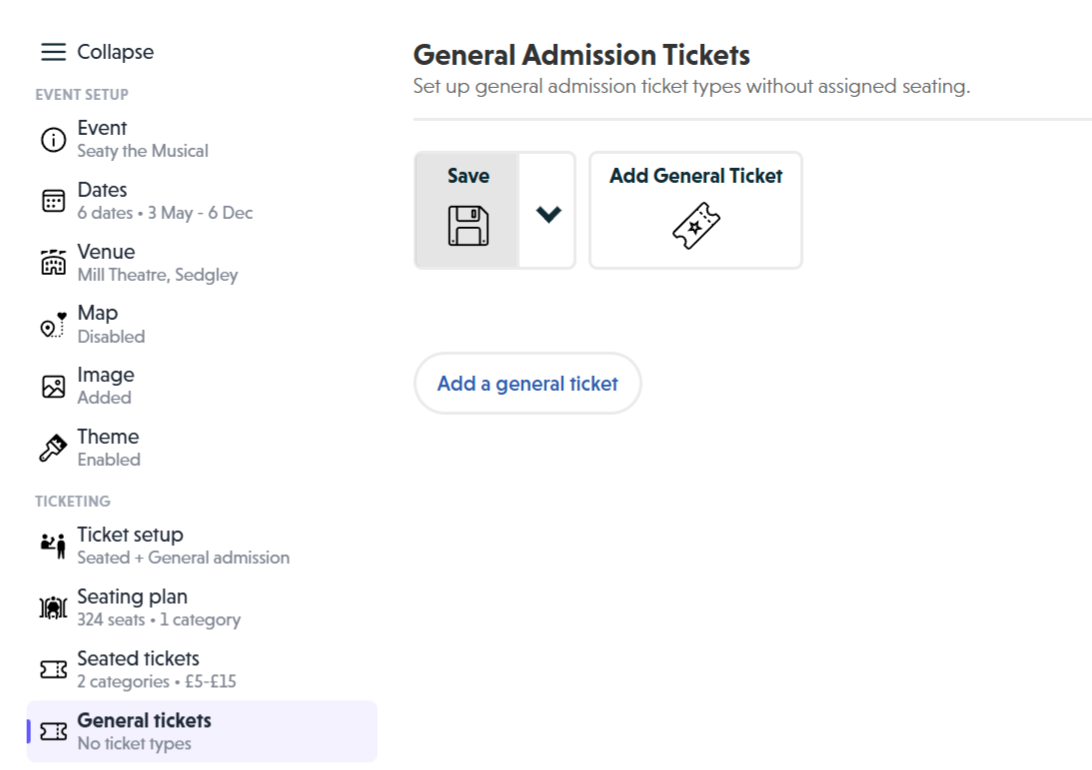 General Tickets overview showing the empty state with Add General Ticket toolbar button
How It Works
At a glance: General admission follows a simple journey from enabling the feature to selling tickets.
1. Enable general admission in Ticket setup
Before you can create general tickets, you need to enable the feature. Go to Ticket setup in the Event Editor and toggle on "Use general admission". This makes the General tickets section visible in your event editor menu.
2. Create ticket groups with shared capacity
Each ticket group has a capacity (quantity) that all ticket categories within it share. If you create a group with 100 tickets containing Adult and Child categories, selling 1 Adult ticket and 1 Child ticket leaves 98 available. This prevents overselling whilst offering flexible pricing.
3. Configure ticket categories within groups
Within each group, you add ticket categories with different names and prices. Each category can have its own visibility (public or private), quantity limits, and additional information. The expand button reveals advanced options like multi-person settings and minimum order requirements.
4. Select available dates
Choose which event dates each ticket group applies to. You can select individual dates or use "Toggle all" to quickly select or deselect all dates. Different ticket groups can apply to different dates, letting you vary pricing or capacity across performances.
5. Customers purchase tickets
When customers book, they see available ticket categories and select quantities. The system enforces any limits you have set and tracks capacity automatically. When a group sells out, those tickets become unavailable whilst other groups remain bookable.
Think of it this way:
- Ticket groups define how many people can attend (capacity pool)
- Ticket categories define who can attend and at what price (Adult, Child, VIP)
- Available dates define when tickets are bookable (specific performances)
Creating General Tickets
Your First General Ticket
Validation Requirements:
- Ticket name is required
- Price must be a valid number (can be 0 for free tickets)
- Quantity must be a positive whole number
- If setting a limit per order, it must be a positive whole number
- If setting a minimum per order, it must not exceed the limit per order
- If setting a maximum per customer, it must not be lower than the minimum per order (otherwise the first order could never satisfy the minimum)
- Navigate to Ticket setup and enable "Use general admission"
- Click General tickets in the left-hand menu
- Click Add General Ticket to create a new ticket group
- Enter the quantity (total capacity for this group)
- Click the Available dates dropdown and select which dates apply
- Enter a ticket name (e.g., "Adult") and price
- Click Save in the top-right corner
Why set quantity on the group? The quantity represents total capacity shared across all ticket categories in that group. Setting it once at the group level prevents overselling regardless of which category customers choose.
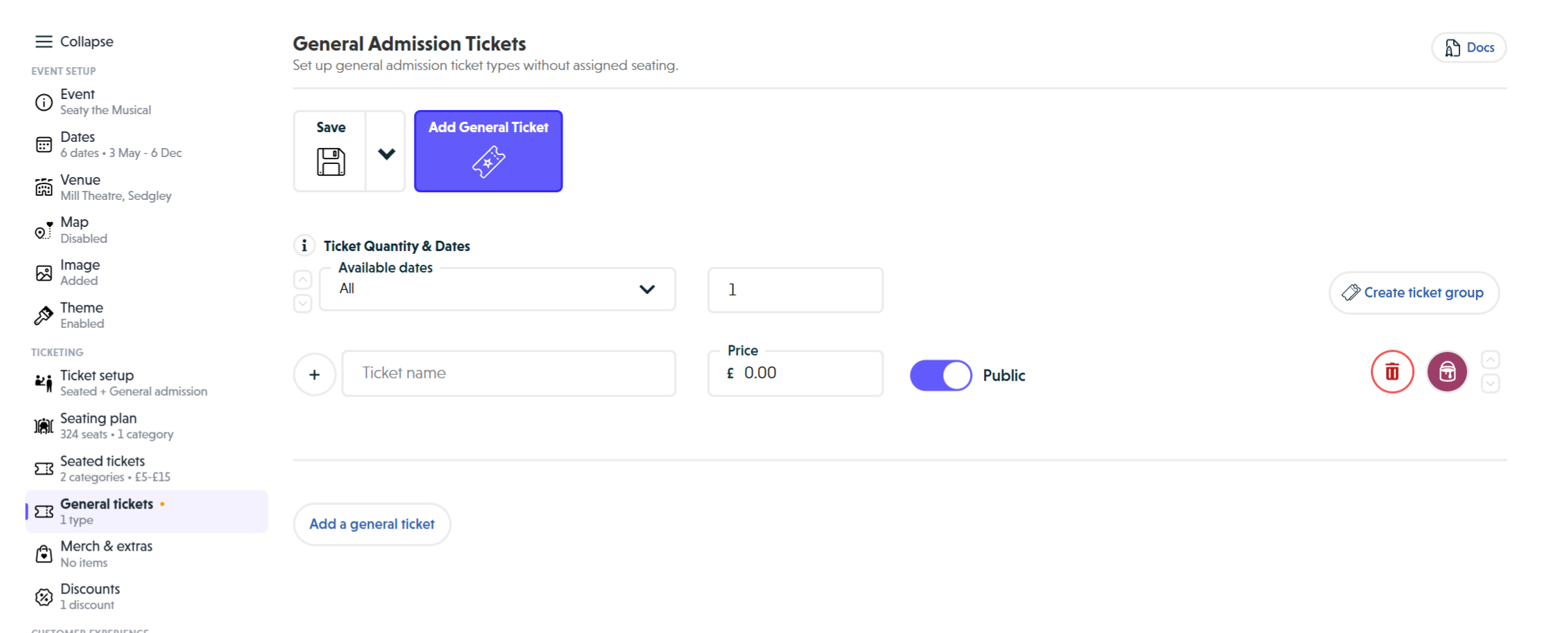 General ticket form showing Ticket Quantity and Dates header, Available dates dropdown, Quantity field, Create ticket group button, and category row with name, price, public/private toggle, colour picker, and delete button
Adding Multiple Categories to a Group
When you need different pricing tiers sharing the same capacity:
- Create your first ticket as above
- Click Create ticket group on the existing ticket
- A new category appears in the same group
- Enter a different name (e.g., "Child") and price
- Click Add ticket to group for additional categories
- Use the up/down arrows to reorder how categories display
Common setup: Adult, Child, and Concession categories sharing a 100-capacity pool means any combination of these tickets can sell until 100 total are gone.
Creating Separate Capacity Pools
For events needing independent capacity limits:
- Click Add General Ticket to create a second group
- Set a different quantity (this group has its own capacity)
- Configure categories within this new group
Example: A venue with 50 standing tickets and 20 VIP tickets would use two separate groups, each with its own capacity.
Advanced Configuration
Click the expand button (plus icon) on any ticket category to access advanced options.
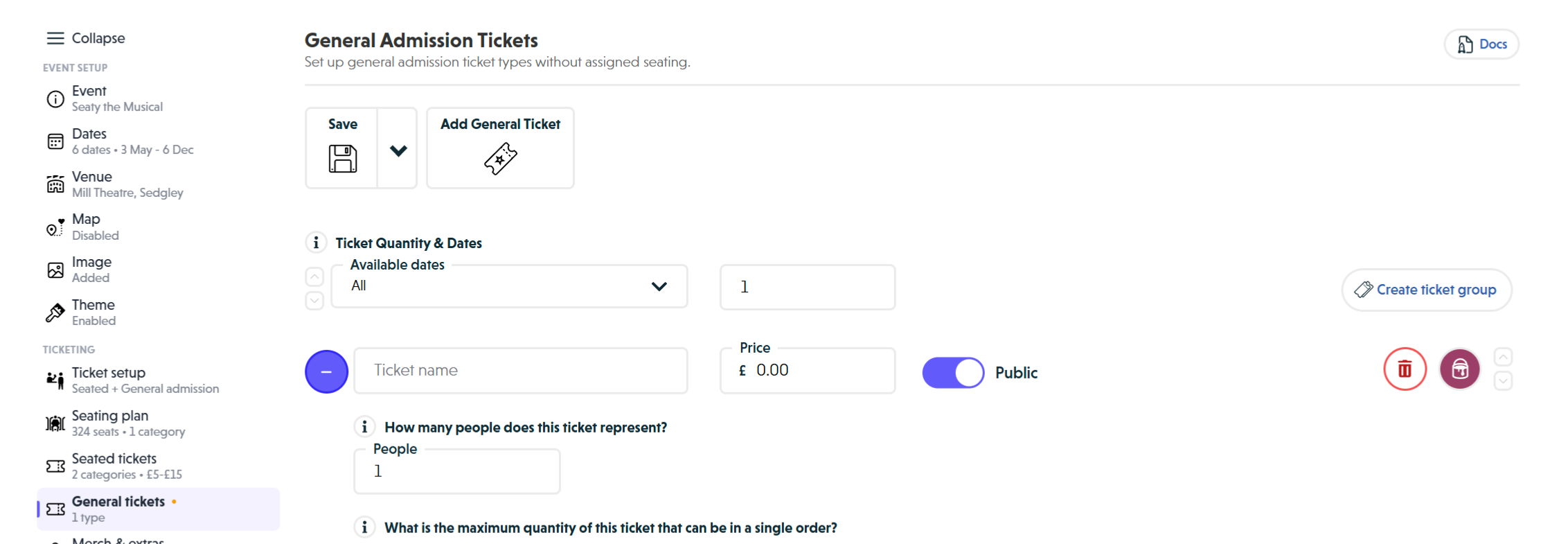 Expanded ticket category showing People field, Limit per order, Minimum per order, Maximum per customer, Hide pricing toggle, and Additional Information textarea
Multi-Person Tickets
The "How many people does this ticket represent?" setting tells Seaty how many attendees each ticket counts for.
| Ticket Type | People Value | Effect on Capacity |
|---|---|---|
| Standard | 1 (default) | Each ticket reduces capacity by 1 |
| Couple | 2 | Each ticket reduces capacity by 2 |
| Family of 4 | 4 | Each ticket reduces capacity by 4 |
Example: With 100 capacity, selling 1 family ticket (4 people) leaves 96 remaining capacity, not 99.
Why this matters: Capacity tracks people, not tickets. A family ticket for 4 should reduce available space by 4, ensuring you do not exceed venue limits.
Order Limits
Maximum per order ("What is the maximum quantity of this ticket that can be in a single order?")
- Leave blank or 0 for no limit
- Set to 1 to prevent bulk purchases
- Set to 4-6 to discourage scalping whilst allowing reasonable purchases
Minimum per order ("What is the minimum quantity of this ticket required in an order?")
- Leave blank or 0 for no minimum requirement
- Set to 1 or more to enforce a minimum purchase
- Customers are blocked from checkout until they meet the requirement
- A warning message displays on the ticket during booking
- Administrators can bypass this restriction with a warning dialog
Why use minimum per order? Useful for car park tickets (require 1 per order), group packages, or workshop minimums. NULL or 0 means no minimum (backwards compatible).
Maximum per customer ("What is the maximum quantity of this ticket that one customer can purchase for this event?")
- Leave blank or 0 for no cap
- Counted by customer email address across every order they place for the event
- Email matching ignores capitalisation, so changing the case of an email address does not get round the cap
- Applies whether the tickets are in one large order or spread across several bookings
- Cancelled tickets do not count, so refunds free the slot back up
- Tickets transferred to a different email count against the new holder
- Tickets resold through the resale flow continue to count against the original purchaser, so only a cancellation or an admin transfer moves the count
- Administrators placing orders can bypass this cap automatically
When a customer tries to buy more than the cap allows, they see a message like "You can only purchase up to 4 'Adult' tickets per customer for this event. You already have 2, so you can add at most 2 more." or "You have reached the limit of 4 'Adult' tickets per customer for this event."
Why use maximum per customer? Limit per order only stops bulk buying in a single transaction, and a determined customer can place several orders to get round it. Maximum per customer is a cross-order cap by email, so it stops one person hoarding tickets across multiple bookings. Useful for high-demand events, member-only allocations, or any time you want to give more people a fair chance to buy.
Visibility Controls
Toggle between Public and Private:
- Public: Visible to all customers on the event page
- Private: Only bookable by organisation administrators
Why make tickets private?
- Staff or complimentary tickets
- Pre-sale access before public release
- Emergency capacity held back for special circumstances
Private tickets count towards capacity but do not appear on the public event page.
Availability Windows (Available From and Available Until)
Each ticket category can have its own sales window, set with two optional fields:
- Available from: the moment the ticket becomes purchasable
- Available until: the moment sales close for that ticket
Both fields are optional. Leave them blank and the category behaves exactly as before, available throughout the event's overall on-sale period.
At a glance: Availability windows let one ticket category come on sale, and another go off sale, automatically, without you having to log in at midnight to flip a switch.
How customers see it:
- Outside the window, the category is hidden from the booking page entirely. Customers do not see it at all.
- Inside the window, the category appears and is bookable as normal.
- Not-yet-on-sale prices are also excluded from the price ranges shown on event cards and date buttons, so an Early Bird that hasn't opened yet does not affect the "From" price advertised on your event listing.
How administrators see it:
When you are logged in as an organisation member, out-of-window categories still appear on the booking page so you can preview your schedule. They are labelled either Available from {date} or Sales ended {date} depending on which side of the window you are on.
Note: Administrators can preview but cannot actually book an out-of-window category. Checkout will reject the order. If you need to test booking, edit the dates so the category is currently in window.
When the window opens and closes:
- Sales are open at the exact Available until moment. The category is only considered "ended" once that moment has passed.
- All dates and times are interpreted in your event's local time, the same as your event's existing on-sale settings.
Why offer this? The main use case is an automatic Early Bird to standard ticket cutover. Set your Early Bird's Available until and your standard ticket's Available from to the same instant (for example, midnight on 1 June), and the swap happens by itself: no manual intervention, no risk of forgetting.
Layering with Private: The Private flag still works exactly the same way. Marking a category Private hides it from customers regardless of its availability window, and the window still applies on top, so a Private category with an Available until date will stop being bookable (even for administrators going through normal checkout) after that moment passes.
Note: Availability windows are currently available on general admission ticket categories. Seated tickets and merchandise do not yet have this option in the editor.
Add-ons and Extras
Some tickets only make sense as an extra alongside a main booking, such as a free Accessibility companion ticket that should only be available to customers buying an Adult ticket, or a Car Parking pass that goes with any paid ticket. Add-ons keep the main ticket list clean, but still let customers attach the extras they need in a focused second step.
At its simplest, add-ons answer one question: Which optional extras can a customer pick up only after choosing a main ticket?
Think of it this way:
- Main tickets (Adult, Child, VIP) are what customers shop for first
- Add-ons (Accessibility, Car Parking) are extras unlocked by buying a main ticket
- Max per parent caps how many of each add-on the customer can attach to each main ticket they buy
Turning a category into an add-on:
- Expand the ticket category in the General tickets editor
- Find Is this an add-on / extra ticket? and switch it to Yes, this is an add-on
- A new section appears: Which main tickets unlock this add-on, and how many per parent?
- Tick each main ticket category that should unlock the add-on
- For each ticked parent, set Max per parent, the most of this add-on a customer can attach to a single parent ticket
Why a parent picker? Not every add-on suits every main ticket. Pairing add-ons with specific parents lets you decide that, say, an Accessibility seat is offered behind Adult, Child and VIP but not behind a complimentary press pass.
Max per parent example:
| Parent ticket | Max per parent | Effect |
|---|---|---|
| Adult | 1 | 1 Accessibility add-on per Adult in the basket |
| VIP | 2 | 2 Accessibility add-ons per VIP in the basket |
If a customer puts 2 Adults and 1 VIP in their basket, they can attach up to 4 Accessibility add-ons (2 × 1 from Adults plus 1 × 2 from the VIP). Add more parent tickets, unlock more add-on slots.
Note: Until you have saved the event, other categories will not be available to tick as parents. The message Save the event first so other tickets become available as parents appears. Save once, then come back to set up the parent rules.
Available dates: add-ons follow their parents
Add-on categories don't have their own Available dates picker. When you mark a category as an add-on, that field is hidden and replaced with a read-only summary of the dates the add-on is currently sold on. Those dates are set entirely by the parent ticket rules you pick: every event date your ticked parents are sold on is included, and only those.
Why this matters: the most common cause of "the add-on works for some dates but not others" used to be the add-on group being linked to a different set of event dates from its parent (the classic case being a multi-day pass added to an event after the add-on was already configured). With this behaviour you can't get into that state, because Seaty rewrites the add-on's dates on every save to exactly mirror its parents.
What this means in practice:
- Tick Full Weekend Pass as a parent → the add-on becomes available on the multi-day date that pass is sold on, automatically.
- Untick a parent → that parent's dates drop from the add-on. If you remove all parents the add-on has no dates and is effectively dormant until you pick at least one.
- Add a brand new event date later (a third weekend, a make-up date) and link it to a parent ticket → re-open and save the add-on once to pick up the new date.
If you need an add-on to be available on a date that has no parent ticket of its own, the right move is to mark a ticket on that date as a parent. Add-ons cannot live independently of their parents.
How customers see add-ons:
- Add-on categories do not appear in the main ticket list on the booking page
- After the customer adds an eligible main ticket and continues, an Optional Add-ons dialog pops up offering the relevant add-ons
- The customer can pick how many to attach, up to the cap their main tickets have unlocked
- If they try to add more than the cap allows, checkout is blocked with a friendly message like "You can only add up to 4 "Accessibility" based on the main tickets in your order (you have 5)."
- If they somehow reach the basket with no eligible main ticket, they see ""Accessibility" can only be added when you purchase an eligible ticket. Please add a main ticket first."
How administrators see add-ons:
Administrators see add-ons differently from customers, in two places:
- On the booking page: when you are logged in as an administrator, add-on categories are not hidden. They appear in the main ticket list alongside everything else, each marked with a note: "Add-on ticket. Customers only see this after adding an eligible main ticket, capped per parent. Admin bookings are not restricted by those rules." This lets you add an add-on directly without first putting a parent ticket in the basket.
- On the admin order dashboard: when you are placing or editing an order, the per-parent cap is bypassed. You can attach any add-on to any order, regardless of which main tickets are present.
This is intentional, because administrators frequently need to add a complimentary Accessibility seat, a comped parking pass, or fix up a partial order without re-shaping the customer's main basket. The note on the booking page is there so you are never confused about why a customer reports not seeing a ticket that is plainly visible to you.
Practical example, free Accessibility behind a paid main ticket:
- Create your normal Adult, Child and VIP categories at their usual prices
- Add a new category called Accessibility with a price of 0
- Expand it and switch Is this an add-on / extra ticket? to Yes
- Tick Adult, Child and VIP as parents
- Set Max per parent to 1 on each
- Save
Customers now buy their normal ticket as usual. The Accessibility category never appears in the main list. After they have added a paid ticket to their basket, the Optional Add-ons dialog offers Accessibility (one per main ticket) and it travels through to their order as a free companion booking.
Why use add-ons rather than another normal ticket?
- Keeps the main ticket list short and focused on the choice that matters
- Prevents customers buying an Accessibility seat without a main ticket
- Lets you cap extras precisely against how many main tickets are bought, without writing complicated discount rules
- Keeps free extras (Accessibility, Carer, Parking) out of the advertised price range automatically
Hiding Pricing
"Would you like to hide the pricing for this ticket on event info?"
When enabled:
- Price is excluded from general price ranges (e.g., "From GBP10-GBP25")
- Date selection buttons do not include this ticket in displayed ranges
- Customers still see the full price on the event page and during checkout
When to use: Free parking tickets, complimentary tickets, or optional add-ons that should not affect the advertised price range.
Additional Information
"Any additional info for this ticket?"
Enter text that appears on the ticket during booking:
- Age restrictions (e.g., "Ages 3-15")
- What is included (e.g., "Includes programme")
- Special conditions (e.g., "Must be accompanied by adult")
Colour Coding
Click the paintbrush icon to assign a colour to any ticket category. Colours help distinguish ticket types at a glance in the editor and match your event branding.
Best Practices
Choosing General vs Seated Tickets
Use general admission when:
- Events do not require assigned seating (concerts, festivals, workshops)
- Venue has standing room or flexible seating
- First-come-first-served seating is acceptable
- You want simplified ticket management
Use seated tickets when:
- Customers expect to choose specific seats
- Venue has numbered seats or reserved sections
- Premium seating requires differentiation
- You need detailed seat tracking
You can enable both for the same event. Use seated tickets for reserved areas and general tickets for standing sections.
Capacity Planning
- Use venue fire safety capacity as the absolute maximum
- Consider comfortable capacity (typically 80% of maximum)
- Account for staff, performers, and complimentary tickets
- For multi-person tickets, remember capacity tracks people not tickets
Pricing Strategy
Competitive pricing:
- Research similar events in your area
- Set child tickets at 40-60% of adult price
- Offer concessions at 70-80% of full price
- Create family packages with 10-20% discount
Early bird pricing:
Create separate ticket groups for the same dates:
- Early Bird group: 50 quantity at GBP10
- Standard group: 100 quantity at GBP15
Early bird sells out first, then standard pricing applies. Both maintain their own capacity limits.
Common Questions
General vs Seated
What is the difference between general tickets and seated tickets?
General tickets provide unreserved admission without specific seat assignments. Customers purchase a quantity and find their own spot on arrival.
Seated tickets require a seating plan where customers choose specific seats during booking. Best for venues with numbered seating.
You configure which type to use in the Ticket setup section.
Can I have both general and seated tickets for the same event?
Yes. Enable both options in Ticket setup. Use seated tickets for reserved seating areas and general tickets for standing areas or flexible seating.
Capacity and Groups
How do ticket groups work?
A ticket group shares a single capacity pool across multiple ticket categories. With 100 capacity and Adult/Child/Concession categories, any combination can sell until 100 total tickets are gone.
Can I have different capacities for different dates?
Not within a single ticket group. To achieve different capacities per date, create separate ticket groups for each date range with different quantities.
What happens when tickets sell out?
The ticket group becomes unavailable for booking. The event page shows "Sold out" for that ticket type. Other ticket groups remain available. Administrators can still create orders using private tickets.
Order Controls
Can I limit how many tickets one person can buy?
Yes. Expand the ticket category and set "Limit per order" to your desired maximum. Customers cannot exceed this quantity in a single transaction.
Can I require customers to purchase a minimum quantity?
Yes. Expand the ticket category and set "Minimum per order" to your required minimum. Customers are blocked from checkout until they meet the requirement. Administrators can override with a warning.
Can I stop one person bulk-buying tickets across multiple orders?
Yes. Expand the ticket category and set "Maximum per customer" to the most you want one person to buy. The cap is counted by customer email address across every order they place for the event, so it works even if someone tries to split their purchase into separate bookings. Email matching ignores capitalisation, so a buyer cannot get round it by changing the case of their email address. Cancelled tickets do not count towards the total, so refunds free up the slot. Tickets that have been transferred to a different email count against the new holder instead. Administrators placing orders can bypass the cap when needed.
What is the difference between "Limit per order" and "Maximum per customer"?
Limit per order caps the quantity in a single transaction. Maximum per customer caps the total a person can buy across every order they place for the event, matched by email address. Use Limit per order to keep individual baskets sensible. Use Maximum per customer when you also want to stop the same person coming back for more in a second booking.
Visibility and Privacy
Why would I make a ticket private?
Private tickets are only bookable by organisation administrators. Use them for staff tickets, complimentary tickets, pre-sales, or emergency capacity. They count towards capacity but do not appear publicly.
What does hiding pricing do?
Hiding pricing excludes the ticket from price range displays on event cards and date buttons. Customers still see the price on the event page and during checkout. Use for free parking tickets or complimentary tickets.
Availability Windows
Can I schedule a ticket to come on sale automatically?
Yes. Set Available from on the ticket category to the date and time you want sales to open. Until that moment, the category is hidden from customers entirely (and excluded from advertised price ranges), then appears automatically.
Can I make a ticket stop selling at a specific time without disabling it manually?
Yes. Set Available until to the date and time you want sales to close. The ticket stays bookable right up to that moment, then disappears from the booking page once it has passed.
How do I set up an Early Bird that switches to standard price automatically?
Create two categories in the same group (so they share capacity). On the Early Bird category, set Available until to your cutover moment. On the standard category, set Available from to the same moment. At that time, the Early Bird disappears and the standard ticket appears, with no manual intervention needed.
What happens to a customer who is part-way through booking when the window closes?
The window is also checked at the point of payment, not just when the page loads. If a customer had the booking page open and the Available until moment passes before they pay, checkout stops them with a clear message that the ticket is no longer on sale. They are never charged for an out-of-window ticket, so a cutover is safe even if someone is mid-purchase.
I'm logged in as an admin and I can see a ticket labelled "Available from...", so why can't I book it?
Administrators can preview out-of-window categories so you can check your schedule, but checkout will reject an order placed against a category that isn't currently on sale. To test booking, edit the Available from or Available until dates so the category falls inside its window.
What time zone do the Available from and Available until dates use?
Your event's local time, the same as every other date setting on the event.
Do availability windows work for seated tickets or merchandise?
Not yet. They are currently exposed on general admission ticket categories only.
Add-ons and Extras
What is an add-on ticket?
An add-on is a ticket category that is hidden from the main ticket list and only offered to customers after they have put an eligible main ticket in their basket. Use it for extras like Accessibility, Car Parking, or a free companion ticket, anything that should only be available alongside a main booking.
How do I turn a ticket into an add-on?
Expand the ticket category and switch Is this an add-on / extra ticket? to Yes. Then tick which main ticket categories unlock it, and set Max per parent for each. Save the event.
Why can't I see any parent tickets to choose?
You need to save the event at least once so the other categories exist as parents. The editor will show Save the event first so other tickets become available as parents until you do.
How does Max per parent work?
It is the number of add-ons each parent ticket in the basket unlocks. If Adult has Max per parent 1 and the customer buys 3 Adult tickets, they can attach up to 3 of this add-on. If you mix parents (for example Adult (Max 1) and VIP (Max 2)) the totals add up: 2 Adults plus 1 VIP unlocks 2 + 2 = 4 add-ons.
Do I need to tick the same event dates on the add-on as on its parents?
No, and you can't. The "Available dates" picker is hidden for add-on categories. The add-on's dates are set entirely by the parent tickets you tick: it is sold on every date its parents are sold on, and only those. If you add a brand new event date to a parent ticket after the add-on already exists, open the add-on and save it once to pick up the new date.
Where does the customer pick the add-on?
After they add an eligible main ticket and proceed, an Optional Add-ons dialog appears showing the add-ons available to them. They cannot reach this dialog without an eligible main ticket in the basket.
What if the customer removes the main ticket the add-on depends on?
Checkout will block the order, and the customer is shown a message explaining that the add-on can only be added when they purchase an eligible ticket.
Can administrators attach an add-on without the matching main ticket?
Yes. When you place or edit an order from the admin order dashboard, the add-on cap is bypassed entirely. You can attach any add-on to any order regardless of what main tickets are present. This is intentional so you can comp Accessibility seats, fix partial orders, or add a parking pass without re-shaping the customer's basket.
Why can I see an add-on in the main ticket list when customers can't?
Because you are logged in as an administrator. Add-ons are only hidden from customers. For administrators they stay visible in the main ticket list so you can book them directly. Each one carries a short note reminding you it is an add-on and that customer rules do not restrict your bookings. If a customer says they cannot find a ticket you can clearly see, this is almost always why: it is an add-on, hidden from them until they add an eligible main ticket.
Can I have a paid add-on?
Yes. Add-ons can be free or paid: the price field works exactly the same as any other ticket. The add-on rules are independent of price.
Does an add-on count against the parent ticket's capacity?
No. Add-ons belong to their own ticket group and have their own quantity and "People" value, exactly like a normal category. The parent rule only controls how many add-ons the customer can attach, not where the seats or capacity come from.
Multi-Person Tickets
What is the "People" field used for?
It tells Seaty how many attendees each ticket represents. A family ticket set to 4 people reduces capacity by 4 when sold, ensuring venue limits are respected.
Editing and Deleting
Can I delete a ticket category after it has been created?
Without orders: Yes, click the delete icon.
With existing orders: No. Once customers have purchased, the ticket cannot be deleted. You can make it private to hide from public booking or set quantity to 0 to prevent new sales.
Can I change capacity after publishing?
Yes. Navigate to General tickets, find the group, update the quantity field, and save. Consider existing sales before increasing beyond venue limits.
Display Order
How do I change the ticket display order?
Use the up/down arrow buttons on each ticket category. Click up to move higher in the list, down to move lower. Customers see tickets in this order when booking.
Next Steps
After setting up general tickets:
- Merch & extras - Sell programmes, refreshments, or merchandise
- Discounts - Create promotional discount codes
- Custom Questions - Collect information from attendees
Related documentation:
- Ticket setup - Choose between general and seated tickets
- Seated Tickets - Alternative for reserved seating
- Dates & Times - Manage your event schedule
Need Help?
If you are having trouble with general tickets:
- Email: support@seaty.co.uk
- FAQ: Check our Organiser FAQ