Event Discount Codes and Promotional Pricing
Overview
The Discounts section lets you reduce ticket prices when customers meet specific conditions. Whether you want to reward early bookers, encourage group purchases, or run promotional campaigns, discounts give you flexible control over your pricing strategy.
At its simplest, discounts answer one question: How can I offer reduced prices to the right customers at the right time?
Who uses this: Event organisers with permission to edit events.
Key capabilities:
- Create reusable discount codes customers enter at checkout
- Generate bulk single-use codes for vouchers and partnerships
- Set up automatic discounts that apply when orders meet criteria
- Choose percentage off, fixed amount off, or "cheapest tickets free"
- Target specific ticket types with criteria rules
- Add expiry dates to create urgency
- Cap a discount at the first set number of uses for first-come, first-served promotions
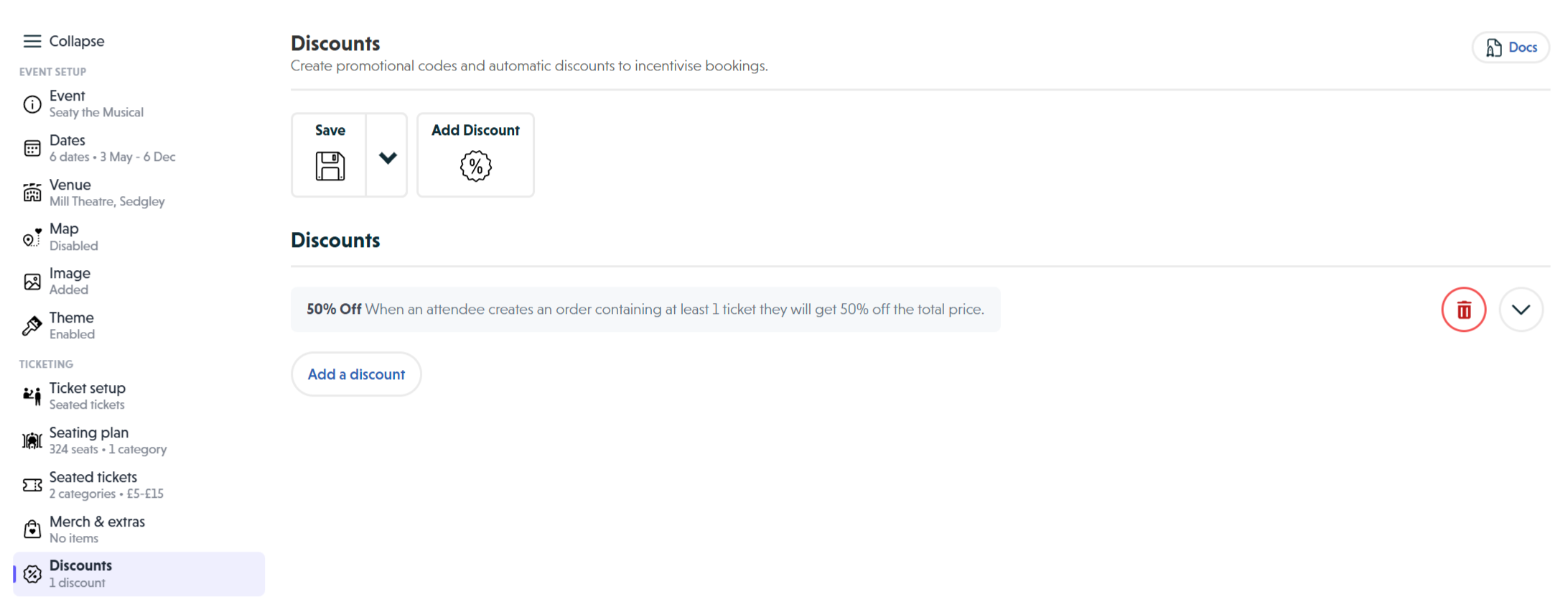 The Discounts editor showing the toolbar with Save and Add Discount buttons, an existing 50% Off discount with its summary text, and the Add a discount button
How It Works
At a glance: You create a discount, define when it applies (code, automatic, or single-use vouchers), set what tickets qualify, and choose how much to take off.
1. Create the discount
Add a new discount and give it a clear name customers will see on their order, such as "Early Bird 20% Off" or "Member Discount".
2. Choose how it applies
Decide whether customers need to enter a code, receive unique voucher codes, or get the discount automatically when their order qualifies.
3. Set the qualifying criteria
Define what makes an order eligible: minimum ticket quantity, specific ticket types required, or both.
4. Configure the discount amount
Choose the discount type (percentage, fixed amount, or free tickets) and the value.
5. Add optional time limits
Set an expiry date if the discount should only work until a certain time.
Think of it this way:
- Discount codes are like coupons - customers need to know and enter them
- Single-use codes are like gift vouchers - each code works once, then is marked as used
- Automatic discounts are like store promotions - applied transparently when you qualify
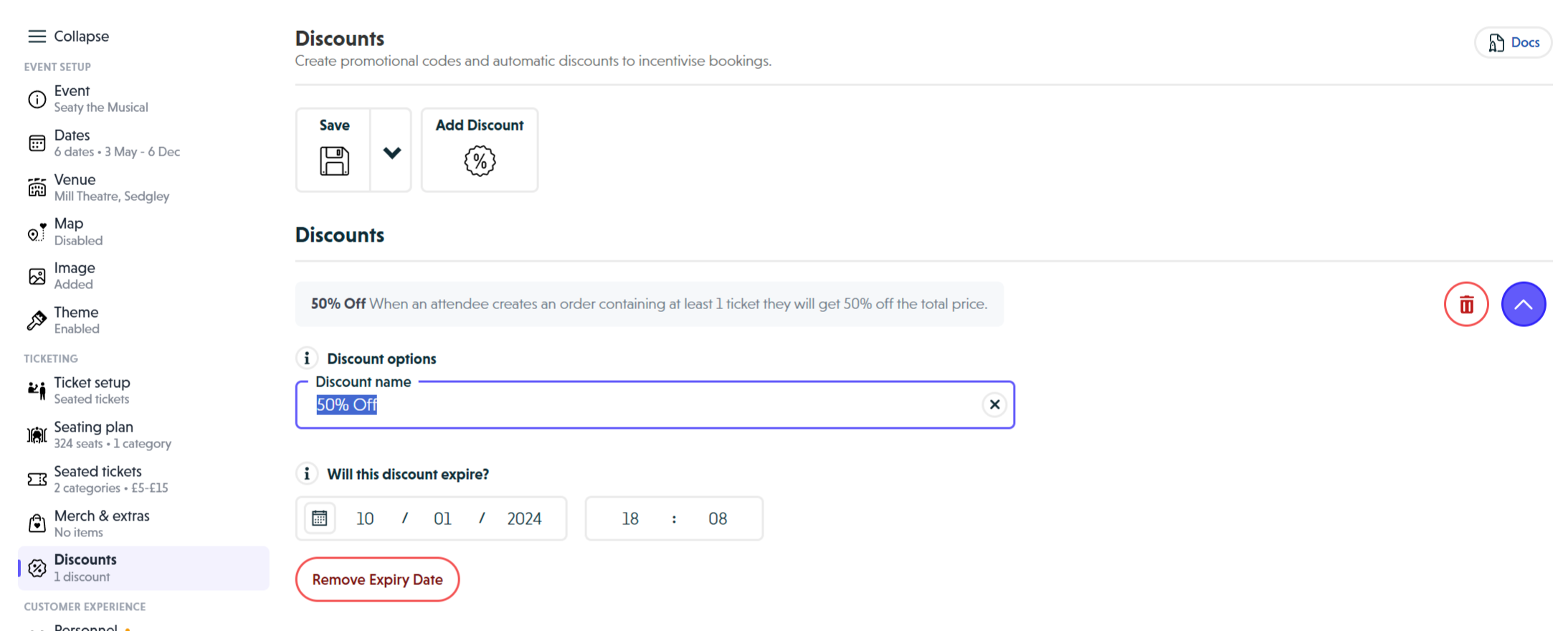 An expanded discount form showing the Discount name field, expiry date picker with Remove Expiry Date button, application mode dropdown set to Automatically when valid, criteria section with Add Criteria button, minimum tickets counter, and discount type dropdown
Application Modes
With a Discount Code
A single code that multiple customers can use.
How it works:
- You create one code (e.g., "EARLYBIRD", "MEMBER10")
- Share it via email, social media, or printed materials
- Customers enter the code at checkout
- Code can be used unlimited times (until expired)
Best for: Marketing campaigns, member benefits, newsletter subscribers.
With Many Single-Use Discount Codes
Generate bulk codes where each can only be used once.
How it works:
- Specify how many codes to create (up to 999 at a time)
- System generates unique 8-character codes
- Each code uses only clear characters (excludes confusing ones like O/0, I/1)
- Track which codes have been used and by whom
Best for: Printed vouchers, corporate partnerships, gift certificates, tracking redemption.
Automatically When Valid
No code required - discount applies when the order meets your criteria.
How it works:
- Customer adds tickets to their basket
- When the order qualifies, discount applies automatically
- Customer sees the discount and savings in their order summary
Best for: Group booking incentives, transparent pricing strategies, "buy X save Y" offers.
Discount Types
Percentage Off Total
Takes a percentage off the order subtotal (tickets plus merchandise).
- Enter a percentage from 1 to 99
- Example: 20% off a £50 order = £10 discount
Amount Off Entire Order
Deducts a fixed amount from the order total.
- Enter the amount to deduct
- Can optionally stack when criteria is met multiple times
Stacking example: "£5 off per 2 adult tickets" with stacking enabled:
- 2 adult tickets = £5 off
- 4 adult tickets = £10 off
- 6 adult tickets = £15 off
Amount Off Each Ticket
Deducts a fixed amount per ticket in the order.
- Scales automatically with order size
- Example: £2 off per ticket on 5 tickets = £10 total discount
Cheapest Tickets Free
Makes the cheapest ticket(s) in the order free.
- Set how many of the cheapest tickets become free
- Example: "Buy 3 Get 1 Free" - set minimum 4 tickets, cheapest 1 free
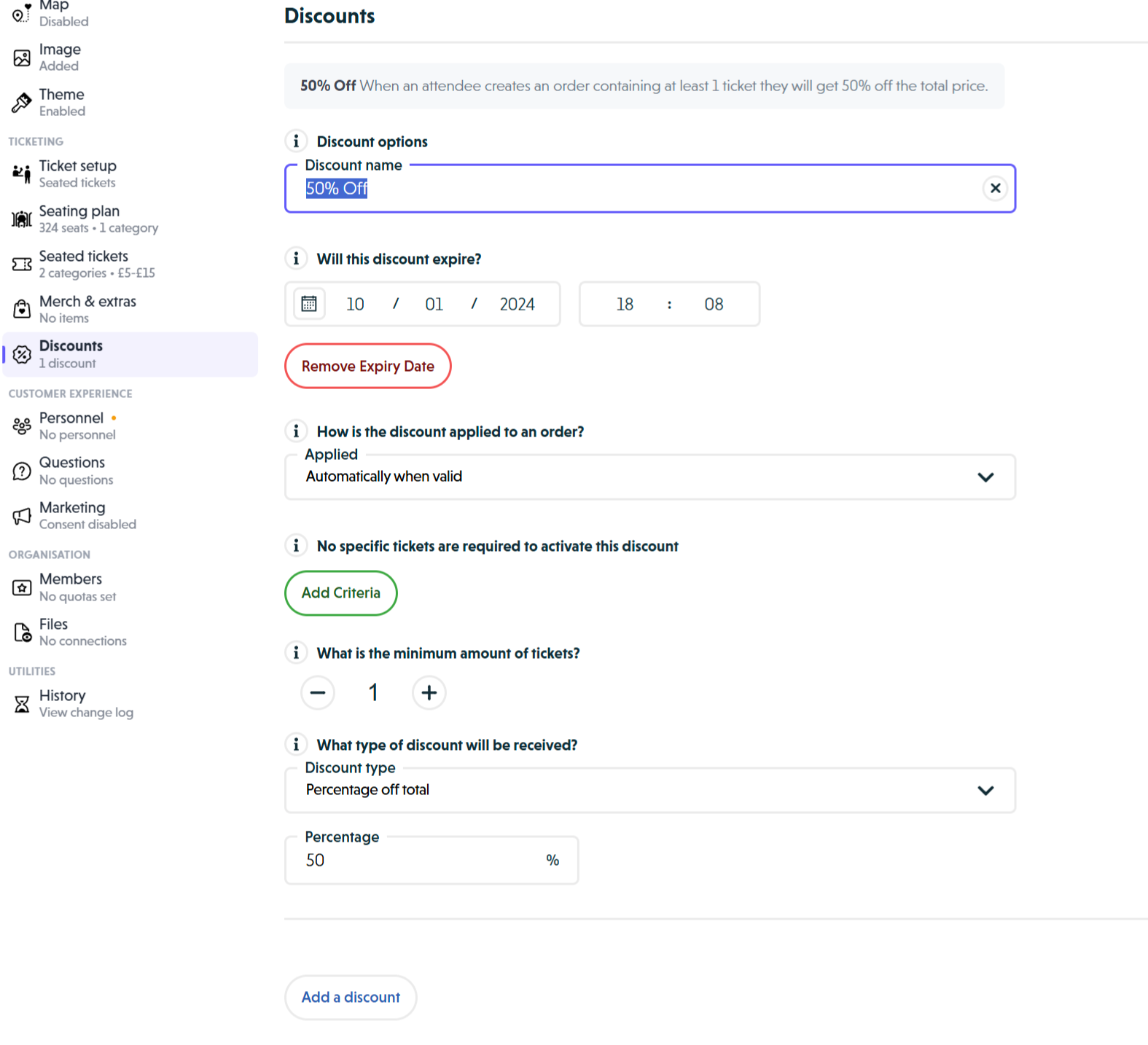 The lower portion of the discount form showing the criteria section, minimum ticket counter with minus and plus buttons, discount type dropdown set to Percentage off total, and the percentage input field with value 50%
Criteria System
Criteria specify which ticket types must be in an order for the discount to apply.
Without Criteria
Any tickets qualify. Only the minimum quantity matters.
Example: "Buy 5 or more tickets" applies to any combination of ticket types.
With Criteria
Specific ticket types are required.
Example: Family discount requires:
- 2 Adult tickets AND
- 2 Child tickets
Order must contain all specified tickets for the discount to apply.
Adding criteria:
- Click "Add Criteria"
- Select the ticket type
- Set the required quantity
- Repeat for additional ticket types
Expiry Dates
Add time limits to create urgency or match promotional periods.
Setting expiry:
- Click "Add Expiry Date"
- Choose the date and time
- Discount automatically stops working after this time
Removing expiry:
- Click "Remove Expiry Date" to make the discount perpetual
Note: Expiry uses your event's time zone, not the customer's local time.
Limiting a Discount to the First Few Customers
A usage cap lets a discount stop working after a set number of orders have used it. Once the cap is reached, the discount is rejected at checkout with the message "This discount code has reached its usage limit."
This works on top of any application mode: a shared code, an automatic discount, or single-use vouchers can all be capped in the same way.
Best for: Treasure hunt or scavenger hunt promos where a shared code should only reward the first few customers to find it, flash giveaways with a fixed prize pool, or trial offers where you want to limit your exposure.
Adding a Usage Cap
- Open the discount you want to limit.
- Click Add Usage Cap (next to the Expiry Date option).
- Enter the maximum number of times the discount can be used. The minimum allowed is 1; it defaults to 10.
- Save the discount.
The discount summary then shows a sentence like "This discount can be used a maximum of N times (M used so far)" so you can see at a glance how close it is to the limit.
Watching Uses Build Up
The cap field shows an "X of Y used" count, and the discount summary repeats the same total in plain English. This count reflects the redemptions recorded at the moment you opened the discount; it does not tick up on its own while you sit on the page. To see the latest figure during a live promotion, reopen the discount (or reload the editor) and the count refreshes.
Removing or Changing the Cap
- To raise or lower the limit, edit the number in the cap field and save. Any orders that already used the discount still count towards the new total.
- To remove the cap entirely, click Remove Usage Cap. The discount reverts to unlimited use (within any expiry you've set).
Why is the count never wrong, even with simultaneous customers? When two customers check out at the same moment, only one can claim the final remaining use. The other receives the "usage limit reached" message. The counter never overshoots the cap, even under heavy load.
Note: The cap counts completed orders. Booking requests that haven't been accepted yet don't take up a slot until they convert.
Managing Single-Use Codes
When using the "many single-use discount codes" option, you can manage individual codes.
Generating Codes
- Select "With many single use discount codes" as the application mode
- Click "Manage Discount Codes"
- Enter the number of codes to generate
- Click "Add +X discount codes"
Code Status
Each code shows one of three statuses:
- Unused - Not yet redeemed
- Requested - Used in a pending booking request
- Ordered - Used in a completed order
Actions
- View Order - See the completed order that used this code
- View Request - See the pending booking request
- Delete - Remove unused codes only
Clearing Unused Codes
Click "Clear unused" to remove all codes that haven't been redeemed. Useful when starting a new campaign.
Note: Clearing codes is permanent. If customers have received those codes, they will no longer work.
Practical Examples
Early Bird Discount
Encourage early bookings with a time-limited automatic discount.
- Name: "Early Bird 20% Off"
- Mode: Automatically when valid
- Expiry: 1 month before event
- Minimum tickets: 1
- Type: Percentage off total - 20%
Member Discount Code
Reward members with a reusable code.
- Name: "Member Discount"
- Mode: With a discount code - "MEMBER10"
- No expiry
- Minimum tickets: 1
- Type: Amount off entire order - £10
Group Booking Incentive
Automatically reward larger bookings.
- Name: "Group Booking 15%"
- Mode: Automatically when valid
- Minimum tickets: 10
- Type: Percentage off total - 15%
Family Package
Target specific ticket combinations.
- Name: "Family Package"
- Mode: Automatically when valid
- Criteria: 2 Adult tickets + 2 Child tickets
- Minimum tickets: 4
- Type: Amount off entire order - £12
Buy 3 Get 1 Free
Classic promotional offer.
- Name: "Buy 3 Get 1 Free"
- Mode: Automatically when valid
- Minimum tickets: 4
- Type: Cheapest tickets free - 1
Corporate Vouchers
Distribute unique codes to a partner.
- Name: "Corporate Partner Voucher"
- Mode: With many single-use discount codes
- Generate: 100 codes
- Expiry: End of quarter
- Type: Amount off entire order - £10
Export or copy the codes to send to your partner.
Best Practices
Clear Naming
Use names that explain the offer:
- "Early Bird 20% Off" rather than "Discount 1"
- "Family Package" rather than "Special"
Customers see the discount name on their order.
Memorable Codes
For single discount codes, choose memorable words:
- "EARLYBIRD", "SUMMER25", "MEMBER10"
Single-use codes are auto-generated and don't need to be memorable.
Test Before Launching
Place a test order to verify:
- The discount applies correctly
- The amount is as expected
- Criteria work as intended
Set Realistic Expiry
- Early bird: 1-3 months before event
- Flash sales: 24-72 hours
- Seasonal: End of term or season
Common Questions
Using Multiple Discounts
Can customers use multiple discount codes on one order?
No. Only one discount applies per order. If multiple automatic discounts qualify, the system applies the one that saves the most.
What happens if both automatic and code discounts qualify?
The system applies whichever saves the customer more money.
Editing Discounts
Can I change a discount after customers have used it?
You can change the name, expiry date, and criteria. However, the discount type and amount cannot be changed if orders exist using that discount.
Why can't I delete a discount?
Discounts that have been used in orders cannot be deleted because historical orders reference them. Set an expiry date in the past to deactivate it instead.
Discount Scope
Do discounts apply to booking fees?
No. Discounts apply to ticket prices and merchandise only. Booking fees are calculated after the discount.
Do discounts apply to merchandise?
Yes. Discounts apply to the combined total of tickets plus merchandise.
Restrictions
Can I restrict discounts to specific dates or performances?
Not directly. Use criteria to restrict to specific ticket types, or set expiry dates to limit when the discount works.
Can I create codes for specific customers?
Use single-use codes - generate one per customer, send each their unique code, and track redemption.
Expiry Behaviour
What happens when a discount expires?
For code-based discounts, customers see an "Invalid" or "Expired" message. For automatic discounts, they simply stop applying. Existing orders are unaffected.
Usage Caps
How is a usage cap different from generating a batch of single-use codes?
Single-use codes give every customer a unique code that only they can redeem, useful when you want to track or assign codes to named individuals. A usage cap keeps a single shared code (or an automatic discount with no code at all) and simply stops it working after the first N orders. Use a cap when you want a "first-come, first-served" promo where everyone races for the same code.
What does a customer see when the cap is reached?
They see the message "This discount code has reached its usage limit." at checkout. The order can still go through at the normal price; only the discount is rejected.
Can I see how many uses have been redeemed?
Yes. The discount editor shows an "X of Y used" count next to the cap field, and the auto-generated summary on the discount card shows the same total in plain English. The figure is current as of when you open the discount; reopen or reload the editor to refresh it during a live promotion.
Can I reset or increase the cap later?
You can raise or lower the cap at any time by editing the number and saving. Uses that have already been redeemed continue to count, so raising the cap from 10 to 20 leaves you with however many slots remain, not a fresh 20. There is no separate "reset": removing the cap entirely lifts the limit, and re-adding it starts counting against the new figure.
Does the cap apply to all kinds of discount?
Yes. You can add a cap to a shared code, an automatic discount, or a batch of single-use codes. For single-use codes the cap acts as an extra ceiling on top of the number of codes you generated.
Free Tickets
Can I offer completely free tickets?
Use "Cheapest tickets free" to make specific tickets free, or "Amount off entire order" with an amount equal to your ticket price.
Next Steps
Once you've configured your discounts, continue setting up your event:
- Custom Questions - Collect additional information from attendees
- Marketing Tools - Set up SEO and social sharing
Need help? Visit our Organiser FAQ or contact support.