Custom Questions for Event Bookings and Checkout
Overview
Custom questions let you gather information from attendees before they complete their purchase, and let your team edit those answers later if something needs correcting. At its simplest, custom questions answer one question: What do I need to know about each booking, and who can provide that information?
Who uses this: Event organisers with access to the event editor, and administrators with the Edit permission for the event.
Key capabilities:
- Ask dropdown, radio button, or text questions
- Validate text answers as email, phone, or number
- Make questions required or optional
- Ask once per order or once per ticket in specific categories
- Keep some questions hidden from customers and only fill them in as an administrator
- Give each question a short field name for cleaner reports and as a placeholder for text inputs
- Edit any answer after the booking has been placed, with a full audit trail of who changed what
- Copy questions between events
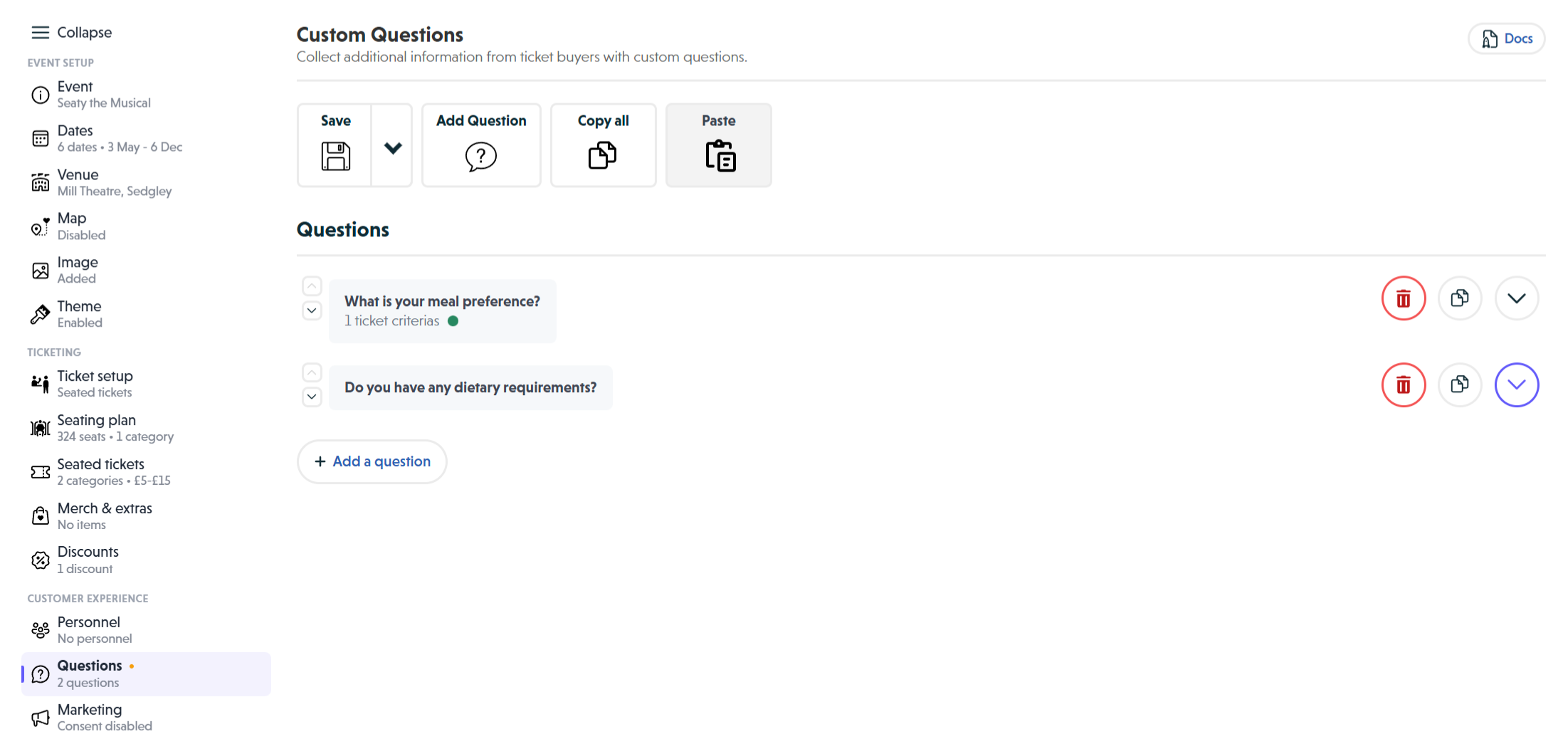 The Custom Questions editor showing the toolbar with Save, Add Question, Copy all and Paste buttons, and two configured questions in collapsed view
How It Works
At a glance: You create questions, decide who sees them and when they're asked, then attendees answer during checkout, and your team can review or correct those answers any time afterwards.
1. Create your questions
Add the questions you need answered. Choose the question type based on the kind of answer you want: a text box, a dropdown list, or radio buttons.
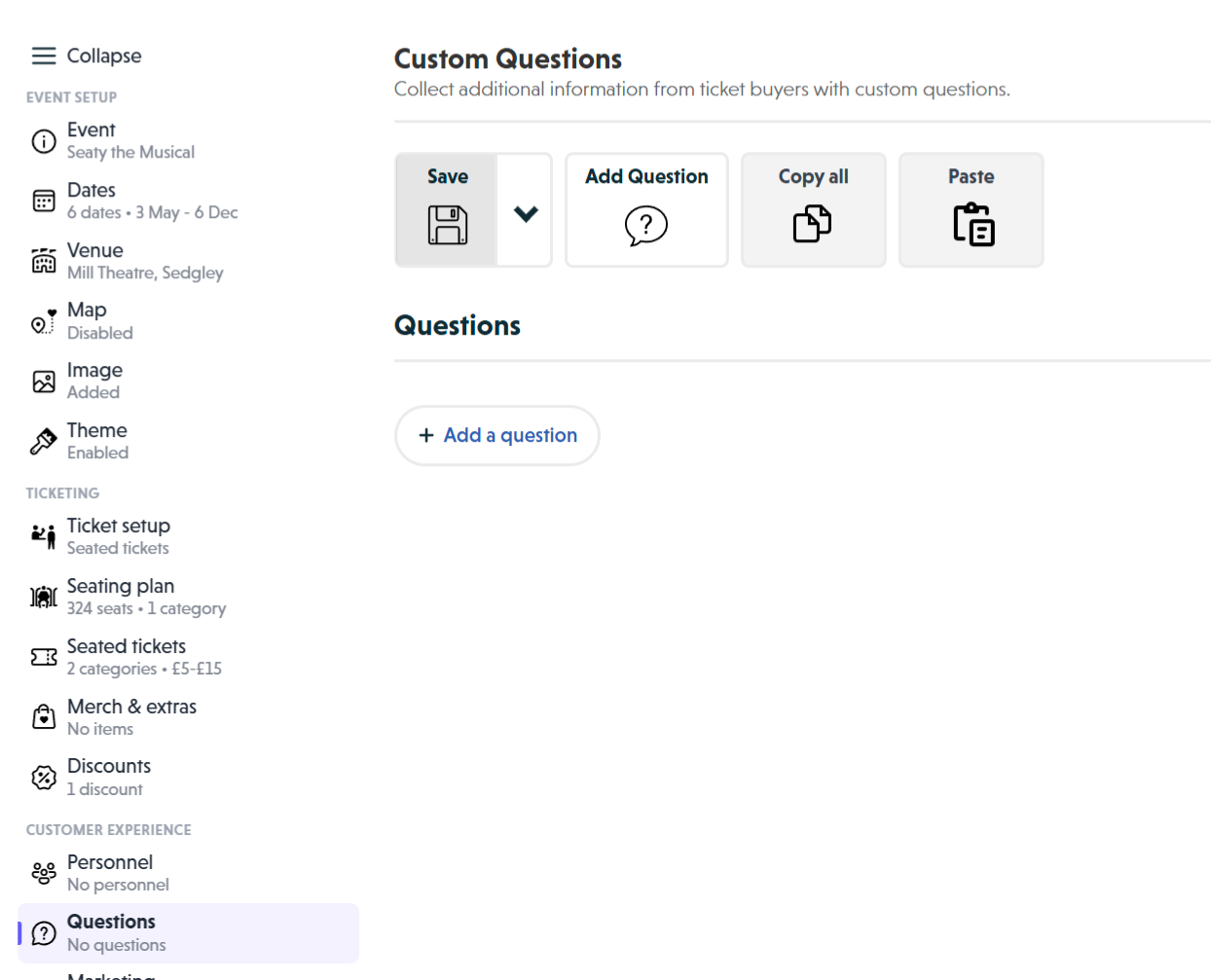 The Custom Questions editor with no questions added, showing the empty state with the toolbar and Add a question button
2. Choose when each question is asked
Use the When is this question asked? switch to decide whether a question is answered once for the whole order or separately for each ticket. For per-ticket questions, pick which ticket categories the question applies to.
3. Set visibility and requirements
Decide whether customers see the question at all (admin-only questions are hidden from checkout) and whether an answer is required before the order can be placed.
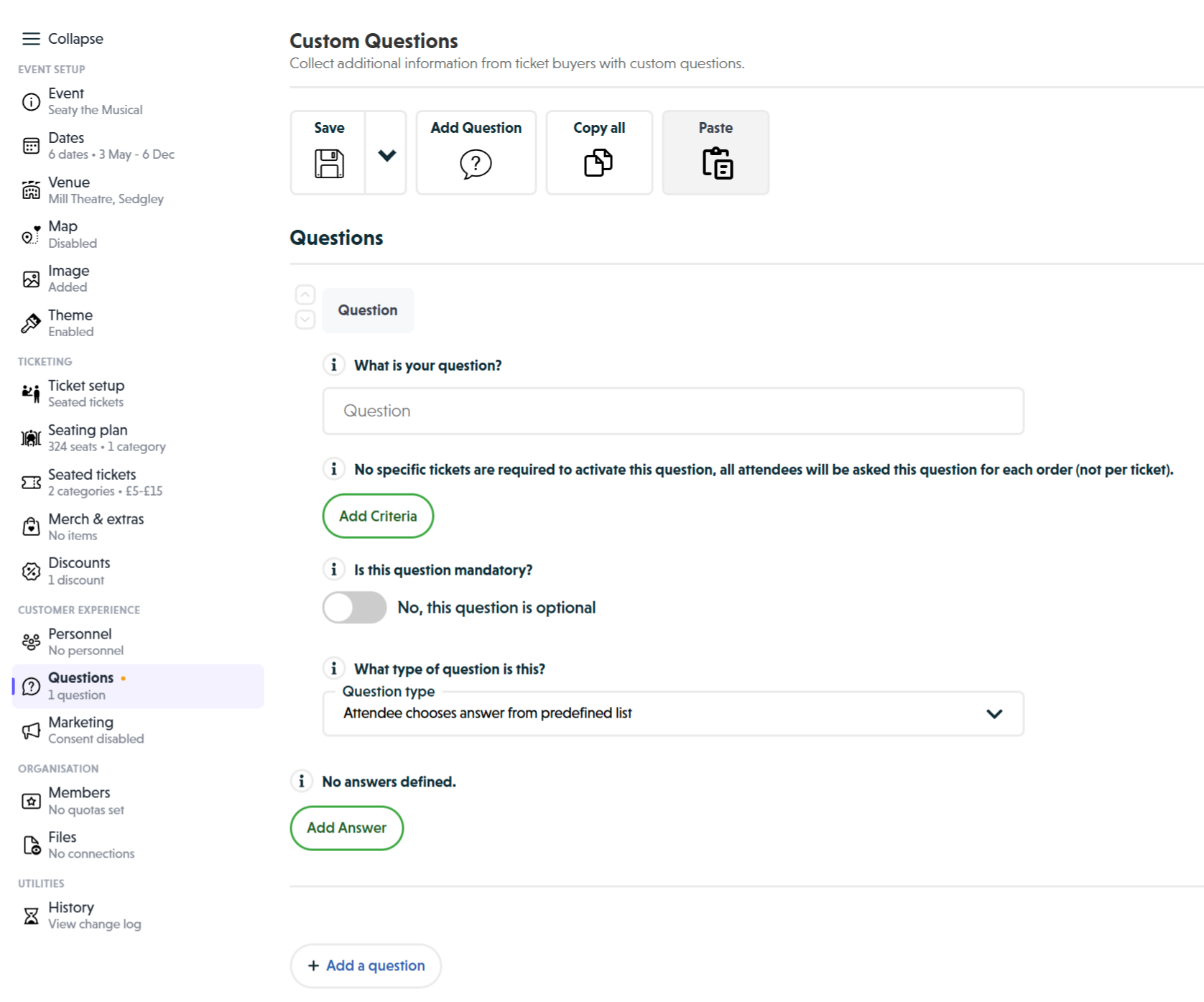 A newly added question expanded for editing, showing the question name field, criteria info, required toggle, question type selector, and answer options
4. Attendees answer at checkout
When customers purchase tickets, they see the questions that apply to them and provide their answers before completing payment. Email, phone, and number fields are validated so garbage data is rejected before it reaches your reports.
5. Review and edit responses
View answers in order details, reports, and attendee lists from your admin dashboard. Administrators can edit answers directly on an order at any time, and every change is recorded in the order history.
Think of it this way:
- Per-order questions collect booking-level information (group name, delivery notes)
- Per-ticket questions collect attendee-level information (names, meal choices, sizes)
- Customer-visible questions appear at checkout
- Admin-only questions are filled in by your team, either at a box-office sale or later
- Required questions block checkout until answered
- Optional questions can be skipped
Question Types
New questions default to a plain text answer. Change the type using the What type of question is this? dropdown inside each question.
Text Questions
Attendees type their own response. Best for open-ended information that varies per person.
Examples: Attendee names, dietary requirements, accessibility needs, contact numbers, email addresses, group sizes.
Requirements: None. Attendees enter any text, but you can restrict the format (see below).
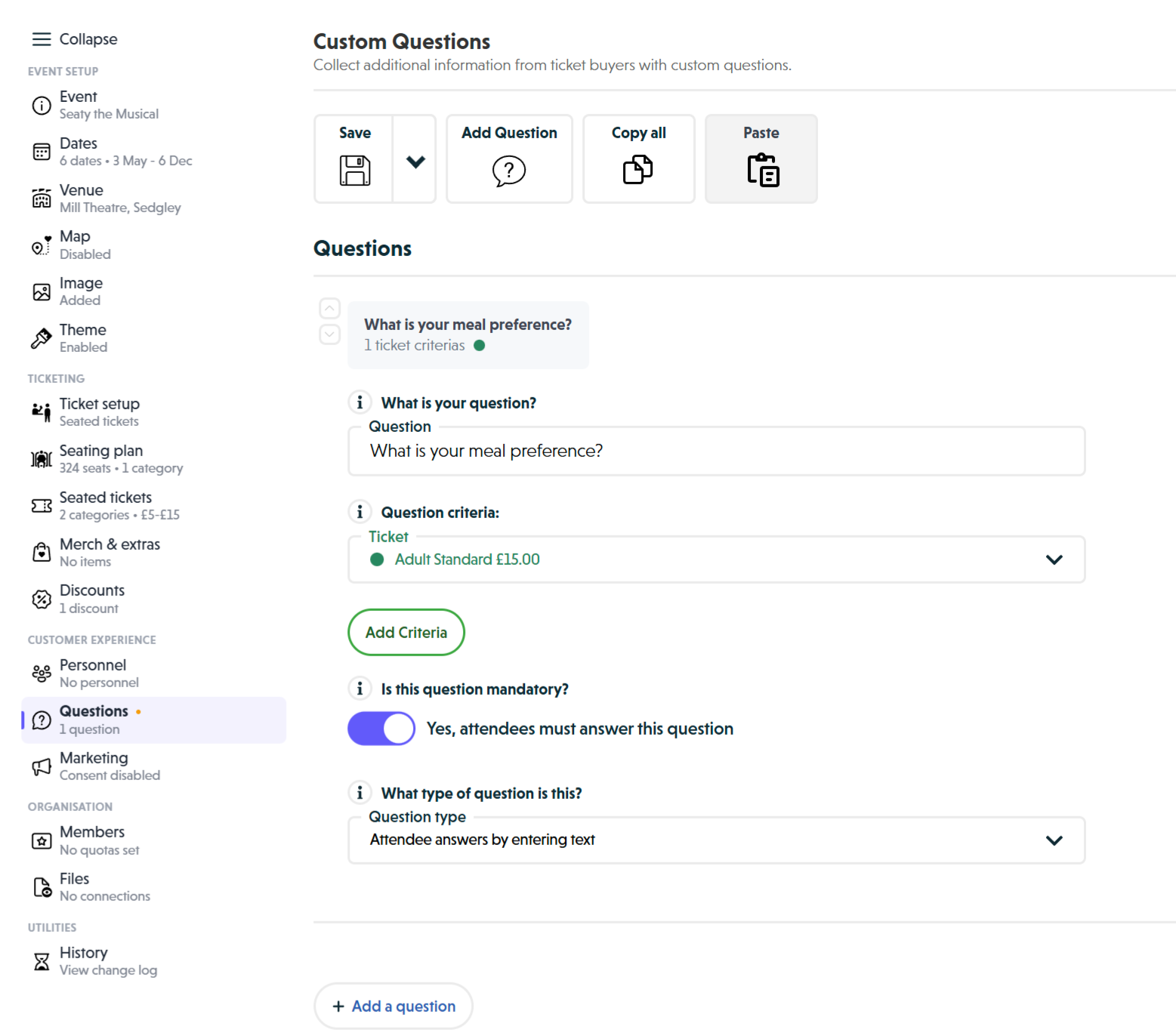 A text question showing the question name, criteria, required toggle, and question type set to Attendee answers by entering text
Text formats
Text questions have a second dropdown, What kind of text answer are you collecting?, which sets the keyboard shown on mobile and the validation applied at checkout:
| Format | What it accepts | Use it for |
|---|---|---|
| Plain text | Any text | Names, notes, allergies, special requests |
| Standard email addresses | Contact emails, guest list invitations | |
| Phone | Digits, spaces, +, -, (, ), with at least seven digits total | Mobile numbers, landlines |
| Number | Whole numbers or decimals | Age, quantity, booking reference |
Invalid answers are rejected live at checkout with an inline error, and the backend re-checks them on submission so a broken or malicious client cannot bypass the rule.
Why validate? One customer typing "banana" into an email field means the admin can't contact that attendee. Validation catches the mistake while the customer is still on the page and can fix it.
Dropdown Questions
Attendees choose from a list of answers you define, presented as a dropdown menu. Best for structured data on mobile where vertical space matters.
Examples: T-shirt sizes, age groups, workshop selections.
Requirements: At least 2 answer options.
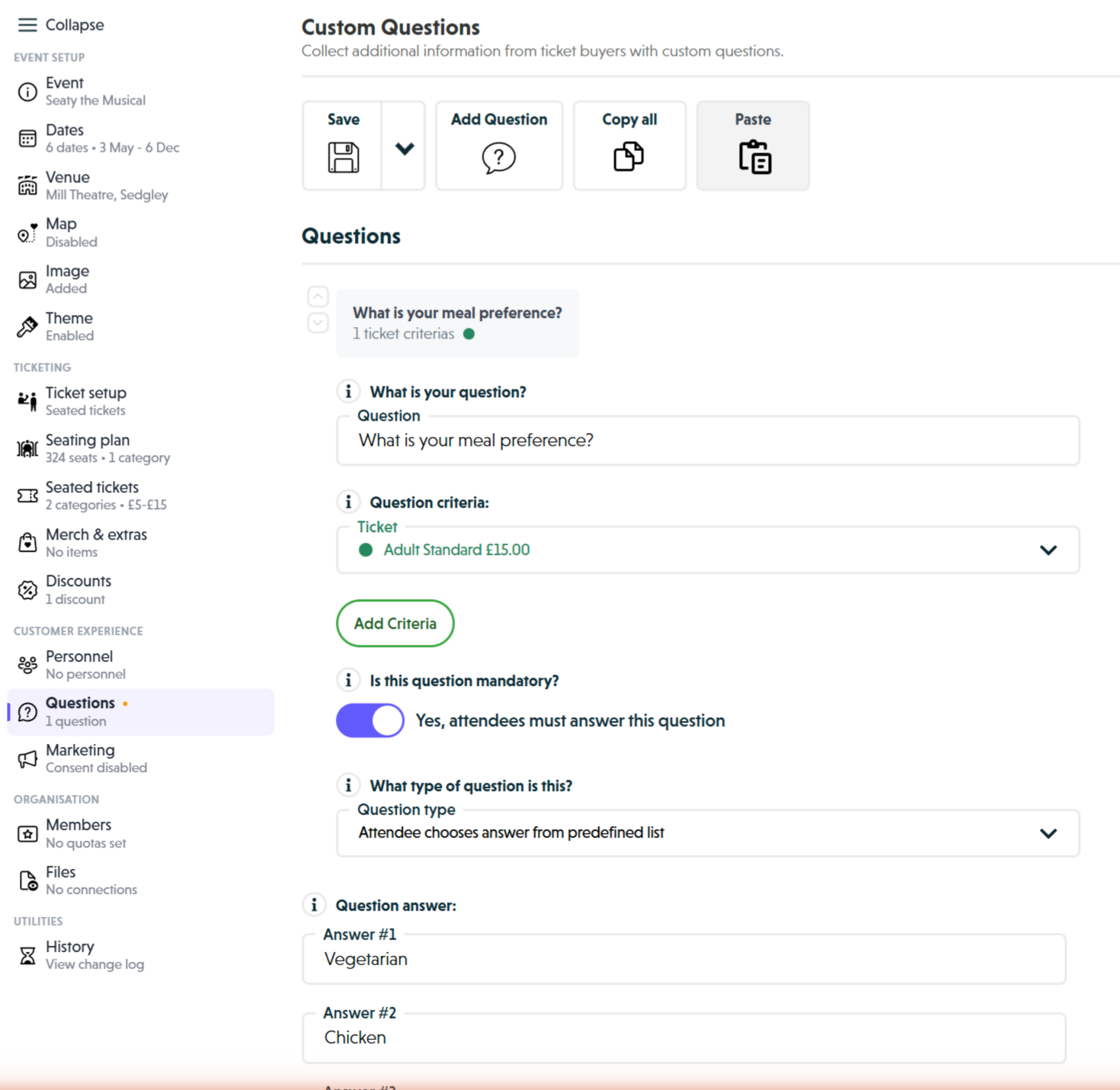 A configured dropdown question with the question name, ticket criteria, required toggle enabled, and three answer options
Radio Button Questions
Same as dropdown questions (you provide the answer options), but attendees see all options at once as a radio list instead of having to open a dropdown. Best for short lists of 2–5 options where the choices benefit from being visible upfront.
Examples: Meal preferences (vegetarian/chicken/fish), yes/no confirmations, two-option selections.
Requirements: At least 2 answer options.
Dropdown or radio? Use radio when the options are short and the answer matters enough that you want the customer to see them all without having to tap. Use dropdown when you have many options or want to save screen space.
To change a question between types, use the Question type dropdown.
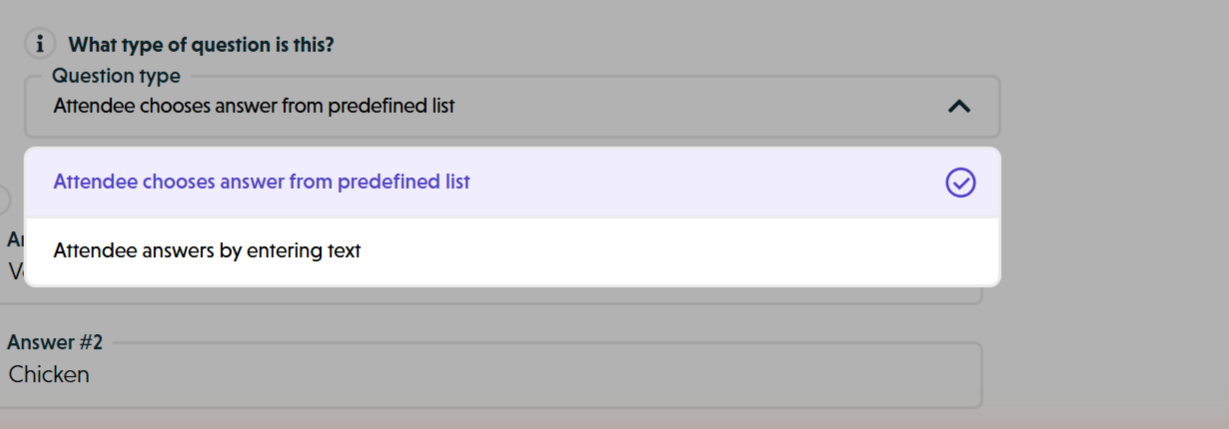 The question type dropdown open showing the available options
Field Name & Placeholder
Below the question text is an optional Field name & placeholder field. This short label does two things:
- In reports and spreadsheet exports, it's used as the column header instead of the full question text. If your question is "Please list any food allergies or dietary requirements so we can accommodate you safely", a field name of "Allergies" keeps your exports readable.
- For text questions, it's shown as the placeholder text inside the empty input box at checkout, giving the customer a subtle hint about what to enter.
Why both uses share the same field: A good short label for a report column is almost always also a good placeholder hint. Keeping it in one place avoids duplication and keeps your exports and your checkout experience in sync.
If you leave it blank, reports fall back to the full question text and text inputs have no placeholder.
When Is This Question Asked?
Use the When is this question asked? switch to control whether a question applies to the whole order or to individual tickets.
Per-Order Questions (switch off)
The question is asked once, no matter how many tickets are in the basket.
Use for: Group name, organisation, delivery notes, how they heard about the event, special requests affecting everyone.
Per-Ticket Questions (switch on)
The question is asked once for each ticket in the categories you select. If someone buys three tickets across the chosen categories, they answer the question three times, once per ticket.
Use for: Attendee names, individual meal choices, allergy information, age verification, T-shirt sizes.
When you flip the switch on, a ticket category picker appears below. Pick which ticket categories the question applies to; you can add as many as you need. The question will only show for tickets in those categories, so you don't have to ask meal choices for car park passes.
Why per-ticket with categories? Not every question applies to every ticket. A "Meal choice" question should appear for dinner tickets but not for standalone show tickets. Category-scoped per-ticket questions let you ask the right thing for the right ticket automatically.
Required vs Optional
Required Questions
- Attendees must answer to complete their purchase
- Shows "(Required)" label during checkout
- Checkout is blocked until all required questions have valid responses
When to require: Legal requirements (age verification), operational necessities (meal orders, attendee names), health and safety (allergy information).
Optional Questions
- Attendees can skip without answering
- Reduces checkout friction
When to make optional: Surveys, marketing research, preferences that can be collected later, information that helps but isn't essential.
Why default to optional? Every required question adds friction. More friction means more abandoned purchases.
Note: Required and admin-only can be combined. A required admin-only question blocks the admin at the box office but is invisible (and therefore never blocking) for a customer booking online.
Admin-Only Questions
Toggle Is this question admin only? to hide a question from customers entirely.
Admin-only questions appear:
- To administrators placing a box-office order through the admin order flow
- In the post-order answers edit screen (see below)
- In reports and exports alongside customer-facing answers
They do not appear:
- On the public checkout page for customers
- In the customer's order confirmation email or receipt
Use for: "Comp reason", "Internal reference", "Referred by", "Sales channel", or any other internal tracking you don't want the customer to see.
Why not just use admin notes? Admin notes are a single free-text field per order. Admin-only questions give you structured, per-question columns in reports, useful when you want to tally or filter by these values later.
Editing Answers After Booking
Every order's detail screen has a Question answers section where administrators can view and edit the answers attendees provided, including answers for admin-only questions.
- Order-level questions appear as editable rows under the order's Question answers heading.
- Per-ticket questions appear on each individual ticket's detail screen, so you can edit the answer for one specific seat without touching the others.
- Text, dropdown, and radio answers are all editable using the same input type that was shown to the customer at checkout.
- Saving re-validates the format rules (email, phone, number) so you can't accidentally save invalid data on behalf of a customer either.
Audit trail: Every answer change is recorded in the order's Log section with the administrator's name, the timestamp, the question, the old value, and the new value. Creating a new answer on a question the customer skipped is logged the same way. This lets you track who corrected what and when, which matters for sensitive fields like allergies and accessibility needs.
Why is the save button sometimes disabled? Either nothing has changed, or one of the text answers fails its format validation (for example, an email field containing "banana"). Fix the offending field or make a real change and the button re-enables.
Copying Questions
Save time when creating similar events by copying questions between events.
Copy all questions: Copies every question from the current event. Switch to another event and paste to add them.
Copy single question: Click the copy icon on an individual question. Paste anywhere.
What transfers: Question text, question type, text format, field name, required/optional setting, admin-only setting, dropdown and radio answer options.
What resets: Ticket category selections (cleared because ticket IDs differ between events), question IDs (reset for new questions).
Best Practices
Keep It Minimal
Every question adds checkout friction. Only ask for information you genuinely need. Consider whether you could collect it after booking by editing the answer later as an admin.
Be Specific
"What is the ticket holder's full name?" is clearer than "Name?". Specify whose information you need and in what format.
Use the Right Type
- Text + Plain for open-ended answers
- Text + Email / Phone / Number whenever the answer has a known format; you'll get cleaner data and fewer typos
- Radio for short, important choices you want the customer to see upfront
- Dropdown for longer lists of options where screen space matters
Set a Field Name for Anything That Reaches a Report
A good field name makes your exports instantly readable and doubles as a helpful placeholder hint in text boxes.
Structure Dropdown and Radio Answers Well
- Cover all realistic scenarios
- Include "Other", "None", or "No preference" when appropriate
- Order logically (alphabetical, by frequency, or natural progression like sizes)
- Keep answers concise for mobile screens
Consider GDPR
Only collect information you have a legitimate purpose for. Your privacy policy should cover how custom question data is used and stored. For practical guidance on data minimisation, lawful basis, and how long to retain attendee answers, see our GDPR for UK event organisers guide.
Common Questions
Editing and Deleting
Can I change questions after people have booked? Yes. Changes affect new bookings only. Existing orders keep the answers they already provided. Editing an existing answer is a separate action, done from the order details screen, and is recorded in the order log.
What happens to answers if I delete a question? Answers already collected remain in the system and appear in order details and reports. The question just stops appearing for new bookings.
Can I edit an answer after a booking is placed? Yes. Open the order in the admin dashboard, go to the Question answers section (or open an individual ticket for per-ticket answers), make your changes, and save. Every edit is logged with your name, the time, and the before and after values.
Who can see the audit trail? Anyone who can view the order. The changes appear in the order's Log section alongside other administrative actions like refunds and seat swaps.
Checkout Behaviour
Can attendees skip required questions? No. Required questions must be answered with a valid value before checkout can complete.
What happens if a customer types an invalid email or phone number? They see an inline error under the field explaining what's wrong, and the Place Order button stays disabled until they fix it or clear the field. The backend also re-checks the format, so even a broken client can't submit bad data.
How many questions can I add? No hard limit, but more questions means higher checkout abandonment. Aim for fewer than 5 per-order questions and 2–3 per-ticket questions.
Can I preview how questions look to customers? Go through the booking process yourself. Add tickets to your basket, proceed to checkout, and you'll see questions exactly as customers see them. Admin-only questions will be visible to you because you're logged in as an admin. Sign out or use an incognito window to see the customer view.
Capabilities and Limitations
Can I require a specific format for text answers? Yes. Set the text format on the question (Plain, Email, Phone, or Number). Email, Phone, and Number answers are validated live at checkout and again on the backend.
Can I hide a question from customers but still fill it in myself? Yes. Turn on the Is this question admin only? toggle. The question disappears from public checkout but is still available to administrators in the box-office order flow and when editing answers after the booking.
Can different answers have different prices? No. Questions collect information but don't affect pricing. Create separate ticket categories with different prices instead.
Can I show questions conditionally based on other answers? No. All configured questions appear together. There's no conditional logic based on previous answers.
Do questions work with multiple event dates? Yes. Questions apply to all dates within an event. Different dates cannot have different questions.
Can I export question answers? Yes. Answers appear in the Question responses report and other order exports from your admin dashboard. Column headers in exports use the question's field name when set, or the full question text if not.
Per-Ticket Questions
Why aren't my per-ticket questions repeating? Check the When is this question asked? switch. If it's off, the question is per-order and asked once. Turn it on and make sure the right ticket categories are selected below.
Why are my per-ticket questions appearing on tickets they shouldn't? Open the question and review the ticket categories listed under Which tickets is this question asked for?. Remove any category that shouldn't trigger the question.
Data and Security
Where do I view answers? In individual order details, individual ticket details, the Question responses report, attendee lists, and spreadsheet exports from your admin dashboard.
Is there a record of who edited an answer? Yes. Every edit to an existing answer and every newly added answer is recorded in the order's Log section with the administrator's name, timestamp, question, old value, and new value.
Can I collect payment card details through questions? Never use custom questions for payment information. Payment processing is handled securely through the integrated payment system. Custom questions are not suitable for sensitive financial data.
Next Steps
- Discount Codes - Offer special pricing to customers
- Marketing Tools - Promote your event and track referrals
- Personnel Groups - Organise your event staff
Need help? Visit our Organiser FAQ or contact support.