Event Mail and Mailshots to Ticket Holders
 Mail page showing Compose button, search box, and email history
Overview
Email communication in Seaty covers the full spectrum of organiser-to-attendee email: operational updates ("the venue has changed"), customer-service messages ("here's your parking permit"), post-event surveys, and promotional marketing. The system includes built-in compliance checks, recipient filtering, content categorisation, and email preference management so the right people get the right kind of message and unsubscribe options stay honest.
At its simplest, the Mail feature answers one question: How do I send an email to the right people on this event?
Looking for trackable links and QR codes for posters or social posts? Those are a separate tool. See Marketing campaigns. The Marketing hub lists every Seaty marketing tool in one place.
Who uses this: Event administrators with Event Mail permission, or organisation administrators with Organisation Mail permission.
Key capabilities:
- Send targeted emails to specific attendee groups
- Filter recipients by ticket type, event date, or member type
- AI-powered content validation for compliance
- Draft saving for later editing (including gallery images, layout, and focal points)
- Test email functionality
- Email preference management and unsubscribe handling
- Rich HTML formatting in the body
- Attach up to 5 photos as a gallery, rendered in the email and linked to a fullscreen browsing page
How It Works
At a glance: Choose your recipients, compose your message, review compliance, and send.
1. Select your audience
Decide who needs to receive your message. You can target all attendees, specific event dates, individual attendees, or organisation members depending on your needs.
2. Compose your message
Write your subject line and message body. Use the rich text editor for formatting, or let AI help you draft content that's appropriate for event communications.
3. Review and confirm
Check your recipient count, review the compliance requirements, and confirm you're sending essential event information rather than promotional content.
4. Send or save
Send the email immediately, send a test to yourself first, or save as a draft to complete later.
Think of it this way:
- Recipients determine who sees your message
- Content validation ensures your message meets legal and platform requirements
- Preferences respect what attendees have opted in to receive
Accessing Email Communication
The Mail section is available at both event and organisation levels:
Event Level:
- Navigate to your event's admin dashboard
- Select "Mail" from the Tools menu group
- Requires Event Mail permission
Organisation Level:
- Navigate to your organisation's admin dashboard
- Select "Mail" from the Tools menu group
- Requires Organisation Mail permission
Composing Emails
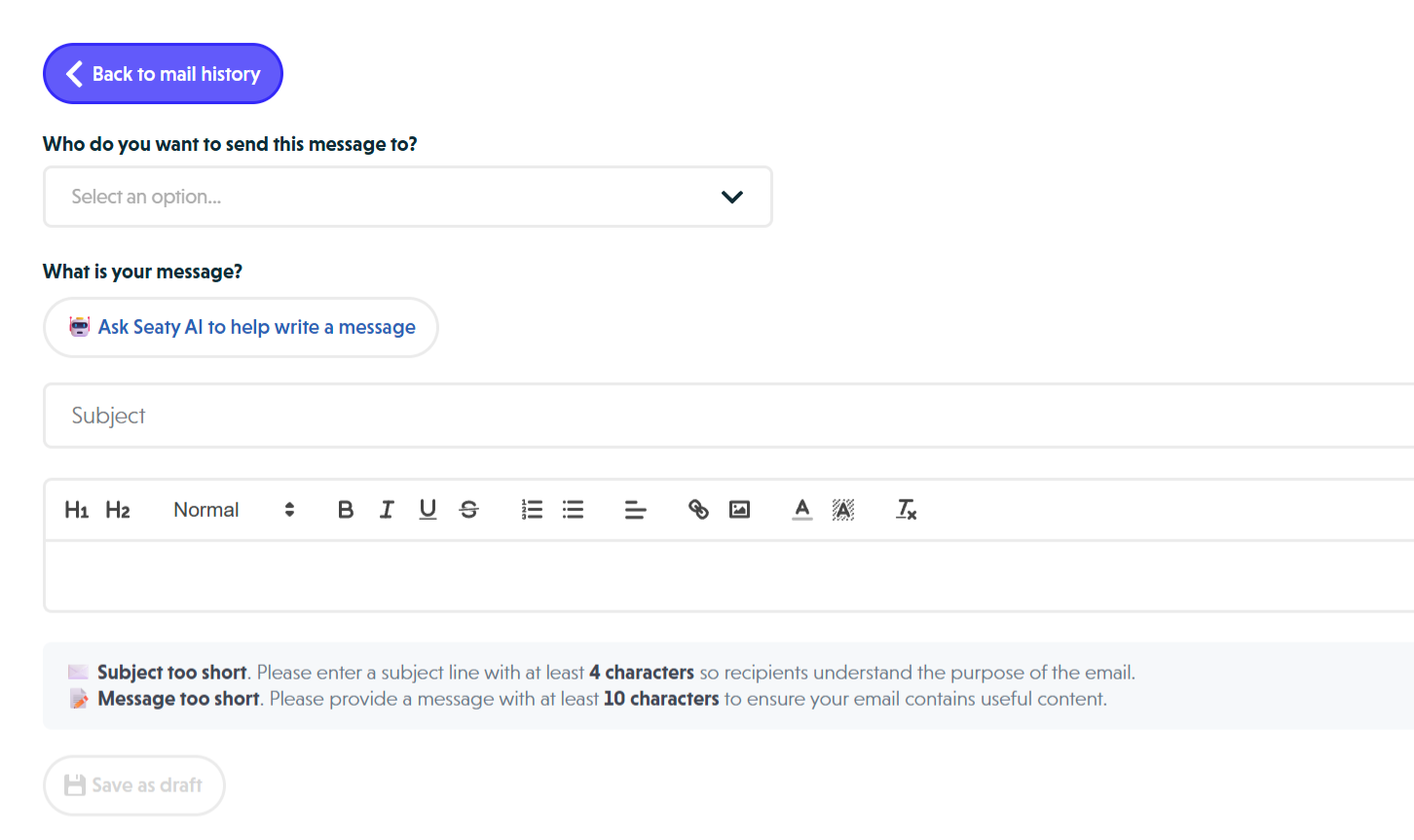 Empty compose form showing recipient dropdown, AI button, subject line, and rich text editor
Starting a New Email
Click the "Compose new email" button to begin creating a message. You'll be guided through the following steps:
- Select Recipients - Choose who should receive this email
- Write Your Message - Compose subject and body
- Review & Send - Confirm details and send
AI-Assisted Composition
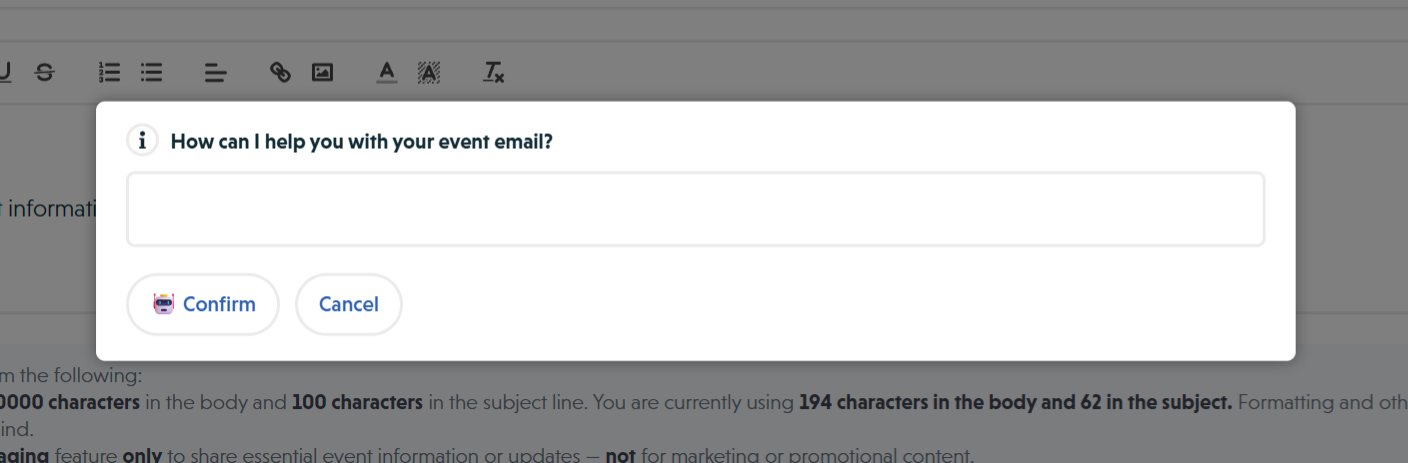 AI assistance modal showing prompt input for event email composition
Seaty includes AI assistance to help write your messages:
- Click "Ask Seaty AI to help write a message"
- Provide context or a prompt describing what you need
- The AI will generate both subject line and message body
- Edit the generated content as needed
The AI understands your event or organisation context automatically, so you can simply describe what you want to communicate.
Message Formatting
The email composer uses a rich text editor with the following capabilities:
Text Formatting:
- Headers (H1, H2)
- Text sizes (small, normal, large)
- Bold, italic, underline, strikethrough
- Text and background colours
- Ordered and bulleted lists
- Text alignment
Content Elements:
- Web-hosted images (via URL)
- Hyperlinks
- Clean paste from other sources
Important Image Guidelines (body text):
Only web-hosted images (URLs starting with http:// or https://) are allowed inside the body text. Embedded images (copied/pasted) are automatically blocked. This prevents email size issues and ensures deliverability. Host images on your own website or image hosting service, or use the Image Gallery below, which lets you upload photos directly.
Character Limits:
Subject line: 100 characters maximum. Message body: 10,000 characters maximum. Formatting and HTML elements count towards the character limit. Gallery images do not count towards this limit. They're a separate attachment.
Attaching Images: The Gallery
Above the subject line, you'll see a dashed box with a plus icon. This is the image gallery: attach up to 5 photos to your mailshot, rendered in the email body and linked to a dedicated browsing page on Seaty.
Think of it this way:
- Body images (URLs pasted into the rich text editor) sit inline with your copy: good for small inline marks or banners you already host elsewhere
- Gallery images (uploaded to the dashed box above the subject) are a formal photo set: rendered as a branded collage, optimised for every email client, and clickable to a fullscreen page
Adding Images
- Click the dashed box, or drag photos directly onto it, to open the file picker
- Select one or more photos (JPEG or PNG)
- Each tile shows a progress spinner while the image uploads
- When upload completes, the tile shows a thumbnail
Limits:
- Maximum 5 images per mailshot
- Each photo is automatically resized and optimised, so upload the highest-quality version you have
- Once you've added 5, the "Add more" tile disappears
Why 5? It's the largest set that still renders cleanly across every email client (Gmail, Outlook, Apple Mail, mobile webmail). More images would cause layout inconsistencies and slow email loading.
Reordering Images
Two ways to reorder:
- Drag and drop: hold any image tile and drag it into a new position
- Arrow buttons: click the left/right arrows on each tile to nudge it one step in that direction
The first image is always the most prominent one (especially in the Hero layout), so place your strongest photo first.
Removing Images
Hover over any image tile and click the × icon in its corner to remove it.
Choosing a Layout
Three layouts control how images are arranged in the email body:
- Grid: a smart collage. The layout adapts to how many images you have (single full-width for 1, side-by-side for 2, even row for 3, 2×2 for 4, Facebook-style 2-on-top-3-on-bottom for 5). Best for mixed or landscape photos.
- Stacked: each image full-width, one above the other. Best for tall portrait photos, posters, or when each photo deserves full attention.
- Hero + thumbnails: first image large at the top, remaining images in a row beneath. Best when one image is clearly the headline and others are supporting shots.
A live preview above the layout buttons shows exactly how the email will look as you switch.
Choosing a Position
Decide whether the gallery appears at the Top or the Bottom of the email:
- Top: gallery sits before your subject text, grabbing attention first
- Bottom: gallery sits after your body copy, letting the message lead
Both render the same; choose based on whether words or pictures should lead.
Adjusting Focal Points
Photos are automatically cropped to fit each grid cell. By default we crop around the centre, but when an important subject sits near an edge, you can fine-tune:
- Hover on any image tile and click the focus (crosshair) icon
- The photo opens in a focus modal with a draggable crosshair
- Drag the crosshair over the part of the image that must stay visible after cropping
- Click "Save"
Why adjust focal points? A group portrait where heads are near the top will get chopped in half if the default centre crop is used. Setting the focal point on the faces ensures every layout preserves them.
A small indicator badge on the tile shows when a focal point has been customised.
What Recipients See
In their inbox, recipients see the gallery rendered directly in the email body: as a collage (Grid), a column of full-width photos (Stacked), or a hero plus thumbnails (Hero). Images are pre-cropped for each layout cell so they render consistently across Gmail, Outlook, Apple Mail, and mobile clients with no stretched or squashed photos.
Clicking any image in the email opens a dedicated gallery page on Seaty:
- All images browse in a smooth sliding carousel
- Click any image to expand to fullscreen
- In fullscreen, navigate by clicking the left or right side of the screen, pressing arrow keys, or using the overlay arrows
- Close fullscreen with the X button or by pressing Escape
- The page includes the event title, date, presenting organisation, and a "Book tickets" button that leads straight back to the event
Note: Each mailshot has its own unique gallery URL. The link is only ever embedded in the email, so there's no public listing of past mailshots. Anyone with the link can view the gallery, so treat it like a Dropbox share link.
Drafts and Persistence
Everything in the gallery (images, order, layout, position, focal points) is saved with the draft. Close the composer, come back tomorrow, and it's exactly as you left it.
If any image in a saved draft is deleted from storage between sessions, it's automatically removed from the gallery when you reopen the composer, so you never end up with broken images in a sent mailshot.
Recipient Selection
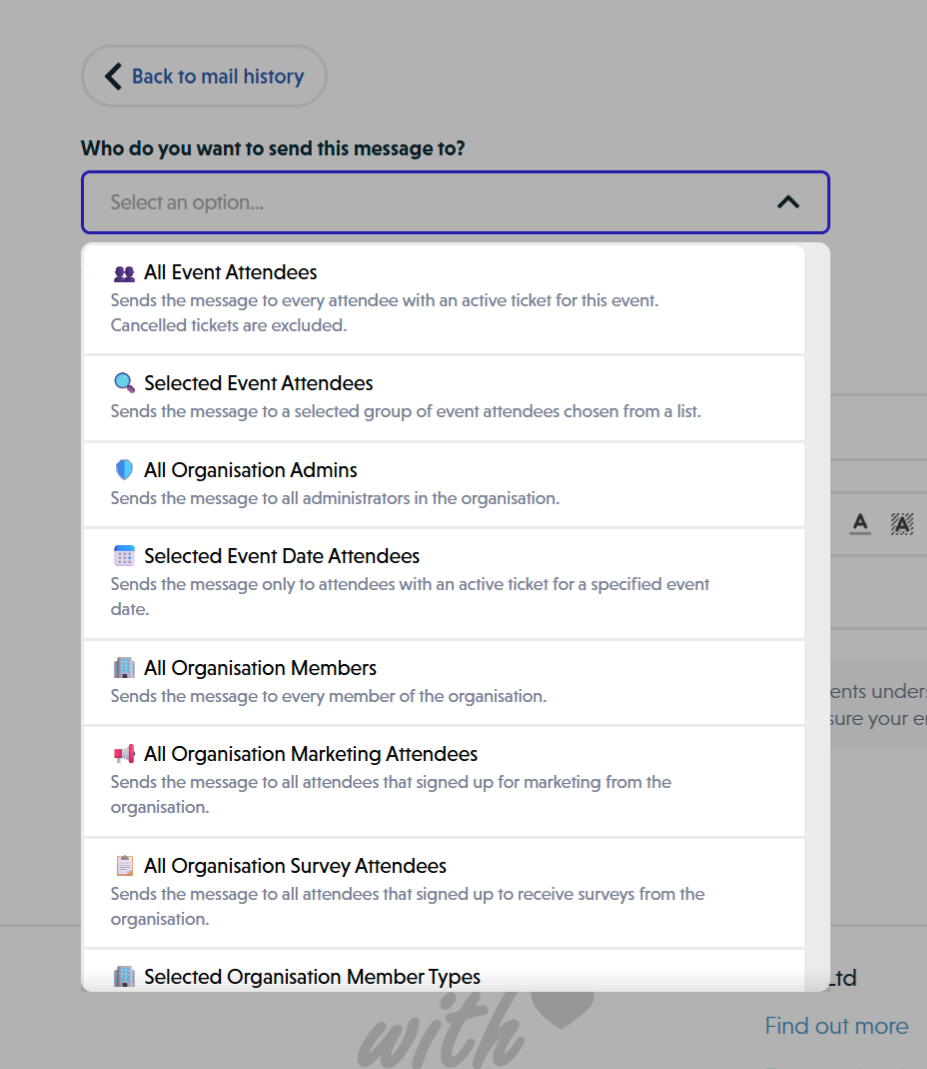 Recipient type dropdown showing all available recipient groups
Choose from various recipient groups depending on whether you're sending from an event or organisation:
Event-Level Recipients
All Event Attendees - Every attendee with an active ticket for this event (cancelled tickets excluded)
All Event Marketing Attendees - Attendees who opted in to marketing communications during their order
Selected Event Attendees - Choose specific attendees from a searchable list
- Manually select individual email addresses
- Only includes attendees with active tickets
- Useful for targeted communications
Selected Event Date Attendees - Target attendees for specific performance dates
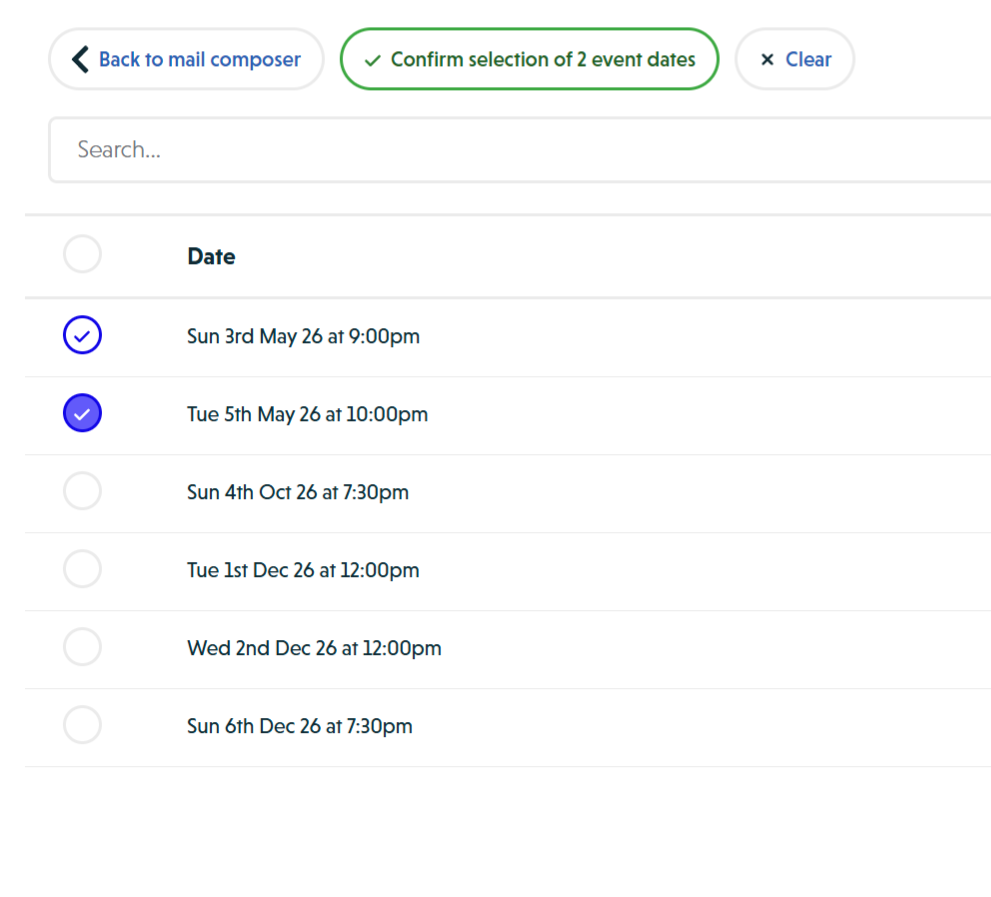 Event date selection showing checkboxes for individual performance dates
- Select one or multiple event dates
- Only emails attendees with tickets for chosen dates
- Ideal for date-specific information (e.g., "Tomorrow's matinee performance")
Organisation-Level Recipients
All Organisation Members - Every member of your organisation
Selected Organisation Member Types - Filter by membership categories
- Choose one or multiple member types
- Target specific membership tiers or groups
- Examples: "Gold Members", "Student Members", "Staff"
All Organisation Marketing Attendees - All past attendees who signed up for marketing communications from your organisation
All Organisation Survey Attendees - All past attendees who agreed to receive surveys from your organisation
All Organisation Admins - All administrators within your organisation
Excluding Existing Ticket Holders
For event-level mailshots, a checkbox "Exclude people who already have tickets for this event" lets you remove anyone who has already booked from the recipient list. This is useful when promoting an event to past audiences without re-marketing it to people who have already bought in.
- Available on any event-scoped mailshot
- Matches by email address against orders for this event
- The recipient count updates live; the count of excluded addresses is shown beside it
Pair this with All Organisation Marketing Attendees or All Event Marketing Attendees to send a promotional reminder only to past audiences who haven't yet bought for the new run.
Email Preview & Validation
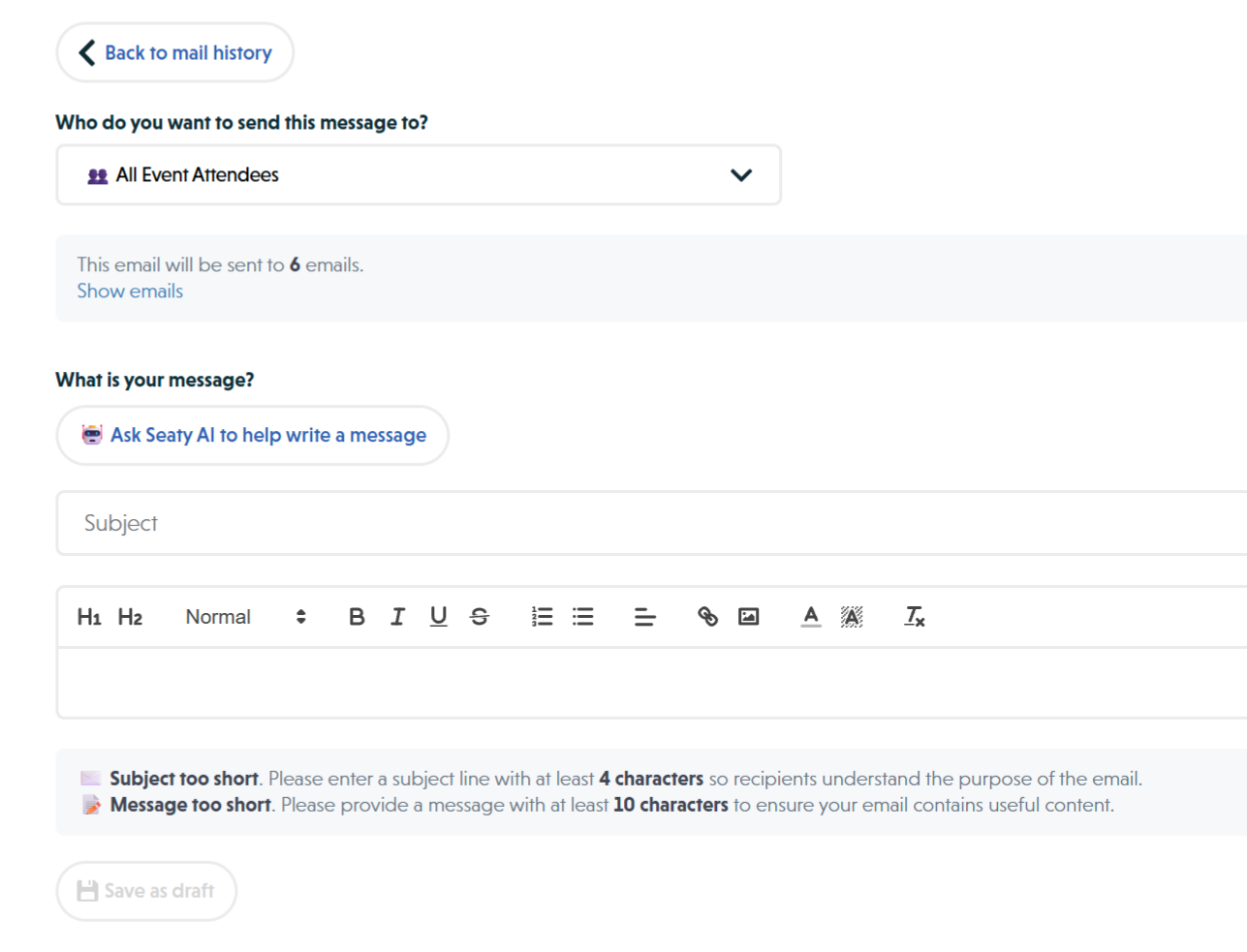 Recipients selected showing email count and option to view email addresses
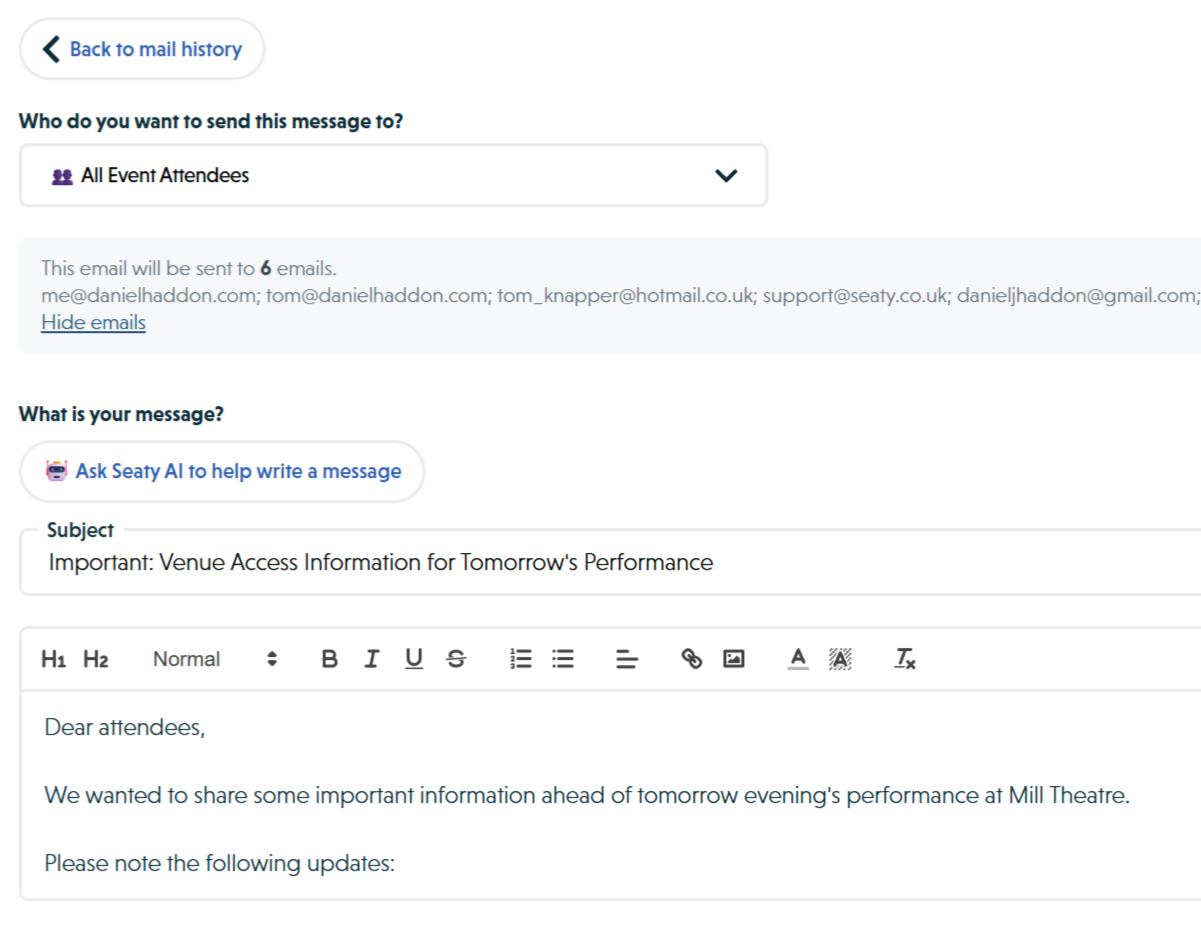 Expanded recipient list showing all email addresses that will receive the message
After selecting recipients, the system shows:
Active Recipients:
- Number of emails that will be sent
- Option to view the full list of email addresses
- These recipients have not unsubscribed
Inactive Recipients:
- Number of emails that have unsubscribed
- Option to view the list of unsubscribed addresses
- These recipients will NOT receive the email
Validation Requirements:
- Subject must be at least 4 characters
- Message must be at least 10 characters
- At least one active recipient must be selected
- For selection-based recipients, at least one attendee/date/member type must be chosen
Compliance & Best Practices
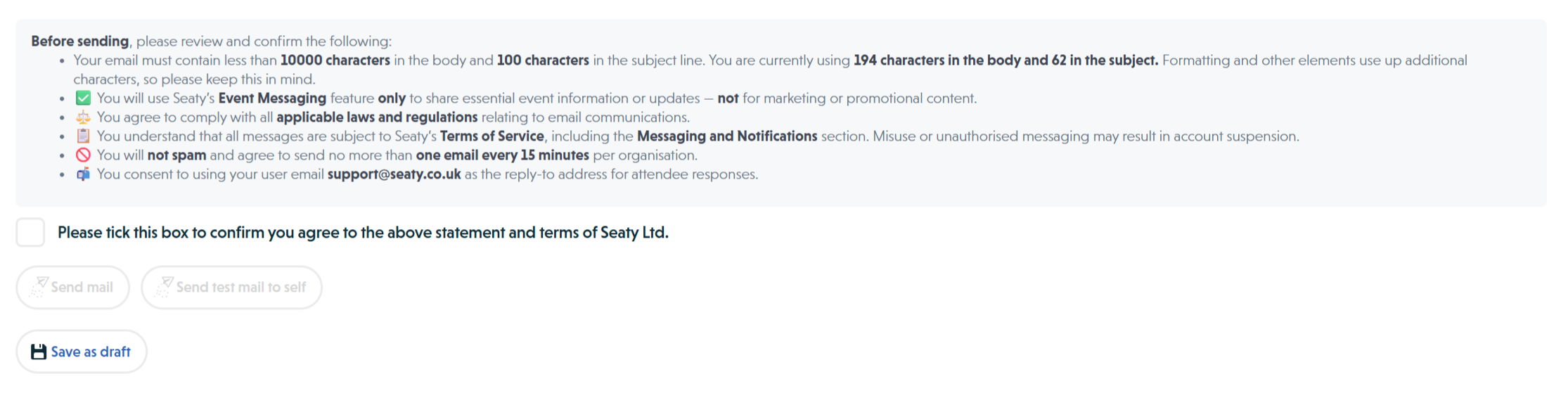 Compliance terms, confirmation checkbox, and send options
Before sending, you must confirm the following terms:
Legal Requirements
Purpose: Email must be used only for essential event information or updates, not for marketing or promotional content.
Legal Compliance: You agree to comply with all applicable laws and regulations relating to email communications, including:
- UK GDPR requirements
- Privacy and Electronic Communications Regulations (PECR)
- Data Protection Act 2018
Terms of Service: All messages are subject to Seaty's Terms of Service, including the Messaging and Notifications section. Misuse or unauthorised messaging may result in account suspension.
Anti-Spam: You agree to send no more than one email every 15 minutes per organisation.
Reply-To Address: Your user email address will be used as the reply-to address for attendee responses.
AI Content Validation
Seaty uses AI to automatically review email content before sending. The AI checks for:
Blocked Content (Event Updates):
- Marketing or promotional content
- Promotion of future shows, events, or services
- Mentions of ticket sales, prices, or booking links
- Persuasive language designed to encourage attendance (e.g., "Don't miss out", "Secure your seats")
Blocked Content (Survey Lists):
- Survey or feedback requests (unless sending to survey-specific lists)
Allowed Content (Marketing Lists):
- If sending to marketing-specific recipient lists, promotional content is permitted
What Happens if Content is Blocked:
- You'll receive a clear error message explaining why the email cannot be sent
- Edit your content to remove restricted elements
- Resubmit for validation
Email Preferences & Unsubscribes
Recipients can manage their email preferences through Seaty:
Preference Categories:
- Event Updates: Essential event information (cannot unsubscribe if they have tickets)
- Marketing: Promotional content and announcements
- Surveys: Feedback and survey requests
When recipients unsubscribe:
- They're automatically filtered from future mailings in that category
- They'll appear in the "Inactive Recipients" list
- Their preference is organisation-specific
- Event update emails are still sent to active ticket holders regardless of preferences
Sending Options
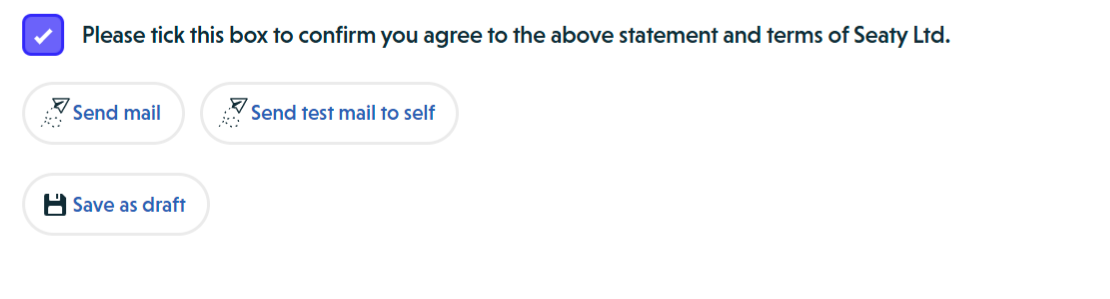 Compose form with compliance checkbox ticked and Send mail and Send test mail to self buttons enabled
Test Email
Before sending to all recipients:
- Click "Send test mail to self"
- The email will be sent only to your user account
- Review formatting, links, and content
- Make any necessary adjustments
- Return to send the actual campaign
When to use test emails:
- First time using the Mail feature
- Complex formatting with images and links
- Important announcements where accuracy is critical
- Testing mobile vs desktop rendering
Send Email
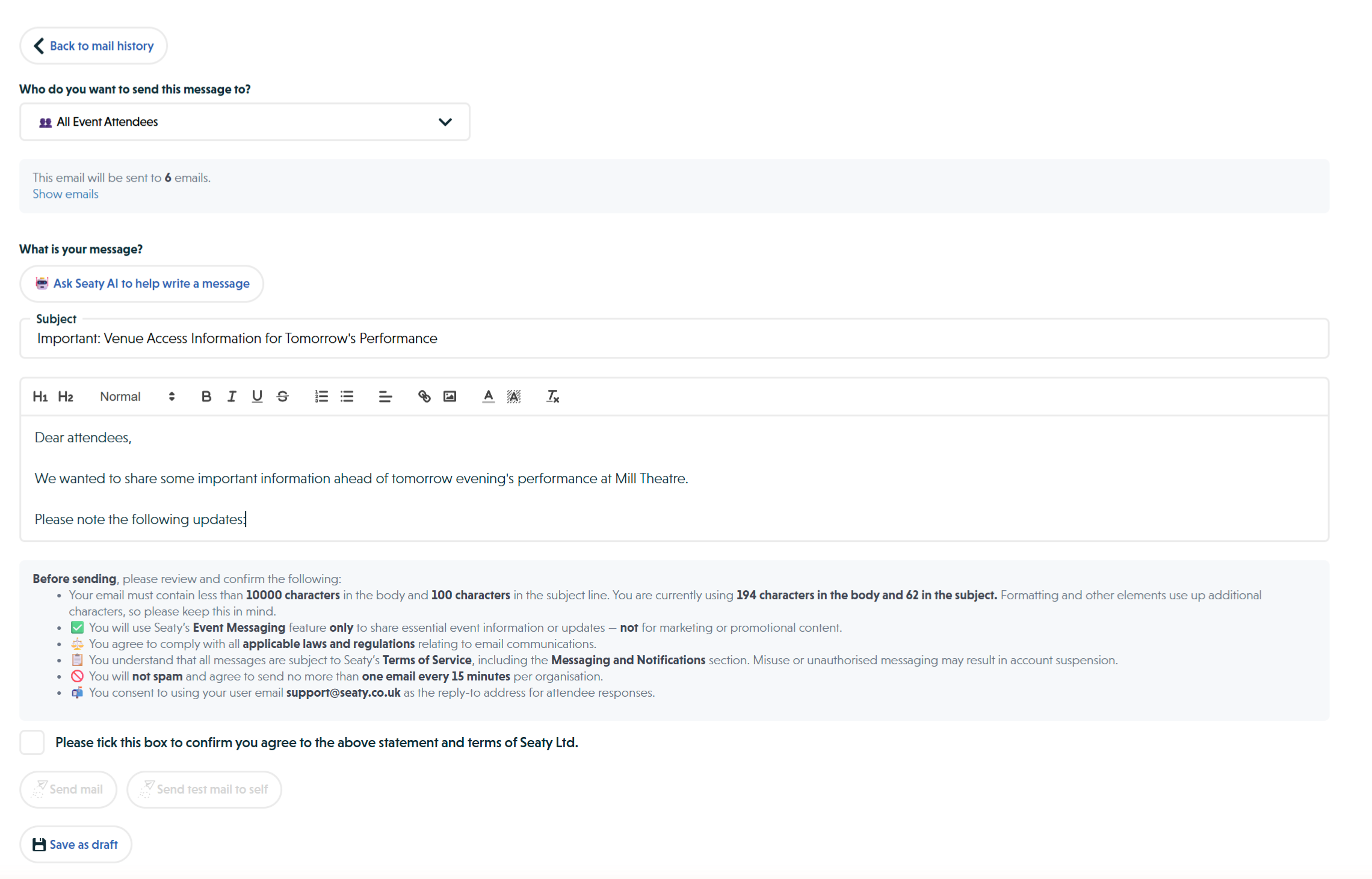 Email compose with subject, body content, and character count showing
When ready to send:
- Review recipient count and message content
- Check the compliance checkbox
- Click "Send mail"
- Confirmation will appear when sending completes
- The email is immediately queued for delivery
Sending Process:
- Emails are sent through Seaty's email service
- Delivery typically completes within minutes
- Large recipient lists may take longer
- You'll receive a confirmation once sending begins
Draft Management
 Email history showing a saved draft with Draft prefix and Not sent status
Save emails as drafts to complete later:
Saving Drafts
- Compose your email (subject and body)
- Click "Save as draft"
- Draft appears in your mail history with "Draft:" prefix
- Drafts are saved per event or organisation
Requirements to save:
- Subject must be at least 4 characters
- Message must be at least 10 characters
Editing Drafts
- Find the draft in your mail history
- Click the edit (pencil) icon
- Make your changes
- Either save as draft again or send the email
Note: Sending a draft will update the existing record rather than creating a duplicate.
Email History
 Email history showing a sent email with sender, recipients, subject, and date
View all past emails and drafts in the mail history:
History Display
Table Columns:
- By: Name and email address of sender
- To: Recipient type and number of emails sent
- Subject: Email subject line (drafts show "Draft:" prefix)
- Date Sent: Date and time of sending (drafts show "Not sent")
Actions
View Sent Emails:
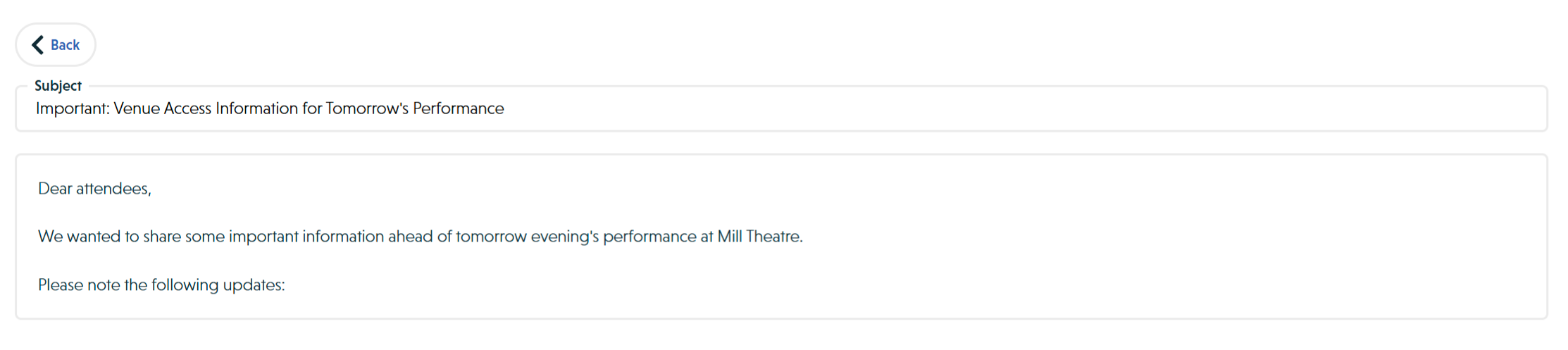 Read-only preview of a sent email showing subject and body content
- Click the view (document) icon
- Opens read-only preview of subject and body
- Useful for reference or copying content
Edit Drafts:
- Click the edit (pencil) icon
- Opens draft in composer for editing
- Continue where you left off
Search & Filter
Use the search box to filter history by:
- Subject line text
- Sender email address
- Recipient type
- Date sent (searches formatted dates like "Monday 5th January 2025")
Email Activity Tracking
 Email Activity report showing delivery tracking with date, recipient, email type, and activity columns
Track delivery and engagement metrics for sent mailshots to understand how recipients interact with your emails.
Accessing Email Activity
For any sent email (not drafts):
- Find the email in your mail history
- Click the activity icon next to the view button
- Opens the Email Activity report filtered to that specific mailshot
What's Tracked:
The activity report shows individual email events for each recipient:
- Sent - Email was successfully delivered to the recipient's inbox
- Bounce - Email was rejected by the recipient's email server (invalid address, full inbox, etc.)
- Open - Recipient opened the email
- Click - Recipient clicked a link in the email
Note: Only bounces, opens, and clicks are recorded to keep the system focused on useful engagement information.
Understanding the Activity Report
Report Header:
When viewing activity for a specific mailshot, the report shows:
- Email subject as the report title
- Expected recipient count (how many emails you sent)
- Actual tracked events count
Filtering & Searching:
Use the report's built-in tools to analyse activity:
- Search - Find specific recipient email addresses
- Sort - Click column headers to sort by date, recipient, or activity type
- Filter - Use the search box to filter by recipient name or email
- Column Selection - Show or hide specific columns
Export Options:
Download the full activity data:
- Click "Export to Excel" button
- Downloads a spreadsheet with all email events
- Includes recipient, date, activity type, and related order information
- Useful for detailed analysis or record keeping
Activity Report Details
Event Types Explained:
Bounce Events:
- Hard Bounce - Permanent delivery failure (invalid email address, domain doesn't exist)
- Soft Bounce - Temporary delivery failure (mailbox full, server temporarily unavailable)
- Action: Review hard bounces and update customer records if needed
Open Events:
- Recorded when recipient views the email in their email client
- Multiple opens by the same recipient may be tracked
- Note: Some email clients block tracking pixels, so actual opens may be higher
Click Events:
- Recorded when recipient clicks any link in your email
- Shows engagement with your content and calls to action
- Multiple clicks from same recipient are tracked separately
- Each click on a Seaty link is also recorded first-party (deduplicated, bot-filtered) so the count survives if your email provider's tracking is unavailable
Direct Results (Attributed Orders & Revenue):
This is fully automatic. You do not need to create a campaign or add any reference tag to links in the email. Seaty appends invisible tracking parameters to every Seaty link in the mailshot HTML when it's sent, and uses those to attribute clicks and purchases back to the mailshot.
- Orders placed within 30 days of clicking a link in this mailshot are attributed back to it
- Attribution uses last-touch semantics: if a recipient clicks a different campaign link afterwards, that newer click takes the credit
- The "Direct results" card on the mailshot detail page shows attributed tickets, attributed orders, and £ revenue
- Anonymous purchases (the buyer is not logged in) are still attributed via the click that landed them on the site
- The separate Marketing Campaigns feature is for off-platform promotions (posters, social posts, QR codes), so you do not need to use it for tracking mailshots
Most Clicked Links:
- The mailshot detail page lists the URLs that received the most clicks in this email
- Counts combine first-party click tracking with the email provider's webhook data
- Useful for seeing which calls to action drove the strongest response
No Activity:
- If a recipient has no events, they may have:
- Not opened the email yet
- Blocked tracking pixels (privacy settings)
- Email filtered to spam/junk folder
- Deleted email without opening
Interpreting Engagement Metrics
Healthy Engagement Indicators:
- Low bounce rate (under 5%) indicates good email list quality
- Open rates vary by content and audience (10-30% is typical for event updates)
- Any click activity shows recipients are engaging with your content
Concerning Patterns:
- High bounce rates (over 10%) suggest outdated email addresses
- Zero opens may indicate spam folder issues or poor subject lines
- Consistent bounces from same domains may indicate technical issues
Using Activity Data:
Improve Future Emails:
- Review which subject lines get higher open rates
- Check which content generates clicks
- Identify optimal sending times based on open patterns
- Learn what messaging resonates with your audience
Maintain Email List Quality:
- Remove consistently bouncing addresses
- Focus on engaged recipients for future targeted emails
- Update contact information for hard bounces
Compliance & Records:
- Keep records of what was sent and to whom
- Track unsubscribe patterns to adjust sending frequency
- Document delivery issues for customer support
Organisation-Level Email Activity
Email activity tracking works the same way for organisation-level mailshots:
- Navigate to your organisation's Mail section
- Find sent emails in the history
- Click the activity icon to view engagement metrics
- Report includes an additional "Event" column showing which event each email relates to (if applicable)
This helps you track engagement across all events within your organisation and understand which events generate the most email engagement.
Best Practices
Writing Effective Emails
Subject Lines:
- Keep concise and descriptive
- Include event name for multi-event organisations
- Use action-oriented language for urgent updates
- Example: "Important: Tomorrow's Performance Start Time Changed"
Message Content:
- Lead with the most important information
- Use clear, plain language
- Break up text with headings and lists
- Include relevant contact information
- Add links to helpful resources
Timing:
- Send time-sensitive updates as soon as possible
- Avoid sending late at night (consider recipient time zones)
- For multi-date events, send date-specific emails 24-48 hours before
- Respect the 15-minute minimum between emails
Accessibility Considerations
Formatting:
- Use headings to structure content hierarchically
- Ensure sufficient colour contrast for text
- Don't rely solely on colour to convey meaning
- Keep paragraphs short and scannable
Images:
- Always include descriptive alt text (via image properties)
- Don't embed critical information only in images
- Ensure images are hosted reliably
Links:
- Use descriptive link text (not "click here")
- Example: "View the venue access guide" instead of "Click here"
Compliance Tips
Staying Within Guidelines:
- Focus on event logistics, updates, and essential information
- Save promotional content for marketing-specific recipient lists
- When in doubt, test with AI validation
- Keep records of what you've communicated
Building Trust:
- Only email when you have something valuable to share
- Respect the 15-minute rate limit
- Monitor unsubscribe rates (high rates may indicate over-emailing)
- Respond promptly to replies (your email is the reply-to address)
Troubleshooting
Common Issues
"No active emails for this selection"
- All recipients in your selected group have unsubscribed
- Choose a different recipient group
- Check if you've selected any attendees/dates/member types
"Your organisation has sent an email within the 15 minutes"
- Wait the full 15 minutes before sending another email
- Rate limit applies per organisation, not per user
- Use test emails for testing without triggering the limit
"Your email is too long"
- Current body exceeds 10,000 characters
- Embedded images dramatically increase size (use URL images instead)
- Reduce formatting or split into multiple communications
- Subject exceeds 100 characters
AI blocks email content:
- Read the error message carefully
- Remove promotional language or calls to action
- Focus on essential event information
- Consider using marketing recipient lists if appropriate
Recipients aren't receiving emails:
- Check they haven't unsubscribed (view inactive recipients)
- Verify email addresses are correct in their orders
- Ask recipients to check spam/junk folders
- Confirm your test email arrived successfully
Getting Help
If you encounter persistent issues:
- Try sending a test email to yourself first
- Review the compliance guidelines carefully
- Check your organisation's email sending history
- Contact Seaty support with specific error messages
How Email Delivery Works
Your emails are sent through a professional email service that ensures reliable delivery to recipients' inboxes. All emails:
- Include your event or organisation's branding and colours
- Automatically include unsubscribe links as required by law
- Are delivered typically within minutes
All email data is handled in compliance with UK data protection regulations (GDPR). Recipients can manage their email preferences at any time.
Common Questions
Sending Emails
Can I send marketing or promotional emails? Only if you're sending to marketing-specific recipient lists. Regular event attendee lists are for essential event information only, such as schedule changes, venue updates, or important reminders.
How often can I send emails? You can send one email every 15 minutes per organisation. This limit helps prevent accidental over-communication and ensures deliverability.
What happens if my content is blocked by AI validation? You'll receive an error message explaining why. Edit your content to remove promotional language, then try again. If you need to send promotional content, use the marketing-specific recipient lists.
Recipients
Why are some recipients showing as inactive? These recipients have unsubscribed from the type of email you're trying to send. They won't receive your message, and their preferences are respected automatically.
Can attendees unsubscribe from essential event updates? No. If someone has an active ticket to your event, they'll receive essential event information regardless of their marketing preferences. This ensures they don't miss important updates about their booking.
What's the difference between event-level and organisation-level recipients? Event-level recipients are specific to one event (attendees, date-specific groups). Organisation-level recipients span your entire organisation (members, all past attendees who opted in to marketing).
Drafts and Testing
Can I save a draft and finish it later? Yes. Click "Save as draft" and it will appear in your mail history with a "Draft:" prefix. You can edit it anytime before sending.
Should I send a test email first? It's recommended, especially for important announcements or when using complex formatting. The test email goes only to your account so you can check how it looks before sending to everyone.
Image Gallery
How many images can I attach? Up to 5 per mailshot. If you need more, consider linking to an external gallery from your body copy.
What image sizes work best? Upload the largest, highest-quality version you have. Seaty automatically resizes and crops for the email body, and keeps a sharper version for the gallery page recipients click through to.
What file formats are accepted? JPEG and PNG. Animated GIFs are not supported.
What if my image looks cropped wrong in the email? Click the focus icon on the image tile and drag the crosshair to the part of the photo you want kept visible. The crop updates across every layout immediately.
Can I mix portrait and landscape images? Yes. The Grid layout handles mixed orientations; Stacked works best when most images are portrait; Hero + thumbnails works well with any mix when one photo is clearly the headline.
Do gallery images count towards the 10,000 character body limit? No. The gallery is a separate attachment, so your body text has its full character limit regardless of how many images you attach.
Why does the email show a smaller version of my image than what I uploaded? Email clients don't render huge images well, so we produce client-optimised crops sized for each cell. The gallery page (which recipients reach by clicking any image) shows a much sharper version.
Can recipients share the gallery link? Yes. It's a standard web link, safe to forward or post. Anyone with the link can view the images, so treat it like a Dropbox share link.
What happens if I delete a photo from storage after saving a draft? When you reopen the draft, deleted images are automatically removed from the gallery. You'll never accidentally send a mailshot with broken images.
Do gallery images appear if the recipient's email client blocks images? Text still renders, but the gallery won't. This is true of any image in any email. The clickable gallery page link is embedded with the images, so recipients who allow images can always click through.
Tracking and Delivery
How do I know if my emails were delivered? Check the Email Activity report by clicking the chart icon next to any sent email. You can see delivery status, bounces, opens, and clicks.
What should I do about bounced emails? Hard bounces indicate invalid addresses that should be updated. Soft bounces are temporary and may succeed on retry. Review bounces periodically to maintain list quality.
Why might open rates appear lower than expected? Some email clients block tracking pixels for privacy reasons. Your actual open rate is likely higher than reported. Focus on engagement trends rather than absolute numbers.
Related Features
- Attendees Section: View all attendees and their email addresses
- Feed Section: See order history including customer contact details
- Members Section: Manage organisation members who can receive emails
- User Account Preferences: Recipients manage their email preferences here