Lock Management: View and Release Held Seats in Bulk
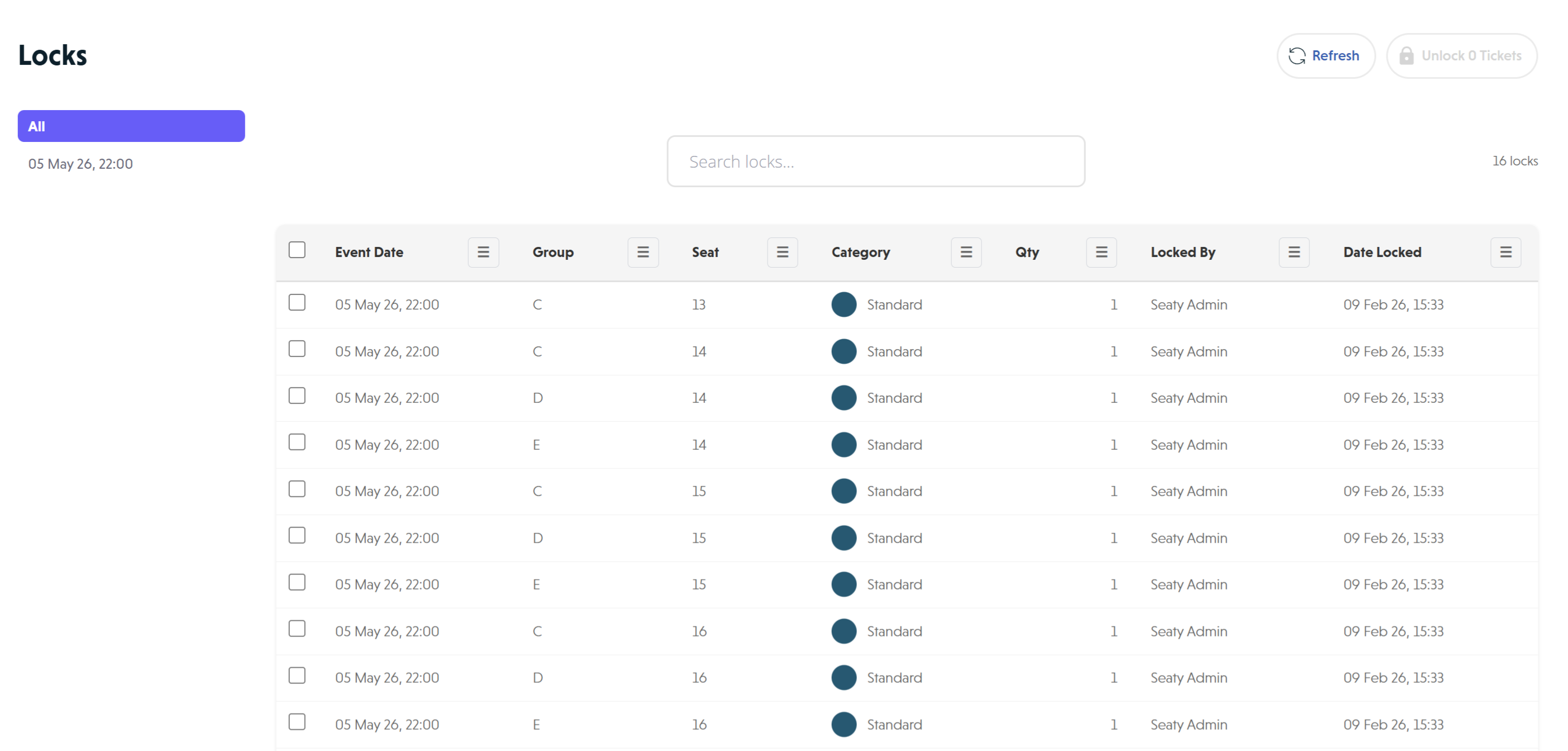 Locks page showing locked seats
Overview
When customers select seats and begin checkout, or when administrators reserve seats for special purposes, those seats become temporarily unavailable to others. The Locks section shows you all currently locked seats across your event and lets you release them when needed.
At its simplest, lock management answers one question: Which seats are being held, and should they still be?
Who uses this: Event administrators with EventLocks permission.
Key capabilities:
- View all locked seats across your event dates in one place
- Filter locks by specific event date or view all dates together
- Search for locks by seat name, category, administrator, or date
- Select and unlock multiple seats at once
- Identify orphaned locks that should be released
Think of it this way:
- Customer locks protect seats during checkout (expire automatically)
- Admin locks reserve seats for special purposes (persist until removed)
- Lock management lets you see and release both types
How It Works
At a glance: Check which seats are locked, decide if they should stay locked, and release them if not.
1. View your locked inventory
Navigate to the Locks section from the event admin menu. You see a list of all currently locked seats, organised by event date. Each lock shows the seat name, category, who locked it, and when.
2. Find specific locks
Use the search bar or date filter to narrow down what you're looking for. Search works across seat names, categories, administrator names, and lock dates. For multi-date events, filter by specific performance to focus on one show at a time.
3. Release locks that are no longer needed
Select the locks you want to release using checkboxes, then click the unlock button. The seats immediately become available for customers to purchase.
Availability
The Locks section only appears for events with seating plans.
- Requirement: Your event must have a seating plan configured
- Permission: EventLocks permission required
- Location: Operations menu group (from event admin) or Admin Options (from event date menu)
General admission events don't have individual seats to lock, so this section won't appear.
Viewing Locks
The Locks interface shows all currently locked seats across your event dates.
Multi-Date Events
For events with multiple dates:
- Side menu: Lists each event date plus an "All" option
- Click a date: See only locks for that specific performance
- Click "All": See locks across every event date at once
Single-Date View
When viewing a specific event date directly (not from the main event), only locks for that date appear without the side menu.
Information Displayed
For each locked seat:
| Column | Description |
|---|---|
| Name | Row and seat number (e.g., "A12") |
| Category | Seat category name |
| Locked By | Administrator who created the lock |
| Date Locked | When the lock was created (DD MMM YY, HH:mm) |
| Event Date | Which performance (only shown when viewing all dates) |
Search
Type in the search bar to filter locks by:
- Seat category name
- Seat identifier (row + number)
- Administrator name
- Lock date
Press Enter or click the search icon to apply your search.
Managing Locks
Unlocking Seats
To release locked seats:
- Click the checkbox next to individual locks, or use the header checkbox to select all visible locks
- Click "Unlock X Tickets" (where X is the number selected)
- Seats immediately become available for purchase
Selection Controls
| Action | How |
|---|---|
| Select individual locks | Click the checkbox in each row |
| Select all visible locks | Click the checkbox in the table header |
| Deselect all | Click the header checkbox again |
Why "visible" locks? When you use search or date filters, bulk selection only applies to the filtered results. This prevents accidentally unlocking seats you can't see.
Admin vs Customer Locks
Locks created by administrators persist until manually removed. Customer checkout locks expire automatically when checkout times out or completes.
Understanding Lock Types
Customer Checkout Locks
When customers select seats and begin checkout, those seats are temporarily locked. These locks:
- Expire automatically if checkout isn't completed
- Release if the customer closes their browser or navigates away
- Prevent other customers from purchasing the same seats during checkout
Why this matters for admins: You may see customer locks in the Locks section. These usually clear themselves, but if a customer abandons checkout without completing, the lock remains until it expires.
Admin Locks
When you or another administrator locks seats from the order screen (see /Docs/EventManagement/LockingSeats), those locks:
- Persist indefinitely until manually removed
- Show the administrator's name in "Locked By"
- Can be unlocked through this interface, through the lock modal on the seating plan, or automatically when an admin completes an order for the locked seats
Why the difference? Customer locks need to expire to prevent abandoned checkouts from blocking inventory forever. Admin locks persist because they represent intentional reservations that shouldn't disappear unexpectedly.
Admin booking of locked seats: Administrators can select and book locked seats directly from the seating plan. Locked seats appear with a lock icon and distinct styling visible only to admins. When an admin completes an order (including card payments) for locked seats, the locks are automatically removed.
Why Locks Exist
Locks prevent double-booking during the checkout process.
Without locking, this could happen:
- Customer A selects seats and begins entering payment details
- Customer B sees the same seats as available and starts checkout
- Customer B completes payment first
- Customer A completes payment only to find their seats were already sold
- Customer A must start over or abandon their purchase
Locking ensures that once a customer begins checkout, their seats are protected while they complete payment.
Troubleshooting
Seats Unavailable But No Orders Exist
What's happening: Locks may be stuck from an incomplete checkout or forgotten admin reservation.
What to do:
- Open the Locks section for your event
- Search for the specific seats
- Select and unlock them
- Refresh the seating plan to confirm seats are now available
Customer Says Seats Disappeared During Checkout
What's happening: Either the checkout took too long and the lock expired, or another customer selected the seats first.
What to tell them:
- Seats are held temporarily during checkout to give time to complete payment
- If checkout takes too long, seats become available again to be fair to other customers
- Another customer may have selected those seats moments before
What you can do: If the customer contacts you directly, lock their desired seats while they complete their purchase.
Unlocked Seats Still Show as Taken
What's happening: The display may not have updated yet.
What to do:
- Wait about 30 seconds
- Refresh the page
- If seats still show as unavailable, check the Orders section to verify no order exists
- Contact support if the problem persists
Can't Find Expected Locks
What's happening: You may be filtered to a different event date, or the locks were already removed.
What to do:
- Click "All" in the side menu to view locks across all dates
- Clear any search text
- Check that your event has a seating plan (general admission events don't have locks)
Creating Locks
This guide covers viewing and managing existing locks. To create new locks from the seating plan, see /Docs/EventManagement/LockingSeats.
When to Use Locks
Good Uses
| Scenario | Why locking works |
|---|---|
| VIP holds | Reserve premium seats for sponsors or guests until confirmed |
| Group bookings | Hold a section while confirming details with a school or organisation |
| Phone orders | Secure seats while taking payment over the phone |
| Technical issues | Hold seats while helping a customer resolve payment problems |
Better Alternatives
| Scenario | Better approach |
|---|---|
| Regular sales | Let automatic checkout locking handle normal purchases |
| Long-term reservations | Create complimentary orders instead of indefinite locks |
| Permanently unavailable seats | Adjust the seating plan or seat category availability |
Why not lock long-term? Locks reduce your visible available inventory. For anything more than a few days, creating an actual order (even complimentary) gives you better tracking and doesn't require remembering to unlock later.
Common Questions
Viewing and Finding Locks
How do I see locks for all my event dates at once?
Click "All" in the side menu. This shows every lock across all performances in one list.
Why can't I see the Locks section in my admin menu?
The Locks section only appears for events with seating plans. General admission events don't have individual seats to lock. Also verify you have the EventLocks permission.
Can I see who created each lock?
Yes. The "Locked By" column shows the administrator name for each lock.
Unlocking and Releasing
What happens when I unlock seats?
The seats immediately become available for customers to purchase. There's no delay or confirmation step after clicking unlock.
Can I unlock seats locked by another administrator?
Yes. Any administrator with EventLocks permission can unlock any lock, regardless of who created it.
Will unlocking seats affect existing orders?
No. Locks and orders are separate. Unlocking a seat only affects that lock, not any orders for the same seat on other dates.
Lock Behaviour
Do customer checkout locks appear in this list?
Yes. You may see locks from customers currently in checkout. These expire automatically when checkout completes or times out.
How long do customer locks last?
Customer locks expire automatically if checkout isn't completed within a reasonable time. You don't need to manually clear them.
How long do admin locks last?
Admin locks persist indefinitely until manually removed or until an admin completes an order for the locked seats. They won't expire on their own.