Event Activity Feed: Orders, Refunds and Payments
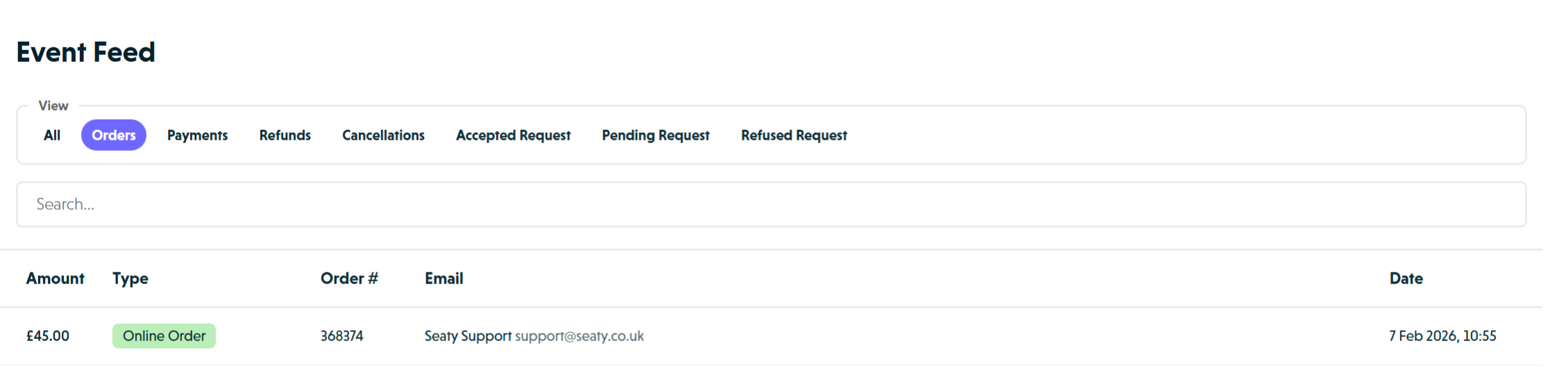 Feed showing order activity
Overview
The feed provides a complete record of all financial activity for your events, showing every order, payment, refund, and cancellation as it happens.
At its simplest, the feed answers one question: What transactions have occurred and when?
Who uses this: Event administrators tracking order activity and financial records.
Key capabilities:
- View all orders, payments, refunds, and cancellations in chronological order
- Filter by transaction type to find specific activity
- Search for orders by customer name, email, or order number
- Access full order details with one click
- Monitor ticket requests (when requesting is enabled for the event)
How It Works
At a glance: New transactions appear at the top. Filter and search to find specific records. Click any row to view full details.
1. View activity
The feed loads automatically when you open the section, showing the most recent 50 orders by default. Each row displays the amount, type, order number, customer details, and date.
2. Filter by type
Use the filter buttons to narrow down what you see. Select "Orders" to see all confirmed orders, "Payments" for balance payments, "Refunds" for returned funds, or "Cancellations" for cancelled orders.
3. Search for specific records
Type a customer's name, email address, or order number into the search box and press Enter. The search works alongside filters, so you can combine both to narrow results.
4. View full details
Click any transaction row to open the full details. For orders, this opens the order dashboard where you can process refunds, edit notes, or resend confirmations. For requests, this opens the request modal where you can approve or decline.
Think of it this way:
- The feed shows what happened (transactions and timing)
- The order dashboard lets you take action (refunds, edits, communications)
- Summary shows aggregate numbers (totals, statistics)
Feed Display
Each transaction row shows:
- Amount: The order total in your organisation's currency
- Type: Transaction category with colour-coded badge
- Order #: Order number for tracking
- Event: Event tag (shown in organisation-level view only)
- Email: Attendee name and email address
- Date: Transaction timestamp in the event's timezone
Type Badges
Transaction types are colour-coded for quick identification:
| Type | Colour | Meaning |
|---|---|---|
| Admin Order, Online Order, Request Order | Green | Confirmed orders |
| Accepted Request | Green | Approved ticket requests |
| Payment | Dark green | Balance payments received |
| Pending Request | Yellow/Warning | Requests awaiting your decision |
| Refund, Cancellation, Refused Request | Red | Returned funds or declined |
Note: Failed payment attempts show an error message below the customer details in red text.
Filtering by Transaction Type
Use the filter buttons at the top of the feed to narrow down transactions:
- All: Show all transaction types
- Orders: All confirmed orders (admin, online, and request orders)
- Payments: Standalone payment transactions (balance payments)
- Refunds: Refund transactions
- Cancellations: Order cancellations
When ticket requesting is enabled for an event, additional filters appear:
- Accepted Request: Approved ticket requests converted to orders
- Pending Request: Requests awaiting your decision
- Refused Request: Declined ticket requests
Click a filter button to activate it. The selected filter will be highlighted.
Note: The request filters only appear when viewing an event that has requesting enabled.
Searching the Feed
Use the search box below the filter buttons to find specific orders:
- Type your search term in the search box
- Press Enter to filter results
The search finds matches in:
- Attendee names
- Email addresses
- Order references
The search works alongside filters, so you can combine a category filter with a search term to narrow results further.
Viewing Transaction Details
Click on any transaction row to open full details:
- Orders: Opens the order dashboard with complete information, tickets, payment history, and management actions
- Requests: Opens the request modal where you can approve, decline, or view request details
- Payments and Refunds: Opens payment details showing the transaction record
Note: Rows without a linked order, payment, or request cannot be clicked.
Pagination
The feed uses pagination to load transactions efficiently:
- Initial load: Shows the first 50 transactions
- Load more: Click the "Load more" button at the bottom to fetch the next batch
- Filtering: When you change filters or search, the feed resets and loads fresh results
Organisation vs Event Views
Event Feed:
- Shows only transactions for the selected event
- Date column shows the event's timezone
- No Event column (all transactions are for the same event)
- Request filters appear if requesting is enabled
Organisation Feed:
- Shows transactions across all events
- Includes Event column to identify which event
- Useful for organisation-wide financial review
Common Workflows
Finding a Specific Order
- Navigate to the Feed section
- Type the customer's email or name in the search box
- Press Enter to search
- Click the matching order to view details
Reviewing Pending Requests
- Click the Pending Request filter button
- Review pending ticket requests from customers
- Click each request to approve or decline
Monitoring Sales
- Open the Feed section
- Keep All or Orders filter selected
- Review recent transactions by date
- Click "Load more" to see older transactions
Common Questions
Viewing Activity
Why do I see "There are no results available"?
This means no transactions match your current search and filter combination. Try clearing the search box, selecting a different filter, or checking you are viewing the correct event or organisation.
Does the feed update automatically?
The feed refreshes automatically after you close an order or request modal. To manually refresh, change your filter or search term.
Transaction Types
What's the difference between Orders and Payments?
Orders are complete ticket purchases. Payments are standalone transactions where a customer paid a remaining balance on a partially-paid order (such as paying off an instalment or deposit).
Why can't I click on some rows?
Rows that represent standalone financial records without an associated order cannot be clicked. View the linked order directly if you need to take action.
Request Handling
Why don't I see the request filters?
Request filters only appear when viewing an event that has ticket requesting enabled. They do not appear on the organisation-wide feed.
What happens when I approve a pending request?
The request converts to an order. It will then appear in the feed as an "Accepted Request" or "Request Order" depending on when you view it.